


Networking hardware often behaves in mysterious ways. You execute a command, yet the machine sits entirely silent. This lack of response appears to indicate a fundamental breakdown in local communication.
Understanding exactly how to find your printers ip address provides a diagnostic baseline for fixing these frustrating errors. It grants you direct visibility into the digital routing of your home or office setup. Without this numerical identifier, your computer essentially shouts into an empty void.
We will examine several distinct methods to extract this hidden network location. The approach you choose may depend heavily on your specific operating system and hardware generation. By the end of this analysis, you should feel entirely capable of mapping your own peripheral devices.
Why Knowing How To Find Your Printers IP Address Matters?
Modern peripherals rarely rely on physical cables anymore. They float somewhere in the invisible spectrum of your local wireless band. This convenience introduces a layer of abstraction that complicates basic troubleshooting.
Knowing how to find your printers ip address strips away that confusing abstraction. It reveals the literal digital street address where your hardware currently resides. This knowledge empowers you to bypass faulty automatic discovery protocols.
Relying entirely on automatic software detection often leads to disappointment. Operating systems occasionally lose track of peripheral hardware following minor software updates. A manual IP intervention provides a remarkably stable, permanent solution to these recurring connection drops.
The Mechanics of Local Networks
Every device connected to a router requires a unique numerical signature. This string of numbers functions exactly like a standard postal address. It ensures that data packets reach the correct destination without getting lost in transit.
Your router acts as the absolute authority, assigning these addresses dynamically. This dynamic allocation may suggest why your device suddenly vanishes from the network map after a power outage. The router simply assigned it a brand new location without notifying your computer.
Understanding this dynamic behavior explains the vast majority of printing failures. The computer continues sending documents to an old, abandoned address. You must identify the new location to reestablish the broken communication bridge.
Diagnosing Connection Failures
When a print job fails, the underlying cause is rarely a mechanical hardware defect. It typically points toward a simple routing error within the local subnet. Extracting the current IP allows you to test the connection actively.
You can ping the address directly from your terminal. A successful ping appears to indicate that the network itself functions perfectly fine. The failure must therefore lie within the specific software drivers rather than the physical airwaves.
Isolating the variable saves you hours of unnecessary frustration. You avoid uninstalling software or replacing expensive ink cartridges when the issue is merely navigational. It brings a logical, scientific approach to home office maintenance.
Navigating the Operating System Interface
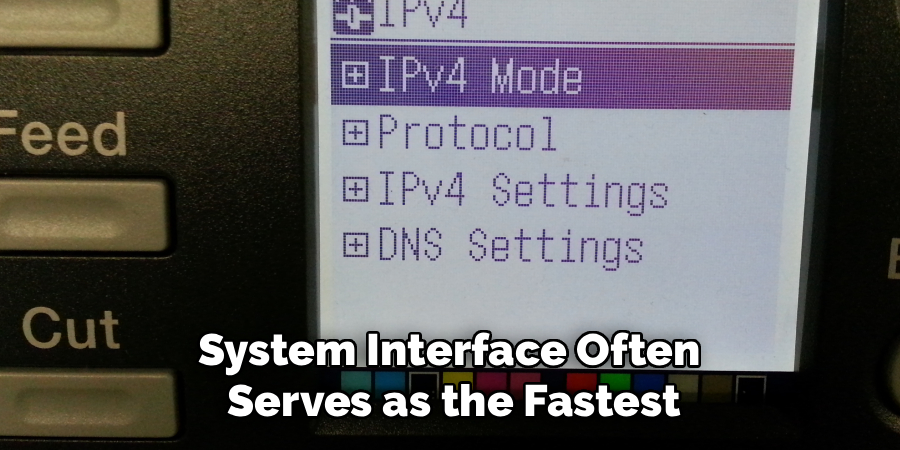
Your computer usually retains a detailed memory of its past connections. The operating system interface often serves as the fastest path to retrieving network data. However, the exact retrieval method varies dramatically depending on your chosen software ecosystem.
Engineers design these interfaces to hide complex numerical data from the average user. You must intentionally dig past the user-friendly icons to uncover the raw network metrics. This process requires a bit of navigational patience.
Extracting Data in Windows Environments
Microsoft Windows provides several pathways to view peripheral information. The most reliable method involves accessing the classic control panel. Modern settings menus sometimes obscure the granular details you actually need.
Navigate toward the section labeled for devices and hardware. Locate your specific machine in the populated grid. Right-clicking the icon usually reveals a specific properties menu filled with diagnostic tabs.
Check the tab specifically designated for web services or network ports. The IP address frequently rests quietly in this submenu, formatted as a standard IPv4 string. This four-part number is the exact sequence you need to record.
Exploring the macOS Ecosystem
Apple designs its software with a strong emphasis on visual simplicity. This minimalist philosophy sometimes makes finding raw network data slightly irritating. You must open the system preferences and locate the dedicated printers scanner section.
Select your specific device from the left-hand column. You should see an options button that opens a secondary diagnostic window. The numerical address usually sits right on the primary overview screen.
If the machine utilizes the Bonjour protocol, the address might be temporarily hidden. You may need to look under the general network settings instead. The system logs every connected client, provided you know exactly where to look.
How To Find Your Printers IP Address: Step-by-Step Guide
Sometimes the computer interface fails to provide the necessary data. The software might be completely disconnected, leaving the properties menu entirely blank. When software fails, you must pivot directly to the hardware itself.
This approach bypasses the computer entirely. It relies on the raw infrastructure of your home network. Following these physical steps guarantees you will uncover the necessary numerical sequence.
Step 1: Using the Printer’s Built-in Display
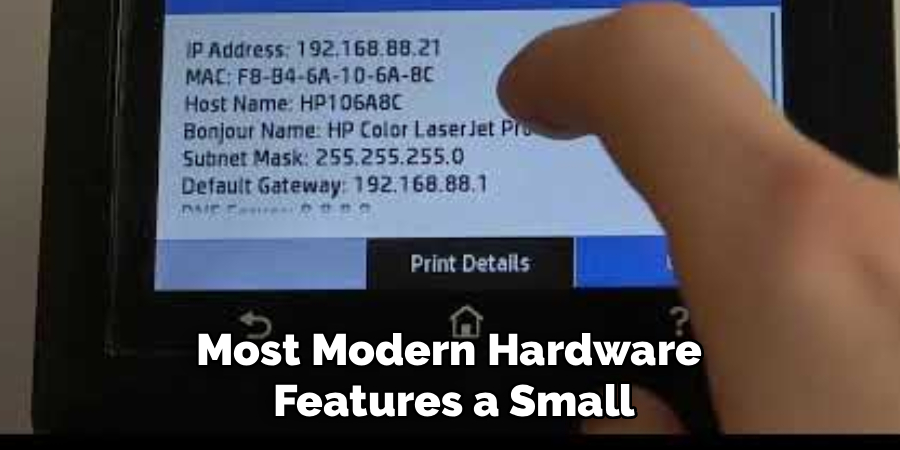
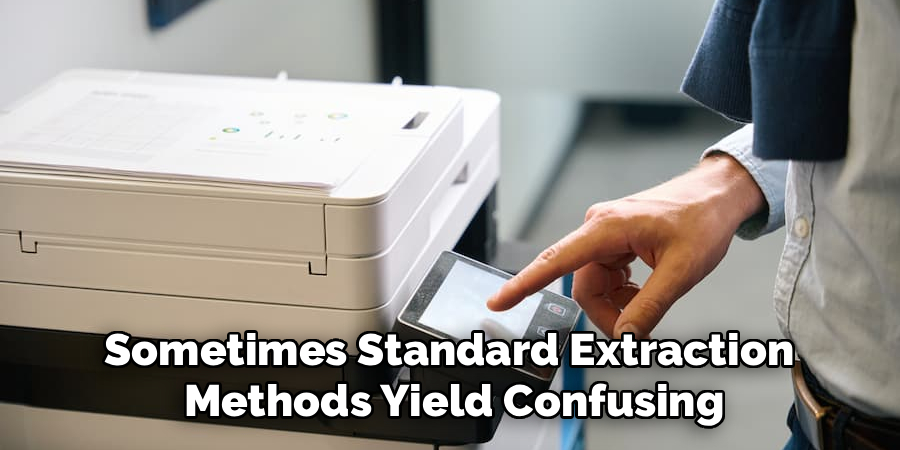
Most modern hardware features a small, illuminated LCD screen. This physical display acts as a direct window into the machine’s internal logic board. It is arguably the most reliable diagnostic tool available.
Press the physical gear icon to enter the primary settings menu. Scroll carefully until you find a section dedicated to network or wireless configuration. The exact phrasing varies slightly between different global manufacturers.
Select the option to view the current network status. The screen should immediately display the active Wi-Fi connection alongside the assigned IP string. Write this number down carefully on a physical piece of paper.
Step 2: Printing a Network Configuration Page
Older hardware occasionally lacks a digital display screen. This absence forces you to rely on a physical, printed diagnostic report. The machine can actually print its own internal network biography.
Locate the physical network button on the plastic casing. It usually resembles a small antenna or a stylized globe. Press and hold this specific button for approximately five seconds.
The machine should eventually pull a single sheet of paper and print a dense, technical report. Scan the text carefully for the IPv4 categorization. The required numerical address will be listed directly adjacent to that specific heading.
Step 3: Accessing the Router Interface

If the peripheral machine is completely unresponsive, you must consult the network authority. Your internet router maintains a comprehensive ledger of every connected client. Accessing this ledger requires a web browser and a bit of administrative access.
Type the router’s gateway address directly into your browser’s top navigation bar. This gateway is usually printed on a sticker beneath the physical router box. Enter your administrative credentials to bypass the security login screen.
Step 4: Interpreting Connected Devices
Once inside the router dashboard, you must locate the client list. This section might be labeled as a device map, connected clients, or DHCP leases. The terminology shifts depending on the specific firmware programmed by your internet service provider.
The screen will display a grid of every phone, television, and computer on the premises. Look for a manufacturer name like HP, Canon, or Brother. The corresponding IP address sits clearly in the adjacent column, ready for you to copy.
Advanced Troubleshooting Methods
Sometimes standard extraction methods yield confusing or conflicting results. The network might assign a temporary address that expires before you can actually use it. These shifting variables require a slightly more aggressive analytical approach.
Advanced users often rely on terminal commands to map their environments. These text-based utilities strip away graphical interfaces entirely. They provide raw, unfiltered data straight from the network card.
Command Line Utilities
The Windows command prompt offers a remarkably efficient discovery tool. You simply type a specific query and the system returns a physical map of the network. This method feels intimidating but operates on very simple logical parameters.
Typing “arp -a” instructs the computer to list every device it currently recognizes. The resulting text wall contains a list of physical MAC addresses tied to current IPs. You simply match the manufacturer’s physical address to the corresponding network location.
Third-Party Scanning Tools
If terminal commands seem overly abstract, independent software provides a middle ground. Network scanning applications ping every possible address on your local subnet. They generate a clean, highly readable list of active hardware.
These programs often identify the specific device type automatically. They eliminate the guesswork of matching obscure MAC addresses to physical machines. It is a highly efficient solution for complex, crowded office environments.
Stabilizing Your Network Architecture
Finding the address is only the first step in effective network management. Ensuring that the router does not randomly change the address is equally important. Dynamic allocation is a common cause of recurring communication failures, often disrupting connections unexpectedly. Addressing this issue involves manually assigning a static IP address through the router’s interface, which locks the device to a specific, unchanging number. This guarantees that your computer consistently knows where to direct its data packets.
Benefits of Static IP Allocation
Switching to a static IP address eliminates guesswork and ensures continuous functionality. By stabilizing the communication bridge between devices, this adjustment prevents downtime and reduces the need for frequent troubleshooting. A static IP allows devices in your network to work seamlessly, creating a more reliable experience for both professional and personal use.
Ensuring Network Stability
Implementing this small administrative change has long-term benefits for your home or office network. With a static configuration, the infrastructure remains predictable and robust. By eliminating the potential for unexpected address changes, you stabilize the entire network architecture, making it significantly more dependable and efficient.
Conclusion
Taking control of your digital environment requires a willingness to look past the surface interface. Understanding how to find your printers ip address is a fundamental skill for modern hardware management. It transforms a frustrating software failure into a highly solvable, logical puzzle.
Whether you rely on the operating system, the physical hardware display, or the router dashboard, the data is always available. You simply have to apply the correct analytical method to extract it. The network hides nothing from an educated, patient observer.
Store this numerical address somewhere safe for future reference. Consider assigning a static location to prevent the router from reshuffling your network architecture. You can now approach peripheral communication errors with clarity and total operational confidence.
