

Are you concerned about the security of your office WiFi network?

A single weak point in your wireless network can expose sensitive company data, customer records, and financial information to malicious actors. Many small businesses set up their internet connection and forget about it, leaving default settings wide open for exploitation. Securing your office Wi-Fi is not just an IT task; it represents a fundamental pillar of your overall business health.
This complete guide on how to secure office WiFi will walk you through the core benefits of network security, exactly what you need to get started, and a detailed 10-step process to lock down your digital workspace.
Core Benefits of a Secured Wi-Fi Network
Investing time into your network security yields immediate and long-term dividends for your small business. A hardened Wi-Fi network actively prevents unauthorized access, ensuring that only trusted personnel can reach your internal servers and sensitive documents. This strict access control builds profound trust with your clients, who expect you to handle their data with the utmost care.
Furthermore, robust security prevents costly operational downtime. Cyberattacks often lead to network outages, forcing your team to halt productivity while you recover compromised systems. By implementing strong wireless defenses, you maintain consistent connectivity and safeguard your business continuity. You also protect your company from severe legal and financial liabilities that often follow major data breaches.
What Will You Need?
Before you dive into the configuration process, gather a few essential items to ensure a smooth security upgrade. You will need:
- Administrator Access: You must have the admin username and password for your office router.
- Router IP Address: You need the specific IP address (usually found on the back of the device) to access the router’s configuration panel via a web browser.
- Strong Password Generator: Use a trusted tool to create long, complex passwords for your new network credentials.
- An Ethernet Cable: Connecting a computer directly to the router during configuration prevents you from getting locked out when changing wireless settings.
- A Network Map: Create a basic list of all authorized office devices (laptops, printers, smart TVs) that require network access.
10 Easy Steps on How to Secure Office WiFi
Step 1: Change Default Administrator Credentials
Manufacturers ship routers with generic usernames and passwords like “admin” and “password.” Hackers maintain extensive lists of these default logins. Your very first action must be logging into your router’s administrative panel and changing both the admin username and the password. Use a long passphrase that includes a mix of uppercase letters, numbers, and special characters. Store this new credential in a secure password manager.

Step 2: Update Router Firmware
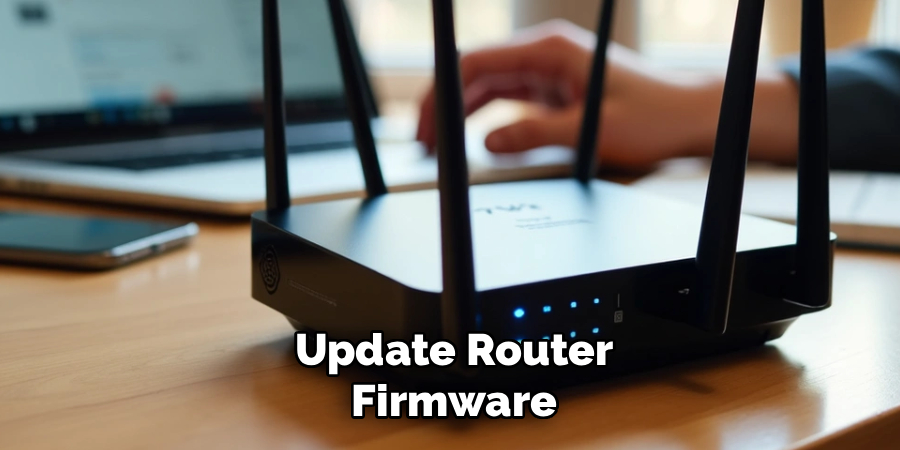
Hardware manufacturers frequently release software updates to patch newly discovered security vulnerabilities. Outdated firmware acts as an open invitation to cybercriminals. Navigate to the maintenance or administration section of your router settings and check for updates. Install the latest firmware version immediately. To save time and maintain security in the future, enable automatic firmware updates if your router supports that feature.
Step 3: Enable WPA3 Encryption
Encryption scrambles the data traveling between your devices and the router, making it unreadable to anyone trying to intercept it. Wi-Fi Protected Access 3 (WPA3) represents the current gold standard for wireless encryption. Locate the wireless security settings in your router dashboard and select WPA3. If you use older hardware that does not support WPA3, choose WPA2-AES. Never use WEP or WPA, as these outdated protocols are incredibly easy to crack.
Step 4: Create a Strong SSID Name
Your Service Set Identifier (SSID) is the public name of your Wi-Fi network. Default SSIDs often broadcast the brand and model of your router (e.g., Netgear5G), which gives attackers a head start on finding device-specific vulnerabilities. Change your network name to something unique. Avoid using obvious identifiers like your exact company name or address, as this draws unnecessary attention from targeted attacks.
Step 5: Set Up a Dedicated Guest Network
Visitors, clients, and vendors often need internet access while visiting your office. Never give them the password to your main internal network. Almost all modern routers allow you to activate a separate guest network. This secondary network provides internet access while keeping visitors completely isolated from your company files, internal servers, and shared printers. Apply a strong password to the guest network and change it frequently.
Step 6: Hide the Network Name (SSID)
While not a bulletproof security measure on its own, hiding your SSID stops your network from broadcasting its name to every passing smartphone and laptop. Users must know the exact name of the network and type it in manually to connect. This prevents casual snooping and removes your office network from the easy target list. You can disable SSID broadcasting within the basic wireless settings of your router.
Step 7: Disable Wi-Fi Protected Setup (WPS)
Wi-Fi Protected Setup allows devices to connect to a router by pushing a physical button or entering a short PIN. While convenient, the PIN method contains severe security flaws that hackers can easily exploit using brute-force automated tools. Log in to your router’s interface, locate the WPS configuration tab, and turn this feature off entirely. Taking the extra minute to type a complex password is worth the massive security improvement.
Step 8: Implement MAC Address Filtering
Every network-capable device features a unique hardware identifier called a Media Access Control (MAC) address. You can configure your router to block all connections except those coming from a pre-approved list of MAC addresses. Gather the addresses of your company’s laptops, phones, and network printers, and enter them into the router’s filtering section. This creates a powerful strict-entry policy for your internal network.
Step 9: Enable the Built-In Router Firewall
Most business-grade and consumer routers feature a built-in hardware firewall. This defense mechanism monitors incoming and outgoing traffic, blocking malicious requests before they even reach your connected devices. Check your security settings to ensure the firewall is toggled on. For advanced protection, you can adjust the firewall rules to block specific types of high-risk traffic or restrict access to known malicious IP ranges.
Step 10: Regularly Monitor Network Traffic
Security requires ongoing vigilance. You must consistently monitor who and what connects to your network. Access your router’s connected devices list once a week to review active sessions. If you spot a device name you do not recognize, revoke its access immediately and change your network password. Consider deploying network monitoring software that alerts you automatically when an unknown device attempts to join the network.
5 Things You Should Avoid
- Sharing Passwords via Chat: Never distribute your main network password through unencrypted messaging apps or team chat channels where it remains permanently searchable.
- Writing Passwords on Whiteboards: Avoid the common mistake of writing the Wi-Fi password on a whiteboard in the conference room. This exposes your credentials to anyone walking through the office.
- Using Personal Devices Without Guidelines: Do not let employees connect unsecured personal smartphones or tablets to the main network without implementing a Mobile Device Management (MDM) policy.
- Ignoring Former Employees: Do not forget to update your Wi-Fi passwords when an employee leaves the company. Immediate credential rotation prevents unauthorized post-employment access.
- Leaving the Router in Plain Sight: Avoid placing your physical router in a public area like a waiting room. Keep it locked in a secure IT closet to prevent physical tampering or reset attempts.
Frequently Asked Questions
- How Often Should I Change My Office Wi-fi Password?
You should change your office Wi-Fi password at least every three to six months.
Frequent updates help prevent unauthorized access from former employees or visitors.
Make sure you use a complex passphrase that combines letters, numbers, and symbols.
Communicate the new password securely to your current staff members immediately.
Consistent rotation remains one of the simplest ways to maintain strong network defense. - Does Hiding My SSID Completely Secure My Network?
Hiding your network name provides only a basic layer of security.
Determined attackers can still use specialized network scanning tools to find your SSID.
You must combine this tactic with strong WPA3 encryption for real protection.
Think of hiding your SSID as removing the welcome sign, rather than locking the door.
Always rely on strong passwords and updated firmware as your primary defenses. - Should I Let Employees Use the Guest Wi-fi Network?
Employees should generally use the main, secured network for their daily work tasks.
The guest network exists specifically to isolate visitor traffic from your company data.
Keep your internal network exclusive to authenticated staff members and trusted devices.
If staff connect personal phones, direct those non-work devices to the guest network.
This separation ensures your sensitive business files remain protected from external threats.
Conclusion
Securing your office Wi-Fi network is a critical requirement for protecting your business assets and maintaining client trust.
By moving away from default configurations, implementing strong encryption, and creating strict access boundaries, you significantly reduce the risk of a devastating cyberattack. Take action today by logging into your router and systematically applying these ten steps. Consistent monitoring and regular password updates will ensure your digital workspace remains a safe environment for your team to thrive.
Hopefully, this guide on how to secure office wifi has provided you with a comprehensive understanding of the importance of router security and the steps you can take to protect your business.
