

At the worst time—perhaps right before a deadline—a stubborn printer can turn a good day upside down. Anyone who has wrestled with technology, especially when a page absolutely must be printed, knows the sinking feeling when a Brother device simply gives up. While the temptation might be to unleash frustration, it helps to have a reliable fallback plan. Resetting the machine just might save you from wasted hours, mounting irritation, and, unfortunately, the urge to blame inanimate objects for your troubles.

Now, let’s be honest: powering the machine off and on can sometimes do the trick. But there are moments when even that old standby isn’t enough; a deeper reset—returning things to square one—is needed. The steps on how to reset brother printer aren’t always obvious, but after a bit of trial and error, you can usually get the printer behaving again. Here, I’ll explain the process, paying special attention to the trickier details that might get glossed over elsewhere.
Types of Brother Printer Resets
Brother printers, in their infinite variety, offer several reset choices. The fix depends, predictably, on the source of your headache. Maybe the Wi-Fi won’t cooperate; a network reset is a good first step, as it wipes out all wireless and local settings. Occasionally, gremlins seem to take over—unpredictable errors, odd prints, or mysterious messages.
This is where a full factory reset comes in, clearing every custom tweak, address book, and profile, as if the printer had amnesia. There’s also a gentler option: restoring just the default settings (leaving your contacts and favorites intact). It’s not always clear which reset to pick, but with a little patience, you’ll find your way.
Before You Reset the Printer
A word of caution before rushing ahead. Always make a record—printed if possible—of your network configuration. That slip of paper with your IP address and connection info might later prove invaluable. Peek inside the machine for any lurking paper jams or empty ink cartridges (these basic issues catch many off guard and are frustratingly easy to overlook).
It’s also sensible to confirm you have your Wi-Fi password nearby, as you’ll almost certainly need it again. This quick preparation can prevent small issues from spiraling into full-blown confusion after the reset.
7 Simple Step-by-step Guidelines on How to Reset Brother Printer
Step 1: Power On and Access the Main Control Panel
Plug the printer directly into a wall socket—avoid extension cords, which sometimes introduce odd electrical issues. Power it on. Resist the urge to dive into the menus until the home screen appears and the device stops whirring; printers often take their time booting up. The machine should seem at rest, not humming, clicking, or whirring away on some hidden job.
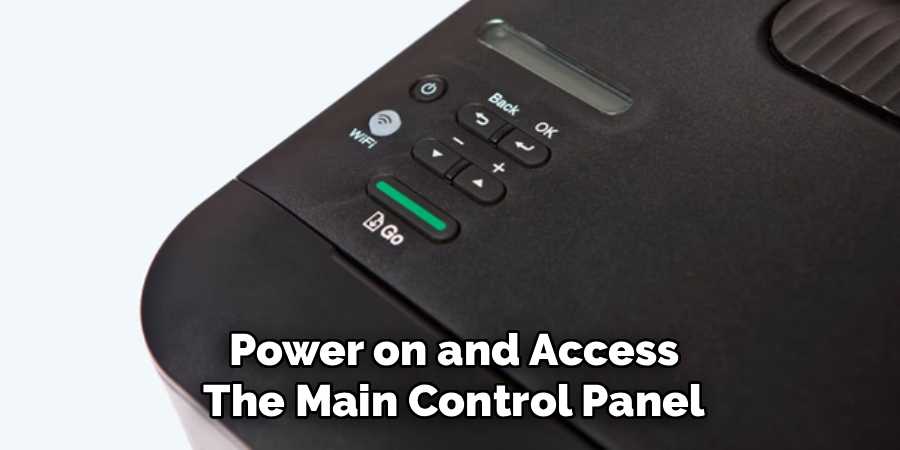
Take stock of the control panel. On some models, you’ll have a modest set of buttons; on others, a surprisingly responsive touchscreen. Look for a button labeled “Menu” or “Settings”—usually marked with a gear, wrench, or other mechanic’s symbol. That’s your entry point.
Step 2: Navigate to the Initial Setup Menu
Use the arrow keys or touch navigation to scroll through the maze of choices. “Initial Setup” or “General Setup” is what you’re after—sometimes Brother renames this depending on the device (the inkjets and lasers don’t always match). Don’t rush through the options; a quick scroll can lead you past what you need. When in doubt, slow down and double-check.
Once you find the right setup menu, hit “OK,” or just tap it directly if your screen allows. It’s a little like opening a hidden hatch—this section contains options that average users rarely visit.
Step 3: Locate the Reset Functions
Inside the setup menu lies the Reset command, usually buried at the bottom, where it’s hard to reach accidentally. Carefully scroll until you spot “Reset”—avoid nearby options that sound similar, as some won’t fully restore defaults.
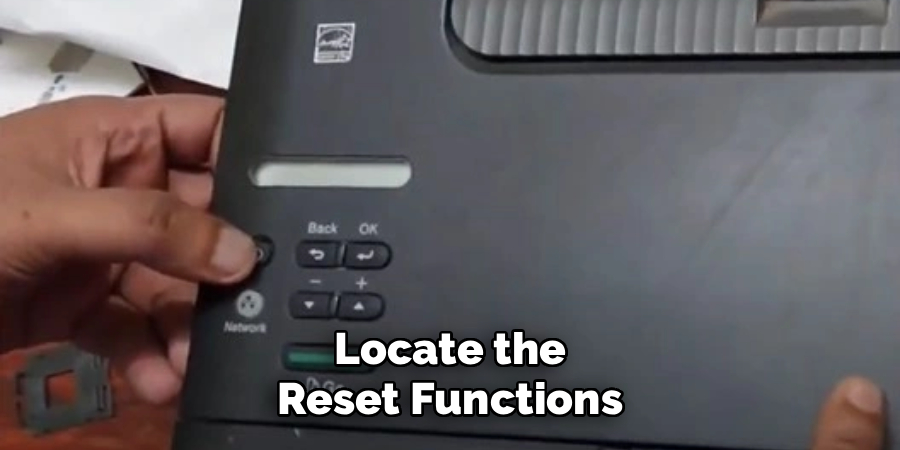
Tap “OK” or select with the touchscreen. Occasionally, a password prompt pops up. “initpass” is a common default, but check the back of your unit for a sticker listing the code, just in case someone changed it along the way.
Step 4: Choose Your Desired Reset Type
At this point, the printer lists a handful of reset types—sometimes “Network,” “Address Book,” “All Settings,” or “Factory Reset” appear. Give these a close read. The right choice isn’t always obvious: persistent wireless trouble? “Network” is your friend. Printer acting truly possessed? That’s when “Factory Reset” is warranted. Highlight your choice and confirm.
Step 5: Confirm the Warning Prompt
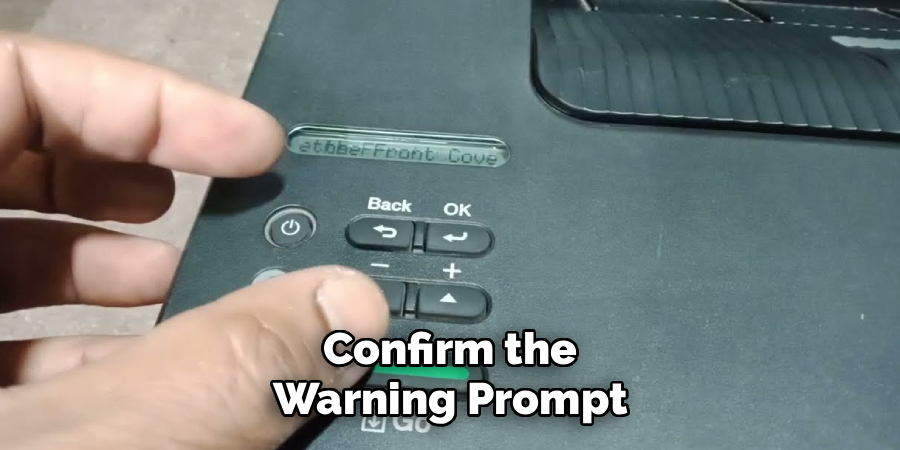
You’ll see a rather stark warning—it might read “Reset?” or “Reboot OK?”—urging you to confirm with the arrow key, “1,” or a “Yes.” Pause a moment to check: did you pick the right reset? It’s easy to slip and wipe something important. Once you confirm, the action is irreversible (well, at least until someone invents a ‘regret’ button). Commit only when you’re sure.
Step 6: Wait for the Reboot Sequence
The machine prepares to restart—bear with it. “Restarting” or “Please Wait” may flash on the display. Expect a few clunks, whirs, and clicks; this can be unnerving if you haven’t heard it before. At this stage, do not, under any circumstances, pull the plug or jab random buttons—interrupting the process can create issues far worse than the original problem. Let the machine finish at its own pace.
Step 7: Reconfigure Basic Settings
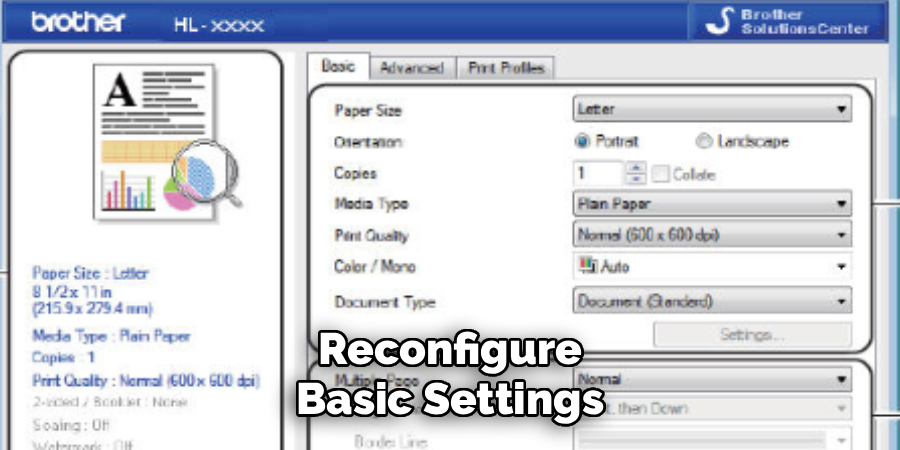
Once calm returns and the main screen glows again, you’ll need to set up the printer almost as if you’d just unpacked it. Expect prompts for the time, date, perhaps even language or region. Move step by step through the setup wizard. Next, return to the network menu, re-enter your Wi-Fi credentials, and print a test page just to be sure everything survived the ordeal. If all is well, the printer should come back to life as expected.
Following these steps on how to reset brother printer to factory settings can help troubleshoot any issues you may be experiencing with your printer.
Common Problems a Reset Can Fix
A reset—done properly—may address intermittent Wi-Fi dropouts, especially those that leave your laptop stranded. Corrupted print queues, where jobs hang indefinitely for no clear reason, also tend to resolve.
I’ve seen it clear up touchscreens that freeze out of the blue and error messages that stubbornly persist after a jam has been cleared. In essence, a reset wipes the confusion from the machine’s memory, with a fair shot at restoring order.
Problems a Reset Usually Won’t Fix
Unfortunately, no amount of tinkering with the settings will fix physical issues: worn fuser units, damaged drums, or old rollers won’t magically heal themselves. Empty cartridges or ink dried in the heads also remain out of reach.
If your printer won’t power on due to internal damage—blown capacitors, fried boards—no series of button presses or menu dives will help. For genuine hardware failures, all you can do is roll up your sleeves and dive in (or, more realistically, call for help).
What to Do After Reset?
First things first: reconnect to your wireless network. The printer will often prompt for your Wi-Fi password. Once that’s sorted, consider checking for firmware updates via Brother’s support page. While not strictly required, an update can prevent familiar errors from creeping back.
Reinstall the driver software if your computer doesn’t instantly “see” the printer on the network. Afterward, it’s worth running a test print and alignment just to make sure mechanical parts function as they should.
Common Mistakes to Avoid
By far the most damaging move is cutting the power while the printer is mid-reboot. Corrupt firmware means a service call, or worse, replacing the machine altogether. Another surprisingly frequent blunder is wiping all settings when only a network reset was required—leaving you to painstakingly rebuild address books and preferences.
Always double-check the type of reset you’re choosing; err on the side of caution.
Frequently Asked Questions
Q1: Will I Lose My Ink Levels if I Reset My Printer?
No—the machine only clears digital settings, not the ink levels themselves. It uses tiny chip sensors to read each cartridge directly, so your ink status should reflect reality after any reset. That’s good news for those worried about wasting money on supplies.
Q2: Why Is My Printer Still Offline After a Reset?
When the reset doesn’t bring your printer online, the real culprit might be your computer or router. Removing and re-adding the printer from your PC’s settings often does the trick. Sometimes, restarting the router restores the connection—these hidden gremlins of networking can be maddeningly persistent.
Q3: How Often Should I Reset My Brother Printer?
Only reset when you suspect something on the software side is mucking things up—a paper jam, a network error, or a string of cryptic messages that won’t clear. There’s no advantage to resetting routinely. If anything, frequent resets mean lost time and extra setup for no real benefit.
Keep Your Printer Running Smoothly
Familiarizing yourself with these steps can make printer frustrations much more manageable—you’ll be less tempted to despair, or to shout at a blinking display that’s only doing its best. Of course, if you run into repeat failures—particularly related to hardware—take it as a sign to consult Brother’s official guide or reach out for professional help.
With some attention to firmware, gentle handling, and regular use of decent paper, there’s every chance your printer will keep on printing for years. Thanks for reading this guide on how to reset brother printer.
