

Unboxing a new wireless gaming mouse feels a bit like opening a tiny window into the future. Yet, as soon as the packaging is tossed and excitement fades, real life often intrudes—in the form of confusing connection steps and cryptic switches. If you’d rather not sacrifice another USB port to a dongle, Bluetooth could be your answer. Of course, nothing ever claims to be “plug-and-play” for no reason.
Here’s a straightforward, real-world rundown on how to connect corsair mouse bluetooth of what you’ll actually need to do, plus some detours for anyone hitting snags along the way.
Does Your Corsair Mouse Actually Support Bluetooth?
Let’s not waste time: not every Corsair mouse will talk Bluetooth. Many skip wireless entirely or only support a dedicated 2.4GHz dongle—Bluetooth simply isn’t an option. How to check? Flip the mouse over. Mice with Bluetooth usually have a side-to-side switch underneath, typically with three positions: 2.4GHz (maybe a USB icon), power off in the center, and a Bluetooth icon on one side. Not sure what you’re looking at?
The Harpoon RGB Wireless, Katar Pro Wireless, and Dark Core RGB Pro are good examples of models that offer all three. If you threw away the packaging, look up your model on Corsair’s website or peek at the manual.
Your Options: More than Just a PC Companion
Bluetooth isn’t limited to desktops. More often than not, people pair their Corsair mouse with a Windows 10 or 11 machine, but it doesn’t end there.
MacBooks or iMacs? Yep. iPads? No issue. Android tablets typically play along, too, assuming they support external mice. I’ve even seen folks use these on a smart TV—or a streaming stick (the UI scrolling, to be fair, is an acquired taste).
Setting the Stage: What You’ll Need
Preparation, unfortunately, makes a difference here. Confirm your mouse is charged fully, if possible. For battery-powered models, swap out for fresh AA or AAA batteries; for rechargeables, give it a minimum twenty-minute top-up via USB. Nothing disrupts a setup like a dead mouse midway.
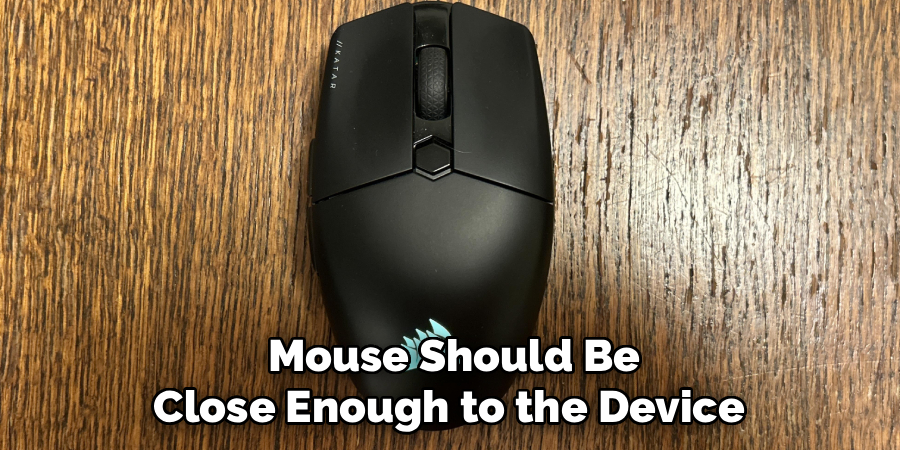
Next, your companion device (laptop, tablet, what have you): is Bluetooth enabled? On Windows 10 or 11, wander over to Settings, then “Devices” or “Bluetooth & devices.” On a Mac, scan the top menu bar or check under System Settings. The mouse should be close enough to the device during this dance, or you risk connection drops before you even begin.
7 Realistic Walkthroughs on How to Connect Corsair Mouse Bluetooth
Step 1: Get Bluetooth Up and Running
Before anything else, you’ll need your device’s Bluetooth radio working. On Windows, hit Start > Settings > Bluetooth & devices, and slide the main toggle to “On.” Pause here—don’t rush to close the window, since you’ll need it in a moment. On a Mac? The Apple logo, System Settings, then switch Bluetooth on. Keep this open.
Step 2: Find and Understand the Mouse Switch
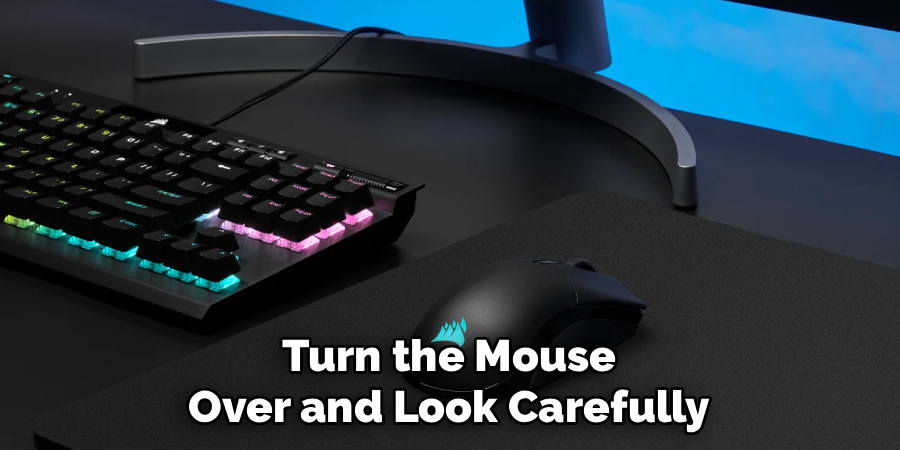
Turn the mouse over and look carefully: the primary switch is usually near the optical sensor. It may be marked with symbols or text for 2.4GHz, Off, and Bluetooth. Don’t switch modes just yet; just locate it so you’re ready.
Step 3: Flip to Bluetooth Mode
Slide that switch over to the Bluetooth icon. If your timing is good and the batteries are alive, you should spot a quick LED flicker or color change. No response? Go back and check: is the mouse charged, or did you accidentally leave it off? If it lights up, great—the mouse is now awake, but not yet discoverable.
Step 4: Trigger Pairing Mode
Now comes the part many people miss. Nearly every Corsair model expects you to press and hold a specific button, usually the DPI button just behind the scroll wheel. Do this while you switch into Bluetooth mode, or immediately after toggling. Hold down until the LED starts pulsing or flashing quickly—typically, it’ll glow blue. This is your visual cue that it’s looking for something to pair with.
Step 5: Add the Mouse to Your Computer
Shift your focus back to the Bluetooth menu you (hopefully) left open. Click “Add device” (Windows) or just watch the list refresh (macOS). Choose “Bluetooth”—that category usually covers mice, keyboards, everything but printers and coffee makers. Windows will briefly scan for devices; Macs should begin listing nearby gadgets too.

Step 6: Spot and Select Your Mouse
If all is well, “Corsair [something] Mouse” will materialize in the list. There’s no universal name, but it should be obvious. If you see it, select it with your existing trackpad or mouse. Your device will begin the handshake ritual—maybe a quick “Connecting…” below the name—and this usually finishes in seconds.
Step 7: Final Check—Is It Working?
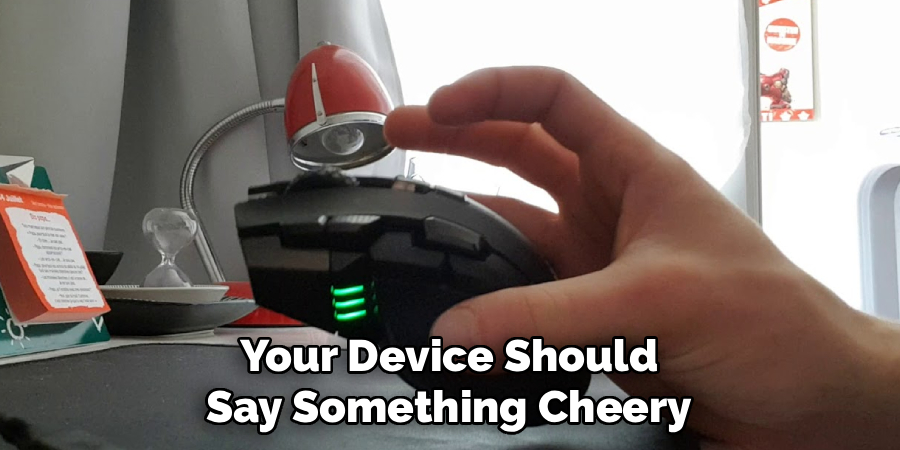
If things line up, your device should say something cheery like “Your device is ready.” The previously blinking LED on your Corsair mouse settles down, maybe reverting to your RGB color scheme. Take a moment. Slide the mouse around—does the cursor move as expected? If yes, you’re set; move on to whatever you were hoping to do with a wireless mouse.
Following these steps on how to connect corsair mouse bluetooth will allow you to enjoy the convenience of a wireless mouse without having to deal with messy wires.
Snags, Glitches, and Basic Troubleshooting
Sometimes, even after careful steps, it doesn’t work on the first try. If your mouse isn’t detected, try powering it off and back on, then return to pairing mode. Bluetooth can be slightly temperamental around large metal cases or interference from other wireless accessories. Reduce the distance between devices and, if needed, temporarily disconnect other peripherals.
Frequent dropouts may stem from outdated Bluetooth drivers (on Windows, especially) or the mouse needing a firmware update. This is where Corsair’s iCUE software can come in handy—download and run it to check for mouse updates. Oh, and don’t underestimate the impact of a low battery; it can erode connection reliability fast.
When to Jump Between Bluetooth and the USB Dongle?
Why stop at one connection? Many Corsair mice make it easy to jump between two worlds—Bluetooth for your work laptop, and a dongle for a gaming rig. To swap, simply flip the switch back from Bluetooth to the USB (2.4GHz) icon.
There’s no need to re-pair each time; the mouse remembers both, switching streams instantly. It’s not magic, but it’s close enough.
Squeezing Better Performance from Your Mouse
If you want more than the default settings, Corsair’s iCUE software is worth a look. DPI adjustments, RGB lighting tweaks, and even changing polling rates—all available here, though some settings require connecting through the dongle or with a USB cable.
On battery life: those fancy lights look fun, but keeping illumination basic extends time between charges. Updating mouse firmware through iCUE is also the best way to iron out any sensor lag or stutter.
Frequently Asked (and Sometimes Overlooked) Questions
Q1: My Mouse Isn’t Connecting. What Now?
Double-check that pairing mode is enabled (the LED should be blinking rapidly). Confirm your host device actually has Bluetooth switched on. Swapping in new batteries or topping up the rechargeable can resolve a surprising number of issues. If all else fails, revisit the earlier steps and start over.
Q2: Can I Adjust Settings with Corsair iCUE Over Bluetooth?
There’s a catch: iCUE generally needs the dongle connection (or a wired USB line) to unlock the full suite of features—macro recording, granular DPI, synchronized RGB effects, etc. If your mouse is on Bluetooth, simple features may work, but for deep customization, switch back to 2.4GHz or wired while making changes.
Q3: Is There More Lag on Bluetooth than with the Dongle?
The short answer: yes, you’ll see marginally more latency with Bluetooth than with a dedicated 2.4GHz dongle. For ordinary office work, note-taking, or casual gaming, this difference is nearly invisible. In competitive, high-Stakes gaming, though, it could be an unwelcome handicap. For critical matches, plug in the dongle.
Q4: Can I Use Multiple Devices on Bluetooth?
Yes, you can pair multiple devices to your computer using Bluetooth. However, keep in mind that the more devices connected, the greater the chance of experiencing increased latency or interference. If possible, try to limit the number of devices connected through Bluetooth at one time to maintain optimal performance. Additionally, make sure to update your device drivers regularly for improved compatibility and performance with your Bluetooth devices.
Q5: Are There Any Security Concerns with Using Bluetooth?
As with any wireless technology, there are potential security risks when using Bluetooth. This is especially true if you leave your device’s Bluetooth setting on and in “discoverable” mode, making it easier for unauthorized devices to connect. However, there are steps you can take to minimize these risks.
Level Up Your Workspace
Taking the time to properly pair a Corsair mouse is a minor effort with lasting payoff—a cleaner desk, a touch more freedom, and fewer tangled wires under your monitor. If you decide to dive into iCUE for tweaks, just remember: not every feature is available on every connection, so pick what’s most important for your own workflow.
Adjust lighting, tinker with sensitivity, and see what actually helps versus what’s just fun for a night or two. Technology always promises easy solutions; sometimes, with a little patience, it almost delivers. Thanks for reading this guide on how to connect corsair mouse bluetooth.
