

A wireless Apple mouse is simple to use, but it can become frustrating when the battery runs low in the middle of work. Whether you use an older Apple wireless mouse with removable batteries or a Magic Mouse with a built-in rechargeable battery, knowing how power works helps you avoid sudden disconnects, lag, and pairing issues. If you are searching for how to change mac mouse battery, the first thing to know is that the correct method depends on the exact mouse model you own.
Older Apple wireless mice use replaceable AA batteries, while newer Magic Mouse models charge through a cable and do not have a removable battery door. This guide explains how to identify your mouse, replace or recharge it safely, check battery levels, and fix common problems after the battery is changed or charged.
Why Changing Your Mac Mouse Battery Matters
A weak mouse battery can cause slow tracking, random disconnections, delayed clicks, or failed Bluetooth pairing. Many users think their mouse is broken when the real issue is low power or poor battery contact. Replacing or recharging the battery at the right time keeps your mouse responsive and helps protect your workflow.
It also helps prevent unnecessary troubleshooting. Before resetting Bluetooth settings or buying a new mouse, you should confirm the battery status first. A fresh or fully charged battery can often solve connection issues in minutes. Learning the right process also protects your device from battery leaks, wrong placement, and damage caused by forcing parts open.
Step-By-Step Guide To Changing Your Mac Mouse Battery
Step 1: Identify Your Apple Mouse Model
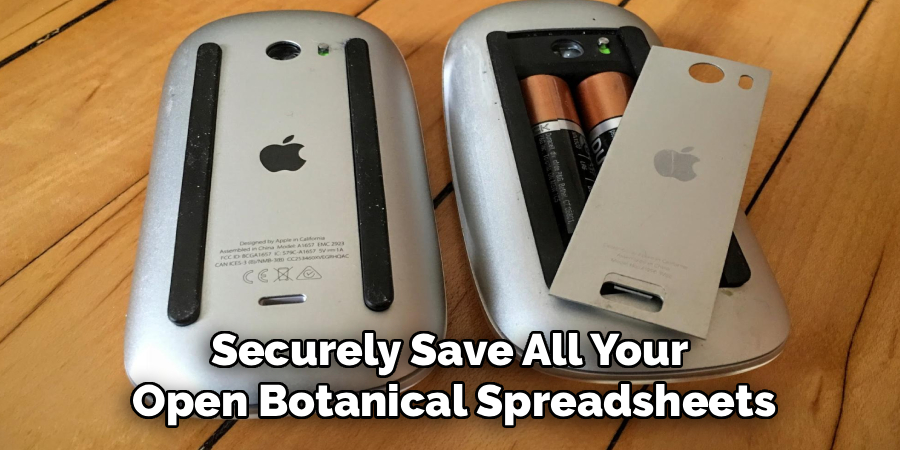
before you do anything, turn the mouse over and look at the bottom. older Apple wireless mice usually have a removable battery cover and a small latch. these models use AA batteries. Magic Mouse 1 also uses replaceable AA batteries, but Magic Mouse 2 and later models have a built-in rechargeable battery and a charging port.
this step matters because the process is different for each model. if you searched how to change mac mouse battery, you may see mixed advice online because Apple has released several mouse versions over the years. identifying the model first prevents damage and saves time.
Step 2: Turn The Mouse Off Safely
turning the mouse off before replacing or charging the battery is a simple but important step. on most Apple wireless mice, the power switch is located on the bottom. slide it to the off position before opening the battery compartment or connecting a charging cable.
this helps prevent accidental clicks, connection errors, and small electrical issues while handling the device. if the mouse has a green indicator when on, make sure that indicator is no longer visible. place the mouse on a clean desk with the bottom facing up. avoid doing this near liquids, dust, or loose metal objects.
Step 3: Open The Battery Compartment
if your mouse uses replaceable batteries, find the battery cover on the bottom. depending on the model, you may need to press a latch or slide the cover away from the body. use gentle pressure only. if the cover does not move, do not force it, because the latch may be locked or stuck.
once the cover opens, set it aside in a safe place. check the inside of the compartment before removing the batteries. look for dust, corrosion, or battery leakage. a clean battery compartment helps maintain a stable connection between the batteries and the mouse.
Step 4: Remove The Old Batteries
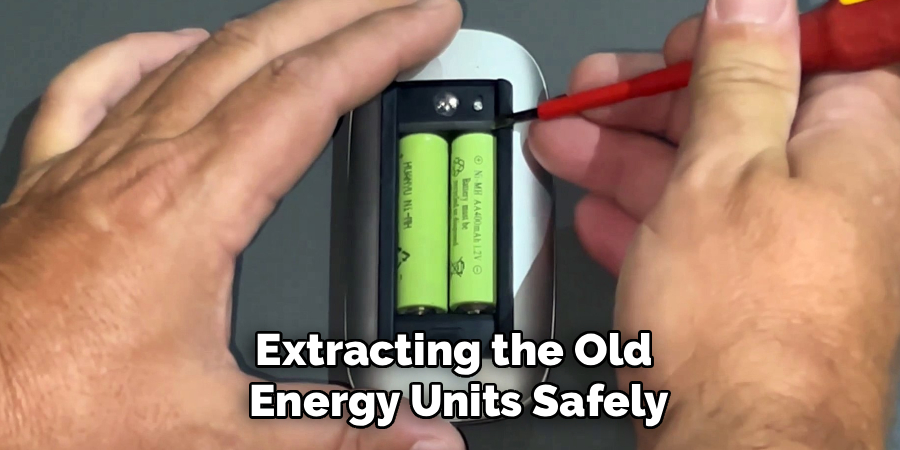
remove the old batteries by lifting them from the compartment one at a time. pay attention to how they were placed, especially the positive and negative ends. most battery compartments show small plus and minus symbols to guide you.
when learning how to change mac mouse battery, battery direction is one of the most common mistakes beginners make. if the batteries are installed backward, the mouse will not turn on. if you see white powder, rust, or sticky residue, stop and clean the area carefully before adding new batteries. do not touch leaking battery material with bare hands.
Step 5: Insert Fresh Batteries Correctly
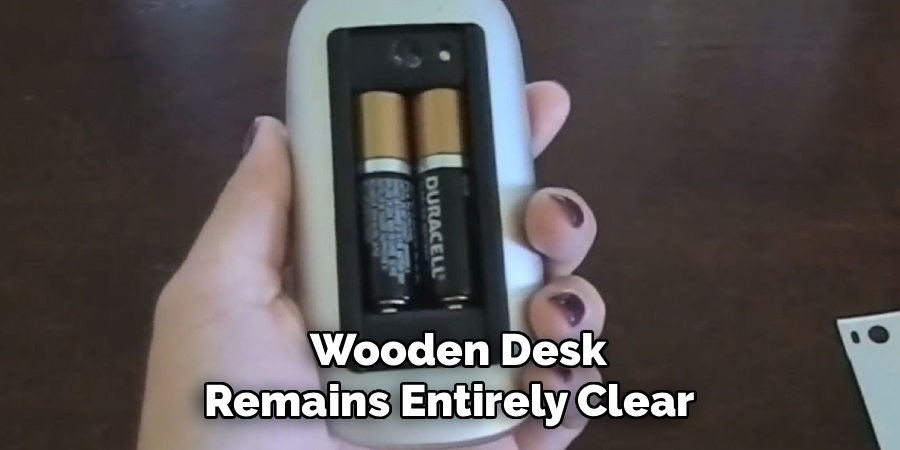
use high-quality AA batteries if your Apple mouse requires replaceable batteries. alkaline batteries work for many users, while rechargeable AA batteries can be a good long-term option if they match the required size and voltage. insert each battery according to the plus and minus symbols inside the compartment.
make sure the batteries sit flat and touch the metal contacts at both ends. loose placement can cause the mouse to disconnect even when the batteries are new. after the batteries are in place, replace the cover firmly but gently. it should close without force or uneven gaps.
Step 6: Recharge A Magic Mouse With A Built-In Battery
if you have a Magic Mouse 2 or newer, you do not change the internal battery during normal use. instead, you recharge it with the proper cable. connect the cable to the charging port on the bottom of the mouse, then connect the other end to your Mac or a suitable power adapter.
because the charging port is on the bottom, you cannot use the mouse while it charges. let it charge for several minutes if you need quick power, or longer for a fuller charge. avoid trying to open the mouse, because the battery is not designed for regular user replacement.
Step 7: Turn The Mouse On And Reconnect
after replacing or charging the battery, turn the mouse back on. wait a few seconds for your Mac to detect it. if it was already paired, it should reconnect automatically. move the mouse and test the cursor response. also try clicking and scrolling to confirm normal function.
if the mouse does not reconnect, open system settings on your Mac and go to Bluetooth. check whether the mouse appears in the device list. if it shows as disconnected, select it and reconnect. if it does not appear, turn Bluetooth off and on again, then restart the mouse.
Step 8: Check Battery Level And Test Performance
once the mouse is connected, check the battery level on your Mac. open system settings, choose Bluetooth, and look for the battery percentage beside your mouse. you may also see the battery level in the menu bar if you have Bluetooth controls enabled.
test the mouse for a few minutes before returning to important work. move it across different areas of your desk, check tracking speed, and confirm that clicks respond right away. if problems continue with fresh batteries or a full charge, the issue may involve Bluetooth interference, dirty sensors, outdated macOS software, or worn internal hardware.
Frequently Asked Questions
Can I Replace The Battery In A Magic Mouse 2?
Magic Mouse 2 has a built-in rechargeable battery, so you do not replace it like older Apple wireless mouse models. for normal use, you only need to charge it with the correct cable. if the battery no longer holds a charge after years of use, service may be needed. opening the mouse yourself can damage internal parts and may not be worth the risk for most users.
What Batteries Does An Older Apple Mouse Use?
most older Apple wireless mouse models use AA batteries. some users choose alkaline AA batteries, while others prefer rechargeable AA batteries to reduce waste and long-term cost. the key is to install them in the correct direction and make sure they fit securely. if the mouse disconnects often, check the battery contacts and try a different trusted battery brand.
Why Is My Mac Mouse Not Turning On After A Battery Change?
if the mouse does not turn on, first check the battery direction. the plus and minus ends must match the symbols inside the compartment. next, confirm that the batteries are fresh and fully charged. also inspect the metal contacts for dust or corrosion. if everything looks correct, remove the batteries, wait a few seconds, insert them again, and turn the mouse back on.
How Long Does A Mac Mouse Battery Last?
battery life depends on the mouse model, battery type, and daily usage. older Apple wireless mice can last weeks or months on good AA batteries. rechargeable Magic Mouse models can also last a long time between charges with normal use. heavy daily use, Bluetooth issues, or old batteries can shorten runtime. checking the battery level regularly helps you avoid sudden power loss.
Should I Use Rechargeable Batteries In An Apple Wireless Mouse?
rechargeable AA batteries can work well in older Apple wireless mice if they fit properly and provide stable power. they are cost-effective over time and better for reducing battery waste. however, some low-quality rechargeable batteries may drain quickly or fit too loosely. choose reliable batteries and keep a charged spare set nearby so you can switch them when needed.
Conclusion
Changing or charging an Apple mouse battery is easy once you know which model you have. older Apple wireless mice usually need fresh AA batteries, while newer Magic Mouse models use a built-in rechargeable battery. the safest process is to identify the model, turn it off, replace or recharge the battery correctly, reconnect it, and test performance before relying on it.
If you wanted to learn how to change mac mouse battery, start with the model check and follow the correct steps for your device. a few careful minutes can restore smooth tracking, stable Bluetooth connection, and reliable everyday use.
