

Redragon keyboards are popular because they offer strong gaming features, solid build quality, and bright rgb lighting at a friendly price. if you are new to mechanical keyboards, the lighting can feel confusing at first. different models use different shortcuts, software options, and lighting modes, so it is easy to press random keys and end up with an effect you did not want.
Learning how to change redragon keyboard lights helps you make your setup more comfortable, personal, and practical. you can choose a calm color for work, a brighter effect for gaming, or a simple static mode when you want fewer distractions. this guide explains the process in a clear way, even if you have never adjusted keyboard lighting before.
Why Customize Your Redragon Keyboard Lighting
customizing your redragon keyboard lighting is not just about looks. the right lighting can help you see keys better in a dark room, reduce eye strain, and make your desk feel more organized. gamers often use lighting to match their setup, while students and workers may prefer a softer color that keeps focus high.
some redragon keyboards also let you create profiles for different uses. you might use one lighting style for typing, another for gaming, and another for late-night work. once you understand the controls, changing the lights becomes quick and simple. it also helps you get more value from your keyboard, especially if your model supports advanced software or custom lighting zones.
Step-By-Step Guide To How To Change Redragon Keyboard Lights
Step 1: Identify Your Keyboard Model
before changing anything, check the exact model of your redragon keyboard. the model name is usually printed on the bottom of the keyboard, on the box, or in the user manual. common models include the k552, k530, k580, k617, and k630, but each one may use different lighting controls.
This is the easiest place to start when learning how to change redragon keyboard lights, because the right method depends on your keyboard layout and firmware. some models only use keyboard shortcuts, while others work with redragon software. knowing your model prevents wasted time and helps you follow the correct steps.
Step 2: Check The Function Key Controls
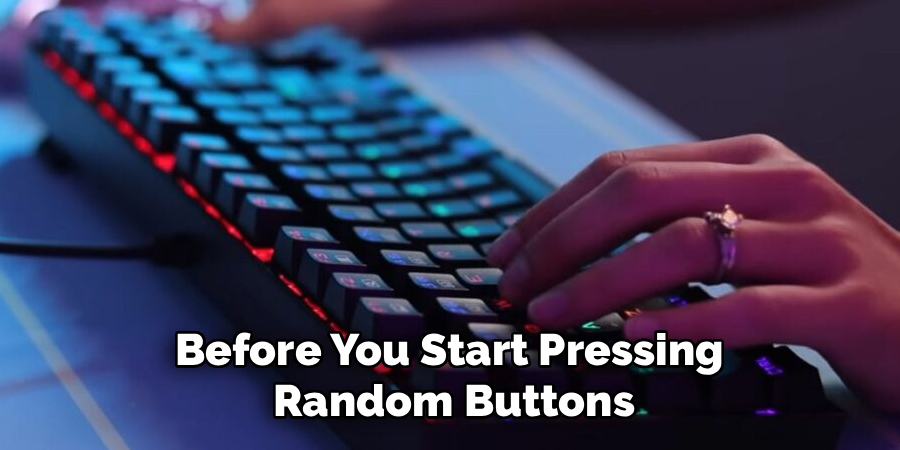
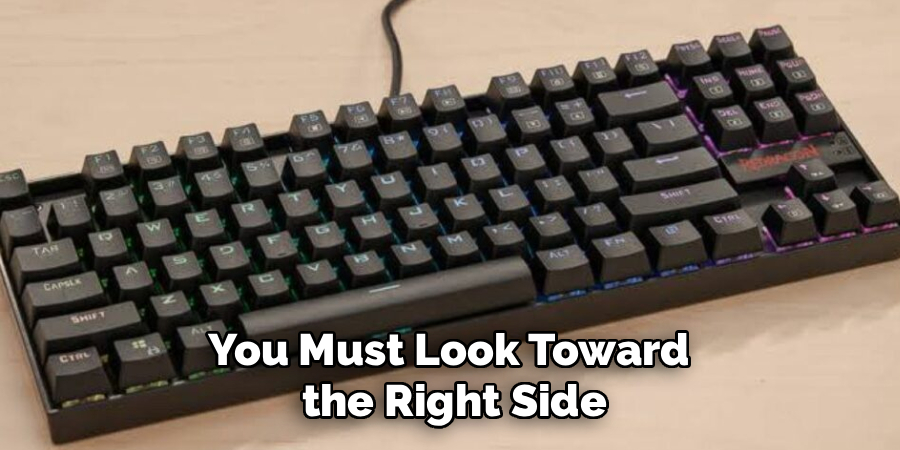
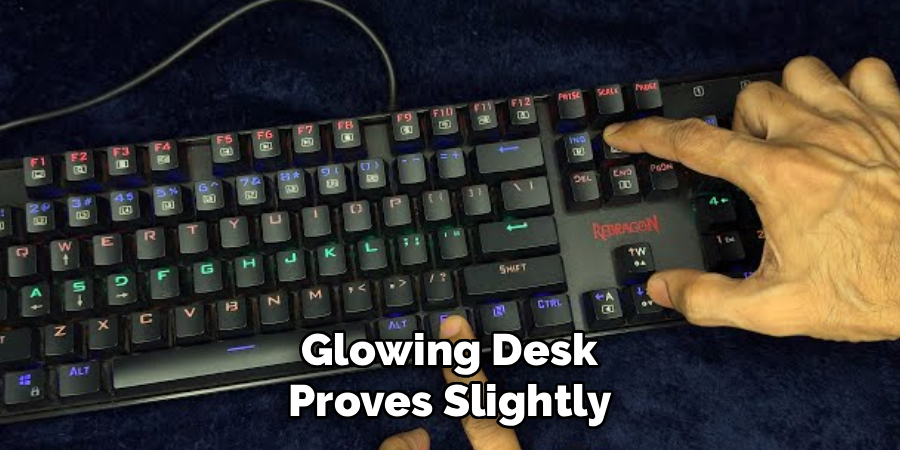
most redragon keyboards use the fn key to control lighting. this key works like a shortcut trigger. when you hold fn and press another key, the keyboard performs a special action instead of typing a normal character. lighting controls are often placed on keys such as insert, home, page up, delete, end, page down, arrow keys, or number keys.
look closely at your keycaps for small icons. a sun icon may control brightness, while arrows may control speed or direction. if your keyboard has printed lighting symbols, these are usually the fastest way to adjust effects without installing software.
Step 3: Change The Lighting Mode
after finding the fn key, try switching between lighting modes. on many redragon keyboards, holding fn and pressing insert, home, or another lighting key cycles through built-in effects. these effects may include wave, breathing, ripple, reactive typing, rainbow flow, and static color.
press the shortcut slowly and watch the keyboard after each press. if the mode changes, you have found the correct control. do not press too quickly, because some keyboards need a moment to load the next effect. once you find a mode you like, stop pressing the shortcut and the keyboard should keep that setting.
Step 4: Adjust The Brightness Level
brightness control is useful when your keyboard feels too bright or too dim. many redragon keyboards let you raise or lower brightness by holding fn and pressing the up or down arrow. some models use fn with page up or page down instead. if the first shortcut does not work, test the keys that have brightness icons.
set the brightness based on your room. a bright setting works well during the day or in a gaming setup with strong lights. a lower setting is better at night, especially if the keyboard is close to your monitor or your eyes feel tired.
Step 5: Change The Effect Speed
animated lighting effects often include speed settings. if a wave or breathing effect moves too fast, it can become distracting. if it moves too slowly, it may not feel noticeable. on many models, speed is controlled with fn and the left or right arrow keys. other models may use dedicated keys near the navigation cluster.
test one shortcut at a time and watch the change. if the effect becomes faster, use the opposite key to slow it down. for typing and studying, slower effects usually feel cleaner. for gaming or display setups, faster effects can add more energy.
Step 6: Select A Static Color
static lighting keeps the keyboard on one color instead of using movement. this is one of the best options if you want a clean desk setup or fewer distractions. depending on your redragon model, you may be able to cycle colors by pressing fn with a color control key, often near the insert or home area.
At this point, how to change redragon keyboard lights becomes less about finding random effects and more about choosing what feels useful. try red, blue, green, purple, white, or any available color. if your model supports only rainbow zones, you may have fewer color choices.
Step 7: Use Redragon Software If Supported
some redragon keyboards support official software that gives you deeper lighting control. this can include custom colors, profiles, macros, and per-key lighting. to use it, visit redragon’s official support page, find your keyboard model, and download the correct software version for that model.
install the software, connect your keyboard with a usb cable if needed, and open the program. if your keyboard is detected, look for a lighting or rgb section. from there, you can choose effects, colors, speed, brightness, and saved profiles. if the software does not detect your keyboard, confirm that you downloaded the correct version.
Step 8: Save And Test Your Settings
once you choose your lighting style, test it during normal use. type for a few minutes, open a game, or work in a dark room to see if the lighting feels comfortable. a setting that looks great for ten seconds may feel distracting after an hour, so it is worth testing before you settle on it.
some keyboards save lighting settings automatically. others may require you to click apply in the software or store the setting in a profile. if your lights reset after unplugging the keyboard, check the manual or software for a save option. this final step makes sure your setup stays consistent.
Frequently Asked Questions
Can I Change Redragon Keyboard Lights Without Software?
yes, many redragon keyboards let you change lighting without software by using fn key shortcuts. these shortcuts usually control lighting modes, brightness, color, speed, and direction. the exact keys depend on your model, so check the symbols printed on your keycaps or read the manual. software is only needed for deeper customization on supported models.
Why Are My Redragon Keyboard Lights Not Changing?
if your lights are not changing, you may be using the wrong shortcut for your model. first, confirm that the fn key works and that the keyboard is properly connected. then check whether your keyboard has locked lighting controls or needs software. if you spilled liquid, updated firmware, or installed the wrong driver, the lighting controls may also stop working correctly.
Does Every Redragon Keyboard Have RGB Lighting?
no, not every redragon keyboard has full rgb lighting. some models have single-color backlighting, while others have rainbow zones or full rgb control. single-color models may only let you change brightness and effects, not the actual color. before expecting advanced lighting options, check your keyboard’s product page or manual to see what type of backlight it supports.
How Do I Reset Redragon Keyboard Lighting?
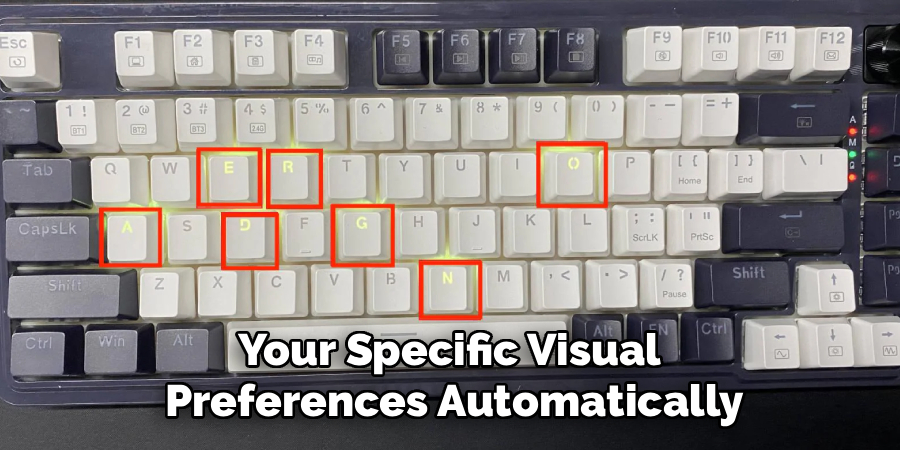
many redragon keyboards can be reset by holding certain key combinations, but the exact shortcut depends on the model. some use fn plus esc, while others use a different reset command. if you use software, you may also find a restore default option. resetting is helpful when lighting effects become confusing or profiles do not behave as expected.
Can I Create Custom Lighting Profiles On A Redragon Keyboard?
you can create custom lighting profiles only if your redragon keyboard supports software or onboard profile storage. models with software usually offer more control over colors, effects, and sometimes individual keys. budget models may have preset effects only. if profiles are important to you, check your model’s software support before spending time looking for advanced options.
Conclusion
redragon keyboard lighting is easy to control once you know where to start. first, identify your keyboard model. then test the fn shortcuts, adjust brightness, change effects, select colors, and use software if your model supports it. small changes can make your keyboard more comfortable, easier to use, and better matched to your desk setup.
Now that you understand how to change redragon keyboard lights, take a few minutes to test different modes and brightness levels. choose the setting that looks good, feels comfortable, and fits the way you use your keyboard every day.
