

Walking into a classroom or a boardroom with just a tablet in your hand offers incredible freedom. You hold all your lesson plans, slide decks, and interactive applications on one portable device. However, keeping that information confined to a small screen severely limits your ability to engage a room full of people. Sharing your content with everyone requires bridging the gap between your personal device and the main display at the front of the room. Figuring out how to connect ipad to smartboard unlocks the full potential of your presentations and transforms how your audience interacts with your material.
We know that dealing with unfamiliar technology often causes anxiety, especially right before a big meeting or a class. Fortunately, pairing these two powerful tools together is a straightforward process once you understand the basics. You do not need an advanced degree in computer science to share your screen successfully. This comprehensive guide walks you through the entire process, covering both wireless and wired methods. You will learn the exact steps needed to project your screen clearly and reliably. Get ready to elevate your presentations and share your ideas with total confidence.
Why Linking Your Tablet To An Interactive Display Matters
Presenting from a stationary computer ties you to a desk, limiting your ability to move around and read the room. Modern presentations thrive on dynamic movement and spontaneous interaction. When you link your mobile tablet to a large interactive screen, you break free from the podium. You can walk among your audience, hand the tablet to a colleague for their input, and maintain strong eye contact while controlling the display from anywhere in the room. This mobility instantly makes your delivery more engaging and persuasive.
Bringing your mobile applications to the big screen also creates new opportunities for collaboration. Tablets offer thousands of specialized educational and professional applications that standard desktop computers lack. You can draw diagrams with a digital pencil, manipulate 3D models in real-time, or navigate complex maps while the entire room watches. Projecting these apps onto a massive interactive panel turns a passive viewing experience into an active group activity. Your audience can follow your precise gestures and understand complex concepts much faster.
Step-By-Step Guide To How to Connect iPad to Smartboard
Step 1: Gather The Necessary Equipment
Before you begin the setup process, you need to determine which connection method suits your environment best. If you plan to use a physical cable, you must acquire the correct adapter for your specific tablet model. Newer tablets require a USB-C to HDMI adapter, while older models need a Lightning to HDMI adapter. You also need a standard HDMI cable that is long enough to reach from your device to the main wall panel. Having all your hardware ready before you start prevents awkward delays when it is time to present.
Step 2: Understanding Attached Apple TV device Wirelessly
Wireless mirroring offers the most flexibility, allowing you to walk around the room without tripping over cables. To achieve this, the interactive panel must have a built-in wireless receiver or an attached Apple TV device. Take a moment to check the main menu of the large display to see if screen sharing is natively supported. Most modern interactive displays feature dedicated screen mirroring applications right on their home screens. Activating this application on the main board prepares it to receive the broadcast signal from your portable tablet.
Step 3: Connect Both Devices To The Same Network
The wireless mirroring process relies entirely on a strong local internet connection to transmit video and audio data. Your tablet and the main interactive display must reside on the exact same Wi-Fi network to communicate with each other. Open the settings application on your tablet and verify the name of your current wireless network. Next, navigate to the network settings on the main interactive board to ensure it matches perfectly. If they are on different networks, the devices will remain invisible to one another during the searching phase.
Step 4: Access The Screen Mirroring Menu
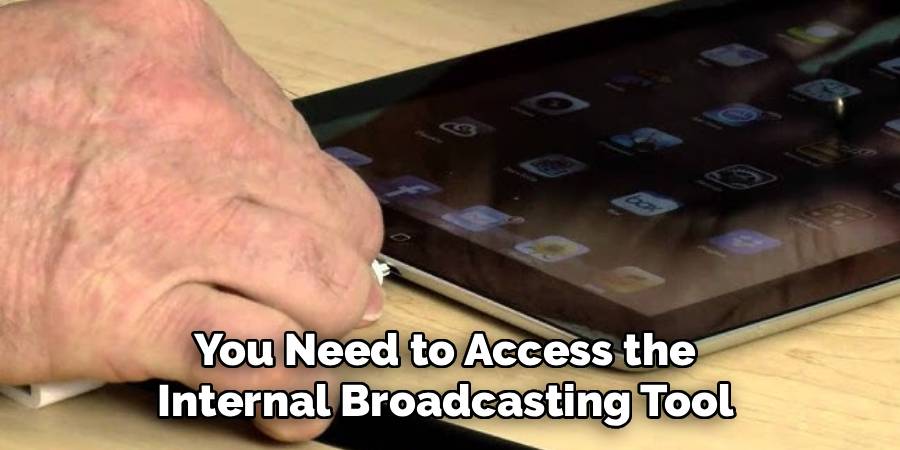
Once both devices share the same network, you need to command your tablet to start broadcasting its screen. Swipe down from the top right corner of your tablet screen to open the control center. If you use an older model with a physical home button, swipe up from the bottom edge of the screen instead.
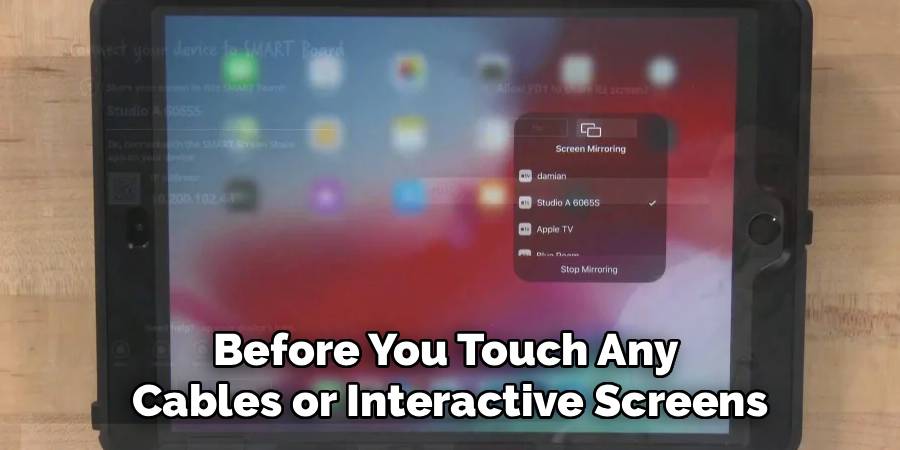
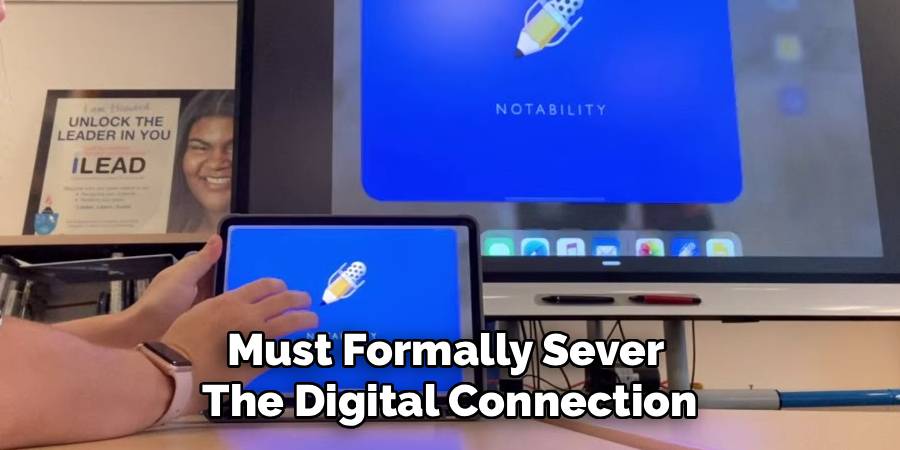
If you used the wireless broadcasting method, swipe down from the top right corner of your screen again to open the main control center. Look for the icon featuring two overlapping rectangles, which represents the screen mirroring function. Tap this icon once to activate the wireless scanner, prompting your tablet to search for nearby compatible receivers.
Step 5: Select Your Display From The List
After tapping the mirroring icon, a small menu will appear displaying all available wireless receivers in your immediate area. Read through the list carefully and identify the name of your specific classroom or boardroom display. Tap directly on the name to initiate the connection sequence. The main display might suddenly show a four-digit security passcode to prevent unauthorized users from hijacking the screen. Type this passcode into your tablet when prompted to authenticate the secure connection. Your screen should immediately appear on the large panel.
Step 6: Learning Smartboard With Cables
Sometimes wireless networks experience heavy traffic, making a physical connection the most reliable backup plan. A wired connection guarantees a stable video feed with absolutely zero lag, which is perfect for playing high-definition videos. Start by locating the input panel on the large interactive display, which usually sits on the side or directly underneath the main screen. Look for an empty HDMI port and take note of its specific label, such as HDMI 1 or HDMI 2. Knowing the exact input number saves you from cycling through blank screens later.
Step 7: Plug The Adapters Into Your Devices
Take your HDMI cable and plug one end securely into the port you just located on the large display. Connect the other end of that same cable into the HDMI port on your specialized tablet adapter. Finally, plug the adapter directly into the charging port at the bottom of your tablet. Ensure all the connections feel snug and secure, as a loose cable will cause the video feed to flicker or drop entirely. Push the cables gently out of your way so they do not snag your clothing while you present.
Frequently Asked Questions
Do I Need Wi-Fi For A Wired Connection?
You do not need any internet access to share your screen using physical cables and adapters. The HDMI cable transfers the video and audio data directly from your portable device to the large screen without relying on external networks. This makes the wired method incredibly useful for guest presenters who do not have login credentials for the secure building network. As long as you have your adapter and cable, you can project your materials perfectly in any room.
Why Is The Display Screen Lagging Behind My Tablet?
Noticeable lag usually happens during wireless screen mirroring when the local network experiences heavy congestion. If twenty people in the room are downloading large files simultaneously, the router struggles for cable connection to process your video broadcast in real-time. Moving your devices closer to the wireless router can sometimes improve the signal strength and reduce the delay. If the stuttering continues to disrupt your presentation, switching to a physical HDMI cable instantly eliminates all lag and restores a perfectly smooth frame rate.
Can I Control The Tablet From The Interactive Screen?
Apple operating systems prioritize strict security protocols that prevent external touch displays from controlling the tablet natively. When you mirror your device, the large panel acts solely as a massive monitor rather than an input device. Tapping the interactive board will not turn the pages of your digital book or advance your presentation slides. You must physically touch the glass of your tablet to navigate through your applications, scroll through web pages, and interact with your digital content.
Will The Screen Mirroring Drain My Battery Quickly?
Broadcasting a high-definition video signal requires significant processing power, which naturally consumes your battery faster than typical daily tasks. Wireless mirroring demands the most energy, especially if you project brightly colored videos for an extended period. If you plan to present for more than an hour, you should plug your tablet into a wall charger while you speak. Many modern wired adapters actually include a secondary charging port, allowing you to power the device and share the screen simultaneously.
What Should I Do If The Audio Does Not Play?
Audio failures typically result from minor software glitches or incorrect volume settings on the primary device. First, check that the silent switch on the side of your tablet is not accidentally engaged. Swipe down to open your control center and ensure the main volume slider is pushed all the way up. If you are using a wired connection, try unplugging the adapter from your tablet and pushing it firmly back into place. This simple physical reset forces the devices to renegotiate the audio routing path automatically.
Conclusion
Sharing your digital workspace with an entire room elevates your communication and makes your ideas infinitely more accessible. You no longer have to huddle around a tiny screen to demonstrate a complex application or share an important video clip. Mastering how to connect ipad to smartboard gives you the ultimate flexibility to present exactly the way you want, whether you prefer wandering the room wirelessly or relying on a steadfast cable connection. You have all the knowledge required to navigate the hardware adapters, network settings, and control center menus without breaking a sweat. Take your tablet into your workspace tomorrow, test the connection before your audience arrives, and enjoy the confidence that comes with complete technical control.

About
Alexis Kerr is a distinguished figure in the world of professional workspace optimization, with a decade of expertise creating innovative and ergonomic office environments. Her professional focus lies in merging organizational psychology with modern spatial design, fostering office setups that are both high-performing and employee-centric. As the lead author for Deskvity, Alexis Kerr delves into the art and science of corporate aesthetics and functionality, inspiring office managers and remote professionals alike.
Education Cornell University
(Ithaca, New York) Bachelor of Science in Design and Environmental Analysis Focus on human factors, workplace strategy, and sustainable interior environments. Gained extensive experience in how physical space influences productivity and mental clarity.
Savannah College of Art and Design (SCAD)
(Savannah, Georgia) Master of Fine Arts in Interior Design Specialized in commercial workspace solutions with a focus on blending digital integration with physical comfort. Participated in high-level industry projects to refine the balance between corporate branding and architectural utility.
Publications and Impact
In Deskvity, Alexis Kerr shares her insights on modern workspace trends, acoustic management, and strategies for efficient layout planning. Her writing bridges the gap between high-level architectural theory and practical day-to-day office needs, making it a must-read for both facility directors and individual professionals looking to elevate their work environment.