

Managing multiple computer towers simultaneously often feels like an exercise in spatial geometry. You might find yourself constantly unplugging cables, swapping keyboards, and negotiating scarce desk space just to check a single email on a secondary machine. This chaotic physical environment could indicate a deeper inefficiency in your daily workflow.
Figuring out how to connect two desktops to one monitor directly addresses this modern technological friction. Consolidating your visual output dramatically improves daily productivity. It frees up valuable physical real estate while keeping both systems easily accessible.
The challenges of running disparate machines usually stem from poor hardware planning. We will explore several viable pathways to merge your visual outputs, ranging from physical switches to networked software protocols. A careful evaluation of these methods might suggest the perfect configuration for your specific office geometry.
Understanding the Basics of Dual Desktop Setups
Merging two distinct operating systems onto a single pane of glass requires a basic understanding of signal routing. Modern display technology allows for seamless transitions between independent systems without sacrificing visual fidelity. The monitor essentially acts as a blank canvas, waiting for a directed stream of data.
This setup relies heavily on intercepting and redirecting video signals. You must essentially trick the monitor into accepting alternating sources of information. Recognizing how these data streams travel could help you avoid common setup errors.
The Role of Video Ports
Identifying the physical connections on the back of your machines is the logical starting point. Common interfaces like HDMI, DisplayPort, and USB-C dominate the current consumer market. Each format carries distinct bandwidth limitations that dictate overall image quality.
You should map out exactly which ports are available on both your computers and your chosen display. Mismatched outputs often necessitate the purchase of translation adapters. This physical audit might prevent frustrating delays when you finally attempt to cable the system together.
Identifying Your Specific Needs
Every user approaches a multi-system layout with entirely different operational demands. A high-framerate gaming rig requires a vastly different configuration than a simple spreadsheet workstation. You must evaluate what you actually intend to do with these merged machines.
Heavy video editing or 3D rendering could indicate a need for a high-bandwidth hardware switch. Conversely, occasionally checking a secondary email server might only require a simple software bridge. Matching your actual workflow to the appropriate technology saves you both time and money.
Why Knowing How To Connect Two Desktops To One Monitor Matters?
Optimizing a physical workstation yields tangible psychological benefits. Physical clutter on a desk frequently translates into mental fatigue and diminished focus over long hours. Knowing how to connect two desktops to one monitor effectively cures this environmental chaos.
A streamlined workspace promotes a calm, highly deliberate working environment. It removes the physical friction of constantly turning your chair or stretching to reach a secondary mouse. This consolidation appears to foster deeper, more sustained periods of deep concentration.
Streamlining Your Workflow
Quickly toggling between a professional workstation and a personal computer helps maintain intellectual momentum. You can seamlessly switch contexts without ever taking your hands off your primary keyboard. This fluid transition could suggest a more integrated approach to managing your digital life.
Keeping work files and personal data strictly separated on distinct machines provides excellent data security. Yet, sharing the same physical screen masks this separation behind a unified visual interface. It essentially offers the best of both isolated security and integrated accessibility.
Reducing Clutter and Expenses
Purchasing a second high-quality display is an incredibly expensive proposition. A secondary screen also consumes a massive footprint, dominating the physical space in a small home office. Consolidating your hardware makes far more economic sense.
A shared display reduces cable clutter, power consumption, and thermal output in your room. It represents a highly efficient use of your existing technological investments. Avoiding unnecessary hardware purchases might indicate a more sustainable approach to office management.
The Hardware Route Using a KVM Switch
Introducing a dedicated piece of routing hardware is perhaps the most reliable path forward. This method provides a physical, tangible bridge between your disparate machines. It relies on a specialized device known as a KVM switch.
A hardware switch physically intercepts the video and peripheral signals before they reach the monitor. It acts as an absolute gatekeeper for your data streams. This approach often proves to be the most stable solution for long-term usage.
What is a KVM Switch?
The acronym stands directly for Keyboard, Video, and Mouse. This small, unassuming box functions as a centralized command hub for your entire desk. It accepts inputs from multiple computers and routes them to a single, unified output station.
Pressing a physical button on the box instantly swaps the active connection. Your mouse and keyboard immediately begin controlling the newly selected machine. It essentially allows you to operate two entirely separate computer towers as if they were a single unified system.
Choosing the Right KVM Model
Selecting the appropriate switch requires a careful reading of technical specifications. You must ensure the device matches your monitor’s maximum resolution and native refresh rate. Purchasing a cheap, outdated switch will severely degrade your visual experience.
If you own a 4K display, your switch must explicitly support 4K bandwidth throughput. It might also help to verify whether the switch supports audio routing if you rely on built-in monitor speakers. Careful hardware selection here prevents agonizing visual limitations later.
Utilizing Multiple Monitor Inputs
Sometimes the most elegant solution requires no extra hardware purchases at all. Most modern displays feature an array of input ports stamped across their back panel. You can simply plug both computer towers directly into the back of the shared screen.
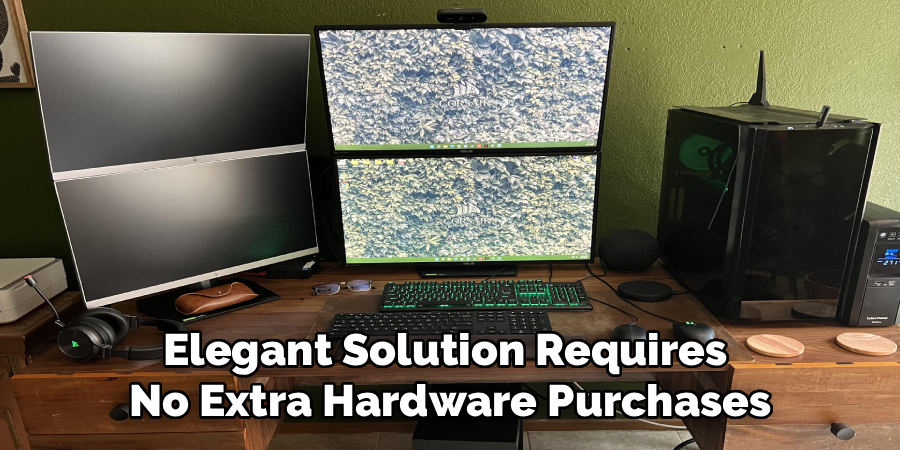
This method relies entirely on the monitor’s internal firmware to juggle the data streams. It is a highly economical approach, though it introduces a few minor ergonomic annoyances. You must be willing to interact directly with the monitor’s physical interface.
Switching Sources Manually
Toggling between computers in this configuration requires pressing the physical buttons hidden beneath your monitor bezel. You essentially use the built-in on-screen display menu to change the active input source. This manual process can feel somewhat tedious if you need to switch contexts fifty times a day.
Navigating clunky plastic buttons interrupts your workflow slightly. However, for users who only switch machines occasionally, this minor inconvenience is entirely acceptable. It could suggest a perfectly balanced compromise between cost and functionality.
Managing Keyboards and Mice
The primary drawback of the multiple-input method involves peripheral management. The monitor might switch the video feed, but your mouse remains physically plugged into the inactive computer. You must find a way to share your input devices across both machines.
Using a dedicated USB switch offers a cheap, effective workaround. Alternatively, investing in Bluetooth peripherals that pair with multiple devices simultaneously keeps the desk remarkably tidy. You simply tap a button on the mouse to jump between paired Bluetooth receivers.
Exploring Software-Based Solutions
Network-based alternatives offer a completely invisible, cable-free method of bridging your hardware. This approach utilizes your local internet router to pass data between the two operating systems. It eliminates the need for expensive physical switch boxes.
Software solutions essentially project the interface of one machine onto the screen of another. This digital projection requires a highly stable local network to prevent input lag. It might represent the absolute cleanest setup possible for modern office environments.
Utilizing Remote Desktop Protocol
Most modern operating systems include built-in remote access features. Windows Remote Desktop allows one computer to display the other’s interface inside a standard window. You essentially control the secondary machine as if it were just another application running on your primary desktop.
This protocol works beautifully for standard administrative tasks or text editing. However, it struggles massively with high-framerate video playback or hardware-accelerated rendering. The network latency could indicate that this method is best reserved for basic, static workflows.
Third-Party Application Options
Independent software developers offer specialized tools designed specifically for seamless control sharing. Applications like Synergy or ShareMouse allow a single mouse to glide smoothly across the invisible boundary between two networked PCs. It tricks the brain into feeling like you are operating one massive, continuous system.
These programs require installation on both machines to function correctly. They interpret the network topography and send your keystrokes to whichever machine currently holds the cursor focus. This elegant digital illusion appears to be highly favored by programmers and system administrators.
How To Connect Two Desktops To One Monitor: Step-by-Step Guide
Focusing entirely on the KVM switch setup provides the most comprehensive instructional baseline. This physical method remains the most popular and broadly applicable solution for dual-desktop users. Executing the setup requires a logical, highly chronological sequence of physical connections.
Rushing the cabling process usually leads to crossed wires and unresponsive screens. You should approach this installation methodically. Taking your time ensures the internal graphics processors recognize the new hardware pathways correctly.
Step 1: Gathering Cables and Powering Down
Begin by collecting all necessary video cables and USB uplink cords on your desk. You must verify you have enough cables to complete the entire circuit before starting. A missing USB cord will halt the entire installation process immediately.
Completely shut down both desktop computers and turn off the monitor. Making active electrical connections while the boards are powered occasionally causes minor electrical shorts. This brief safety measure could prevent permanent damage to your sensitive graphics cards.
Step 2: Connecting the Monitor to the Switch
Take the primary video cable and link your shared display directly to the output port of the switch. This specific port is usually labeled as “Console” or “Output” on the back panel. You must ensure you do not accidentally plug the monitor into a computer input slot.
Secure the cable firmly to prevent intermittent signal drops. If you use a wired keyboard and mouse, plug them into the designated USB peripheral ports right next to the video output. The switch now serves as the central nervous system for your external hardware.
Step 3: Linking the First Desktop
Select the primary computer tower and run a video cable from its graphics card to the “PC 1” input on the switch. You must also connect a USB data cable from the computer to the corresponding USB uplink port on the switch. This dual-cable approach allows both visual data and keystrokes to travel back and forth.
Ensure both the video and USB cables sit grouped tightly together in the correct numbered zone. Mixing a video feed from port one with a USB feed from port two creates a confusing, unusable loop. Methodical organization here is absolutely paramount.
Step 4: Integrating the Second Desktop
Repeat the exact same physical cabling process for the secondary machine. Run its dedicated video and USB lines directly into the “PC 2” input grouping on the KVM switch. Keep the cable pairs meticulously organized to avoid sudden confusion during the active switching process.
You might want to apply small labels to the cables near the switch box. A simple piece of masking tape reading “Work PC” could save you significant troubleshooting time months down the road. Visual clarity behind the desk often translates to operational stability.
Step 5: Powering On and Testing Inputs
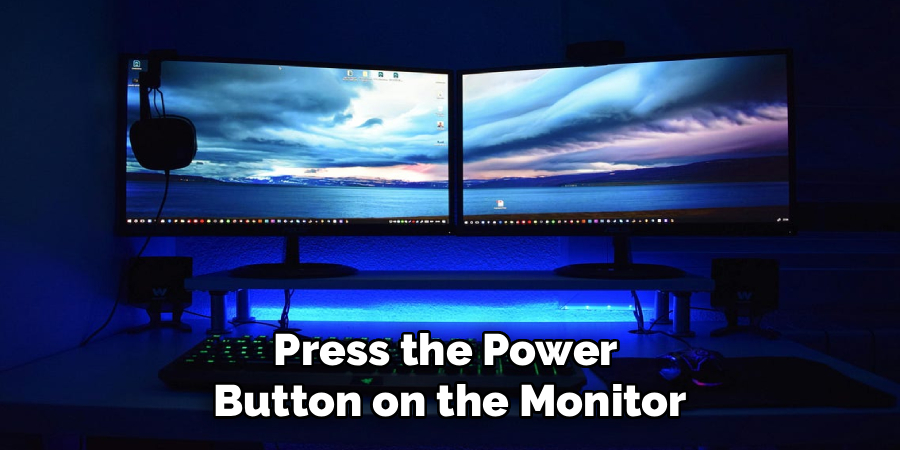
Press the power button on the monitor, followed by the KVM switch, and finally boot up both desktop towers. The display should illuminate and show the boot sequence of whichever machine is currently selected by the switch. Give both operating systems a few moments to fully load their background drivers.
Press the physical toggle button on the switch box to test the hardware bridge. The screen should briefly turn black before projecting the interface of the secondary machine. Move your mouse and type a few keys to verify peripheral responsiveness across both distinct ecosystems.
Troubleshooting Common Issues
Display Not Switching
If the display doesn’t switch between machines, ensure all cables are securely connected to the switch box and the respective desktops. Verify that the input sources on your monitor match the connected output from the switch. Additionally, test with another set of cables to eliminate the possibility of faulty wires.
Peripherals Not Responding
If your mouse or keyboard fails to respond on either system, check the USB connections on the switch box. Ensure that the peripheral drivers are properly installed on both operating systems. Rebooting the systems may also help establish proper connections.
Frequently Asked Questions
What Is The Purpose Of A KVM Switch?
A KVM (Keyboard, Video, and Mouse) switch allows you to control multiple computers using a single set of peripherals, such as a keyboard, monitor, and mouse. This is ideal for streamlining workflows and reducing the need for duplicate hardware.
How Do I Ensure My KVM Switch Is Compatible?
Check the system requirements for the KVM switch and ensure it supports the operating systems and hardware connections of your devices. Look for compatibility with your monitor type (e.g., HDMI or DisplayPort) and peripheral interfaces like USB.
Why Does The Screen Flicker When Switching?
A brief screen flicker is normal as the switch establishes a new connection between the selected computer and the peripherals. If the flicker persists, verify the cables are securely connected and confirm the resolution settings are compatible with the monitor.
Can I Connect More Than Two Computers?
Yes, some KVM switches are designed to accommodate three or more devices. When purchasing, look for models explicitly labeled as multi-port or designed for extensive setups.
Do I Need Additional Drivers For My KVM Switch To Work?
Most modern KVM switches are plug-and-play, meaning they do not require additional drivers. However, specialty features or proprietary software may require installation—refer to the product manual for details.
Conclusion
Consolidating your hardware architecture actively transforms a chaotic workspace into a focused, highly rational environment. Whether you rely on a physical KVM switch or clever network protocols, merging your visual outputs is entirely achievable. The methods discussed here offer varying degrees of cost, convenience, and technical complexity.
Understanding how to connect two desktops to one monitor essentially cures the modern plague of desk clutter. It allows you to maintain strict system separation without sacrificing your physical comfort. A clean, optimized workstation frequently appears to yield a much sharper, more productive state of mind.
Assess your current hardware ports today to determine your optimal path forward. Choose the specific setup method that best aligns with your daily workflow requirements and visual bandwidth needs. You can finally reclaim your desk space and operate both machines with absolute, uninterrupted clarity.

About
Alexis Kerr is a distinguished figure in the world of professional workspace optimization, with a decade of expertise creating innovative and ergonomic office environments. Her professional focus lies in merging organizational psychology with modern spatial design, fostering office setups that are both high-performing and employee-centric. As the lead author for Deskvity, Alexis Kerr delves into the art and science of corporate aesthetics and functionality, inspiring office managers and remote professionals alike.
Education Cornell University
(Ithaca, New York) Bachelor of Science in Design and Environmental Analysis Focus on human factors, workplace strategy, and sustainable interior environments. Gained extensive experience in how physical space influences productivity and mental clarity.
Savannah College of Art and Design (SCAD)
(Savannah, Georgia) Master of Fine Arts in Interior Design Specialized in commercial workspace solutions with a focus on blending digital integration with physical comfort. Participated in high-level industry projects to refine the balance between corporate branding and architectural utility.
Publications and Impact
In Deskvity, Alexis Kerr shares her insights on modern workspace trends, acoustic management, and strategies for efficient layout planning. Her writing bridges the gap between high-level architectural theory and practical day-to-day office needs, making it a must-read for both facility directors and individual professionals looking to elevate their work environment.