

A projector can give you a big, cinematic picture, but the built-in speaker often does not match the screen size. Small projector speakers can sound thin, quiet, or uneven, especially in larger rooms, classrooms, offices, or outdoor movie setups. Better speakers can make dialogue clearer, music fuller, and presentations easier to follow.
This guide explains how to connect speakers to projector devices using common wired and wireless methods. You do not need to be an audio expert to do it. You only need to understand which ports your projector and speakers have, choose the right cable or adapter, and adjust a few settings.
The right setup depends on your equipment. Some projectors support Bluetooth, some have a 3.5 mm headphone-style output, some use HDMI ARC, and others may need RCA or optical audio. Once you know what to look for, the process becomes simple, practical, and much less frustrating.
Why Connecting Speakers To A Projector Matters
Connecting external speakers improves the full viewing experience. A sharp image loses impact when the sound is weak, delayed, or hard to hear. Clear audio helps movies feel more immersive, makes games more exciting, and keeps presentations professional.
External speakers also give you more control. You can place sound closer to the audience, adjust volume with more precision, and choose a system that fits your space. A small room may only need compact powered speakers, while a home theater may work better with a soundbar or receiver.
Good audio also reduces strain. When voices are clear, people do not have to focus as hard or ask for repeats. That makes your setup more comfortable and effective.
Step-By-Step Guide To How to Connect Speakers to Projector
Step 1: Check The Projector Audio Outputs
Start by looking at the ports on your projector. Common audio output options include a 3.5 mm audio jack, RCA audio ports, optical audio, HDMI ARC, and Bluetooth. Some projectors may only have video inputs and no audio output, which changes how you connect your system.
Check the labels near each port. Look for terms like audio out, headphone, line out, optical, ARC, or Bluetooth. If the labels are unclear, check the projector menu or manual.
This first step is important because the projector must have a way to send sound to your speakers. Without the right output, you may need to connect the speakers to the source device instead.
Step 2: Identify The Speaker Input Type
Next, check the input options on your speakers, soundbar, or receiver. Powered speakers may have a 3.5 mm input, RCA input, optical input, Bluetooth pairing, USB audio, or HDMI ARC. Passive speakers usually cannot connect directly to a projector because they need an amplifier or receiver.
Look at the back or side of the speaker system. The input label tells you what kind of cable or wireless method it accepts. If your speakers use bare wire terminals, you will need an amplifier between the projector and the speakers.
When people search for how to connect speakers to projector setups, this is often where confusion starts. Matching output to input makes everything easier.
Step 3: Choose The Best Connection Method
Choose the connection that gives you the best match between your projector and speakers. HDMI ARC can be a clean option if both devices support it, especially with soundbars. Optical audio is also a strong choice for clear digital sound. A 3.5 mm cable is simple and works well for many powered speakers.
RCA cables are common with older speakers and receivers. Bluetooth is convenient because it avoids cables, but it may create audio delay in some setups. That delay can make voices look out of sync with the image.
If you have several choices, pick the most stable wired connection first. Wired audio is usually easier to troubleshoot and more reliable for movies, gaming, and presentations.
Step 4: Gather Cables And Adapters
Once you know your connection type, gather the right cable. For a 3.5 mm output, you may need a 3.5 mm aux cable or a 3.5 mm to RCA cable. For optical audio, you need a digital optical cable. For HDMI ARC, use a suitable HDMI cable and confirm that both devices support ARC.
Adapters can help when the projector and speaker ports do not match. For example, you may need an optical-to-RCA converter or a 3.5 mm-to-RCA adapter. Make sure any converter supports the audio format you plan to use.
Avoid buying random adapters without checking compatibility. The wrong adapter may fit physically but still fail to pass sound.
Step 5: Power Down Before Connecting
Before plugging in cables, turn off the projector, speakers, and source device. This helps protect the ports and prevents loud pops through the speakers. It also gives each device a clean start when you turn everything back on.
If you are using a receiver or soundbar, turn that off too. Then connect the cable firmly to the correct output on the projector and the correct input on the speaker system.
For Bluetooth, you do not need a cable, but you should still start with both devices in a stable state. Turn them on, place them close together, and prepare to pair them through the projector’s audio or Bluetooth menu.
Step 6: Make The Connection
For a wired setup, plug one end of the cable into the projector’s audio output and the other end into the speaker input. If you use RCA, match the red and white connectors to the correct ports. If you use optical, remove any plastic tip covers and insert the cable gently until it sits securely.
For HDMI ARC, connect the projector’s ARC-enabled HDMI port to the ARC-enabled port on the soundbar or receiver. Then enable ARC or CEC in the device settings if required.
If you are learning how to connect speakers to projector systems through Bluetooth, open the projector’s Bluetooth menu, select your speaker, and wait for confirmation that pairing is complete.
Step 7: Adjust The Audio Settings
After the connection is made, turn on the projector, speakers, and source device. Open the projector’s settings menu and look for audio output, sound, speaker, or device settings. Select the correct output option, such as external speaker, Bluetooth audio, HDMI ARC, optical, or headphone output.
Some projectors keep playing sound through internal speakers until you change the setting manually. Others switch automatically when they detect a cable. If you use HDMI ARC, you may also need to enable CEC controls so the projector and audio device can communicate.
Set the projector volume to a moderate level first. Then adjust the speaker volume slowly to avoid sudden loud sound.
Step 8: Test, Troubleshoot, And Optimize
Play a video with clear dialogue and listen carefully. If there is no sound, confirm that the cable is in the correct output and input. Check that the speakers are powered on, the volume is up, and the right input is selected. Also make sure the projector is not muted.
If Bluetooth sound is delayed, try a wired connection or check whether your devices support low-latency audio. If optical audio does not work, change the projector’s digital audio format to PCM if that option is available.
Finally, place the speakers where they sound balanced. Keep them aimed toward the listening area and adjust volume so speech is clear without sounding harsh.
Frequently Asked Questions
Can I Connect Any Speaker To A Projector?
Not every speaker can connect directly to a projector. Powered speakers, soundbars, Bluetooth speakers, and receivers are usually easier to use because they have built-in amplification or proper input ports. Passive speakers need an amplifier or AV receiver. Before connecting anything, compare the projector’s audio output with the speaker’s input and make sure the signal type is compatible.
Why Is There No Sound From My Projector Speakers?
No sound usually comes from a wrong input setting, muted volume, loose cable, or unsupported audio format. Check the projector audio menu and select the correct output, such as Bluetooth, HDMI ARC, optical, or headphone. Also confirm that your speaker is powered on and set to the matching input. If using digital audio, switching the format to PCM may help.
Is Bluetooth Good For Projector Audio?
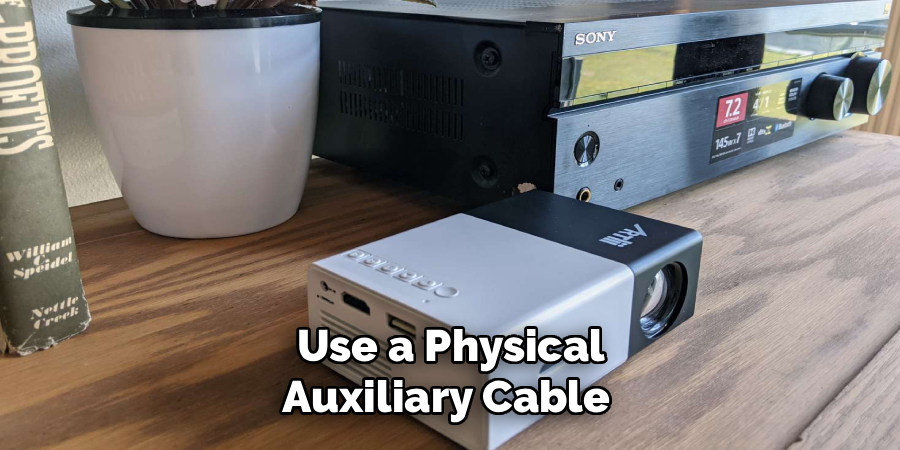
Bluetooth is convenient and works well for casual viewing, portable setups, and rooms where cables are hard to run. However, it may cause audio delay, especially with movies or games. Some projectors and speakers handle delay better than others. For the most reliable sync and sound quality, a wired connection is usually better, especially for home theater use.
Do I Need A Receiver For Projector Audio?
You only need a receiver if your setup requires one. Passive speakers need a receiver or amplifier because they cannot power themselves. A receiver is also useful when you have several source devices, surround sound speakers, or advanced audio formats. If you use a powered soundbar or powered speakers, you may be able to connect them without a receiver.
Which Cable Gives The Best Sound Quality?
HDMI ARC and optical usually provide strong digital sound quality, while a 3.5 mm aux cable or RCA cable is simple and widely supported. The best choice depends on your projector and speaker ports. For most basic setups, a 3.5 mm connection is enough. For soundbars or home theater systems, HDMI ARC or optical is often the cleaner option.
Conclusion
Better sound can make your projector setup feel complete. Start by checking the audio output on your projector, then match it with the input on your speakers. Choose a stable connection method, use the correct cable or adapter, power devices down before wiring, adjust the audio settings, and test everything before your movie, game, or presentation begins.
Now that you know how to connect speakers to projector systems, take a few minutes to inspect your ports and choose the simplest compatible option. A small upgrade in audio can make your whole viewing experience clearer, louder, and much more enjoyable.

About
Alexis Kerr is a distinguished figure in the world of professional workspace optimization, with a decade of expertise creating innovative and ergonomic office environments. Her professional focus lies in merging organizational psychology with modern spatial design, fostering office setups that are both high-performing and employee-centric. As the lead author for Deskvity, Alexis Kerr delves into the art and science of corporate aesthetics and functionality, inspiring office managers and remote professionals alike.
Education Cornell University
(Ithaca, New York) Bachelor of Science in Design and Environmental Analysis Focus on human factors, workplace strategy, and sustainable interior environments. Gained extensive experience in how physical space influences productivity and mental clarity.
Savannah College of Art and Design (SCAD)
(Savannah, Georgia) Master of Fine Arts in Interior Design Specialized in commercial workspace solutions with a focus on blending digital integration with physical comfort. Participated in high-level industry projects to refine the balance between corporate branding and architectural utility.
Publications and Impact
In Deskvity, Alexis Kerr shares her insights on modern workspace trends, acoustic management, and strategies for efficient layout planning. Her writing bridges the gap between high-level architectural theory and practical day-to-day office needs, making it a must-read for both facility directors and individual professionals looking to elevate their work environment.