

Printer malfunctions interrupt daily workflows and cause unnecessary frustration for your entire team. When a critical document fails to print minutes before an important meeting, panic often sets in. You do not need an IT degree to solve most of these common hardware and software problems.
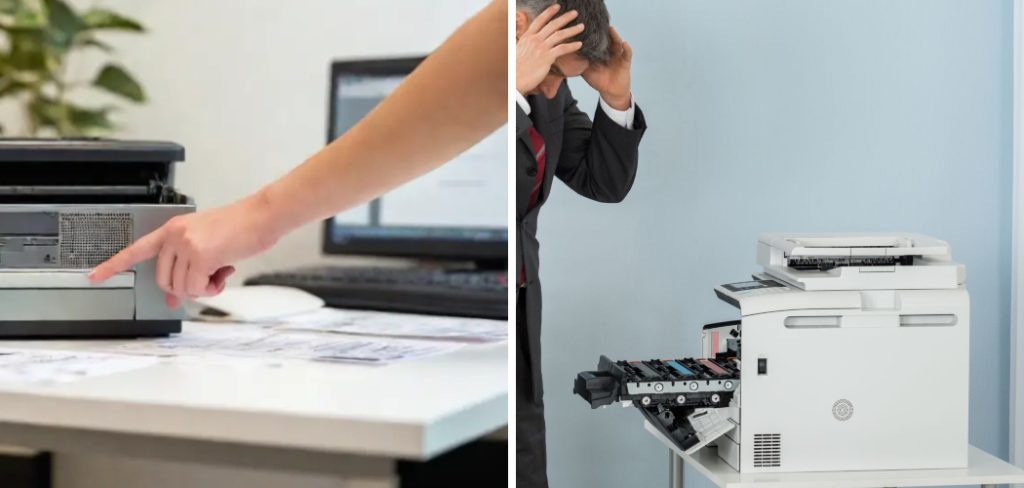
By learning fundamental troubleshooting techniques, you can identify the root cause of the malfunction and restore your equipment to working order quickly.
This guide on how to troubleshoot office printer issues provides a comprehensive, step-by-step approach to diagnosing and fixing office printer issues, ensuring your operations remain smooth and efficient.
What Will You Need?
Before you begin diagnosing your printing equipment, gather a few essential tools and supplies. Having these items within reach will make the process faster and safer.
- A reliable flashlight
- Lint-free microfiber cloths
- A can of compressed air
- Isopropyl alcohol (at least 90%)
- Spare printer paper
- Replacement ink or toner cartridges
- A computer with administrative access
10 Easy Steps on How to Troubleshoot Office Printer Issues
Step 1: Verify Power and Connections
Begin your troubleshooting process by checking the most basic elements first. Ensure the printer connects securely to a working electrical outlet. Power cables can easily become loose if someone accidentally kicks them or moves the machine during office cleaning.
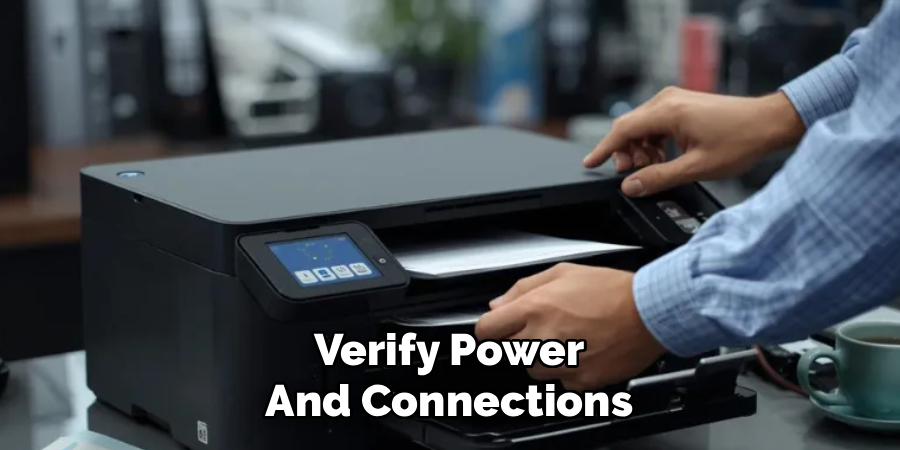
Check the physical data connections next. If you use a USB cable, unplug it and plug it back into both the printer and the computer to ensure a firm connection. Examine the cable for any visible signs of fraying or damage, which could interrupt the data signal. Sometimes, simply swapping out an old USB cable for a new one resolves persistent communication errors instantly. You must establish a solid power and data foundation before moving on to more complex software solutions.
Step 2: Check for Error Messages
Modern office printers feature detailed LCD screens that provide clear indications of internal problems. Look closely at the display panel for any flashing lights, error codes, or text prompts. The machine usually tells you exactly what is wrong, whether it needs paper, requires a new toner cartridge, or has a jam in a specific tray. Write down any alphanumeric error codes you see.
You can type these codes into the manufacturer’s support website to find highly specific solutions. Do not ignore blinking lights, even if the machine seems to operate normally, as they often serve as early warnings for low supplies or impending mechanical issues. Addressing these messages immediately saves you time and prevents future breakdowns.
Step 3: Clear Paper Jams Carefully
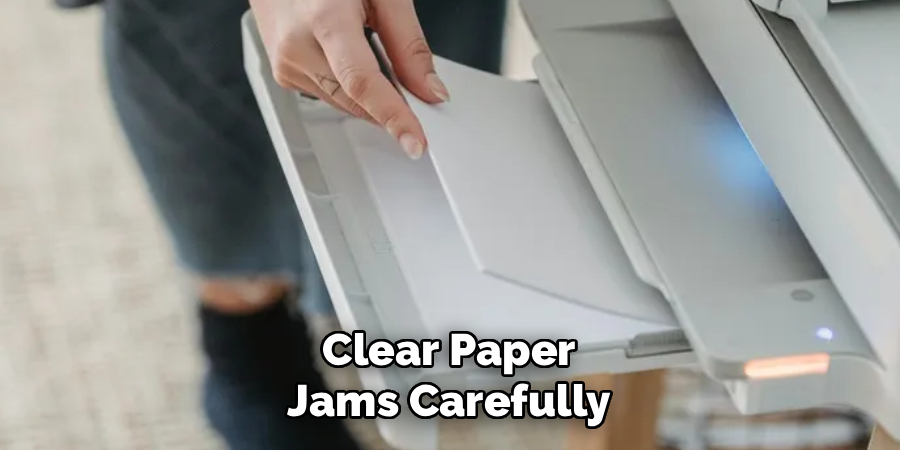
Paper jams represent the most common frustration in any busy office environment. When a jam occurs, power down the machine completely before opening any access panels. Use your flashlight to locate the stuck paper inside the paper path. Always pull the paper gently in the direction of the normal feed path to avoid tearing the sheet. If the paper tears, you must find and remove every single scrap, as even a tiny fragment can trigger the jam sensor and halt production.
Check all the common hiding spots, including the main input tray, the rear duplexer, and the output bin. Never use sharp tools like scissors or letter openers to dig out stuck paper, as you risk permanently scratching the sensitive imaging drum or internal rollers.
Step 4: Check Toner and Ink Levels
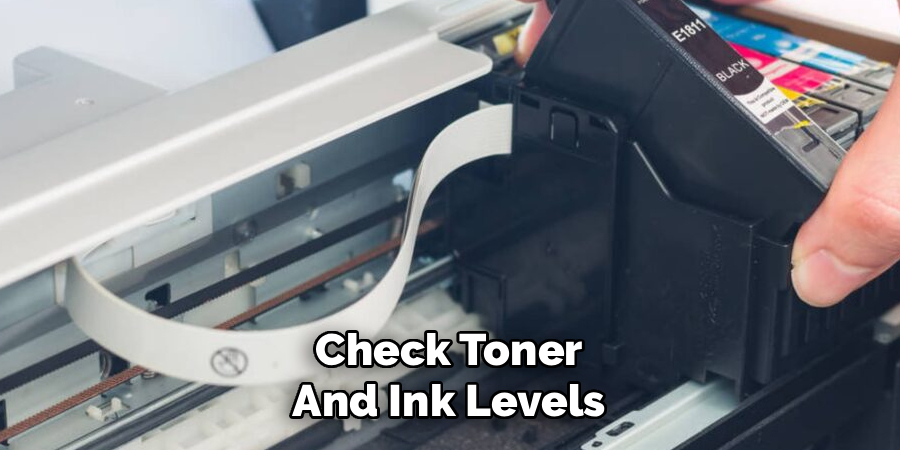
Faded prints, streaky lines, or blank pages usually point to an issue with your ink or toner supplies. Navigate through the device menu to find the supply status or ink level indicator. Even if the system shows a cartridge as partially full, the toner powder inside can clump together over time. Remove the toner cartridge carefully and rock it gently from side to side to redistribute the powder evenly.
Reinsert the cartridge and print a test page. If you use an inkjet model, check for clogged nozzles. Replace any cartridges that register as empty or critically low. Always use high-quality, manufacturer-approved supplies to ensure the best print quality and prevent internal leaks that can damage the machine.
Step 5: Restart the Printer and Spooler
A simple reboot resolves a surprising number of software-related communication errors. Turn off the printer using the main power button, unplug it from the wall, wait exactly one minute, and plug it back in. While the hardware restarts, you should also restart the print spooler service on your computer. The print spooler manages the queue of documents waiting to print.
Sometimes, a corrupt file gets stuck in this queue, blocking all subsequent jobs. On a Windows machine, open the Services application, locate the Print Spooler, right-click it, and select Restart. Once both the physical device and the background software service have rebooted, try sending your document again. This process clears temporary memory glitches and establishes a fresh connection.
Step 6: Update or Reinstall Printer Drivers
Drivers act as the critical translators between your computer operating system and your printing hardware. When drivers become outdated or corrupt, your computer loses the ability to send correct commands to the machine. Visit the official website of your printer manufacturer and navigate to the support section.
Enter your exact model number and download the latest driver package for your specific operating system. Before installing the new software, completely uninstall the old driver from your system settings to prevent conflicts. Follow the installation wizard prompts carefully. Keeping your drivers updated ensures compatibility with new software updates and provides access to the latest security patches and performance improvements.
Step 7: Verify Network Connectivity
Wireless and networked devices rely on stable internet connections to receive data. If your computer cannot find the printer on the network, check the device’s IP address. Print a network configuration page directly from the machine’s control panel to verify it connects to the correct office Wi-Fi or Ethernet network. Ensure your computer and the printer operate on the same subnet.
If the connection frequently drops, consider assigning a static IP address to the printer rather than relying on a dynamic one that changes periodically. Restarting your office router or network switch can also resolve temporary IP conflicts. A stable, dedicated network connection prevents jobs from getting lost in the digital void.
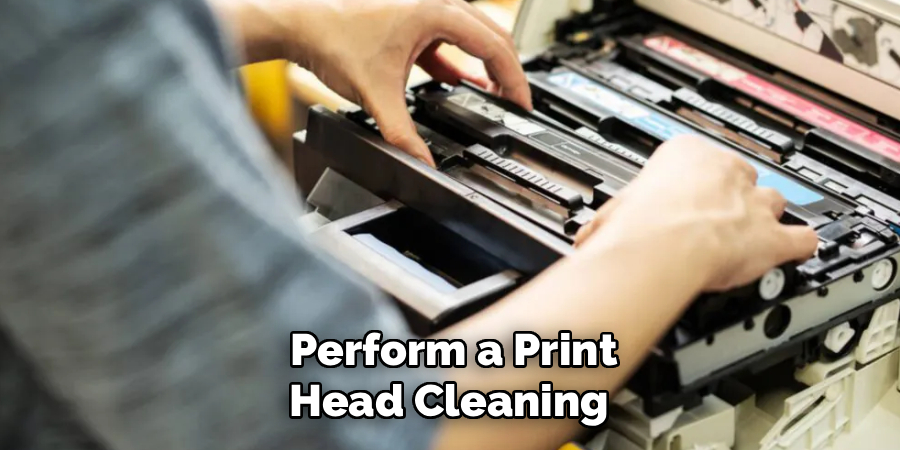
Step 8: Perform a Print Head Cleaning
When you notice horizontal lines, missing colors, or blurry text on your documents, the print heads likely require maintenance. Inkjet models frequently suffer from dried ink clogging the microscopic nozzles on the print head. Access the maintenance or tools menu on the control panel and select the print head cleaning cycle.
The machine will push a small amount of ink through the nozzles to clear out blockages. You may need to run this cycle two or three times to completely clear stubborn clogs. Remember that this process consumes a significant amount of ink, so only use it when necessary. Regular printing helps prevent the ink from drying out in the first place, keeping the print heads clear and functional.
Step 9: Align the Print Cartridges
Misaligned cartridges cause text to appear jagged and images to look distorted or shadowy. This issue often occurs immediately after you install new ink or toner cartridges, or if the machine takes a hard bump. Navigate to the maintenance menu and select the alignment tool. The device will print a specific diagnostic page filled with numbered patterns and grids. The system may ask you to scan this printed page on the glass bed so it can read the alignment automatically, or it may ask you to input the numbers of the best-looking patterns manually. Completing this alignment process calibrates the internal mechanisms, ensuring that the ink hits the paper with exact precision for crisp, professional results.
Step 10: Run the Native Diagnostic Tools
Most modern operating systems and premium office printers include built-in diagnostic troubleshooters designed to find and fix common issues automatically. On a Windows computer, navigate to the device settings, select your specific machine, and click on the “Run the troubleshooter” option. This native software scans for offline statuses, driver conflicts, and stuck queues, often resolving them without requiring any manual intervention.
Additionally, the manufacturer’s dedicated software suite usually features a diagnostic section that tests the hardware components comprehensively. Leveraging these automated tools saves you significant time and effort, as the software can analyze background data and registry settings much faster than a human operator could check them manually.
5 Things You Should Avoid
While troubleshooting, you must take care not to exacerbate the problem or cause permanent damage to your equipment. First, avoid yanking stuck paper out of the machine forcefully. Aggressive pulling tears the paper and strips the small plastic gears that drive the feed rollers.
Second, never ignore persistent warning messages. If the machine tells you the waste toner box is full or a maintenance kit is due, replacing those items prevents toner spills and mechanical failures.
Third, avoid using generic, low-quality replacement parts or knock-off ink cartridges. While they appear cheaper initially, they frequently leak, produce substandard print quality, and can void your device’s warranty.
Fourth, never spray liquid cleaners directly onto or into the machine. Liquid easily seeps into sensitive electronic control boards, causing short circuits that destroy the device. Always spray your cleaner onto a cloth first.
Finally, avoid forcing any doors, trays, or internal components open or shut. If a part does not move smoothly, something is obstructing it. Forcing plastic pieces inevitably leads to snapping hinges and broken latches that require expensive professional repairs to replace.
Conclusion
How to troubleshoot office printer issues does not have to be an intimidating or frustrating task. By systematically checking your power, connections, supplies, and software settings, you can isolate and resolve the vast majority of common printing problems.
Following a structured approach like the ten steps outlined above ensures you cover all potential failure points without missing critical details. Remember to prioritize safety, handle internal components gently, and keep your software drivers current.
With patience and these foundational troubleshooting skills, you can keep your office printing equipment running efficiently, saving your organization both time and unnecessary maintenance expenses.
