

A good workstation should help you work comfortably, stay focused, and avoid strain during long hours at a desk. Many people think ergonomics is only about buying an expensive chair, but it is really about arranging your body, desk, chair, screen, keyboard, mouse, and lighting so they work together. When your setup fits you, your neck, shoulders, back, wrists, and eyes do not have to work as hard.
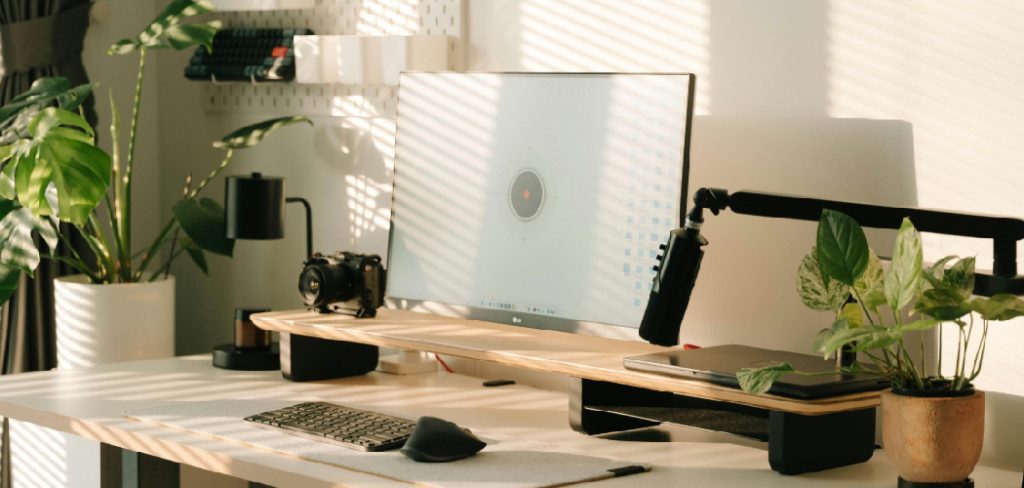
Learning how to set up an ergonomic workstation matters whether you work from home, study online, run a business, or spend hours gaming or creating content. Small changes can make a big difference. The right chair height, monitor position, and keyboard placement can reduce discomfort and help you maintain better posture without forcing it.
This guide explains the process in simple steps so you can build a healthier, more comfortable workspace without guessing.
Why An Ergonomic Workstation Matters
An ergonomic workstation helps reduce stress on your body during daily work. Poor desk posture can lead to neck pain, back stiffness, shoulder tension, wrist strain, headaches, and tired eyes. These problems often build slowly, so you may not notice the cause right away.
A better setup supports your natural posture and makes movement easier. It can also improve focus because you are not constantly shifting to get comfortable. Over time, this can help you work longer with less fatigue.
Ergonomics is not about sitting perfectly still. It is about creating a workspace that supports comfort, balance, and healthy movement throughout the day.
Step-By-Step Guide To How to Set Up an Ergonomic Workstation
Step 1: Choose The Right Chair Position
Your chair is the base of your workstation, so start there. Sit with your back supported and your hips pushed gently toward the back of the chair. Your feet should rest flat on the floor, and your knees should sit at about a 90-degree angle.
If your feet do not reach the floor, use a footrest or a sturdy box. The first part of how to set up an ergonomic workstation is making sure your lower body feels stable. When your feet are supported, your back and shoulders can relax more naturally.
Step 2: Adjust Your Seat Height
Your seat height should allow your elbows to rest near desk level when your shoulders are relaxed. If your chair is too low, you may reach upward and strain your shoulders. If it is too high, your feet may dangle, which can put pressure on your thighs.

Raise or lower the chair until your forearms can stay close to parallel with the floor while typing. Keep your wrists straight rather than bent upward or downward. This simple adjustment can reduce tension in your hands, arms, and upper back during long work sessions.
Step 3: Support Your Lower Back
Good lower back support helps maintain the natural curve of your spine. Many office chairs have built-in lumbar support, but it may need adjustment. Move it so it fits into the small curve of your lower back, not too high and not too low.
If your chair does not have lumbar support, use a small pillow or rolled towel. The goal is not to force your back into a stiff position. Instead, the support should help you sit upright with less effort. A relaxed, supported spine is easier to maintain throughout the day.
Step 4: Place Your Monitor At Eye Level
Your monitor should sit directly in front of you, about an arm’s length away. The top of the screen should be at or slightly below eye level. This position helps keep your head balanced over your shoulders instead of tilted forward or downward.
If your monitor is too low, raise it with a monitor stand, laptop stand, or a stable stack of books. If it is too high, lower it so your neck does not bend back. Your eyes should naturally look slightly downward toward the center of the screen.
Step 5: Set Your Keyboard And Mouse Correctly
Your keyboard and mouse should be close enough that you do not have to reach forward. Keep them on the same level and place the mouse next to the keyboard. Your elbows should stay near your sides, and your wrists should remain straight.
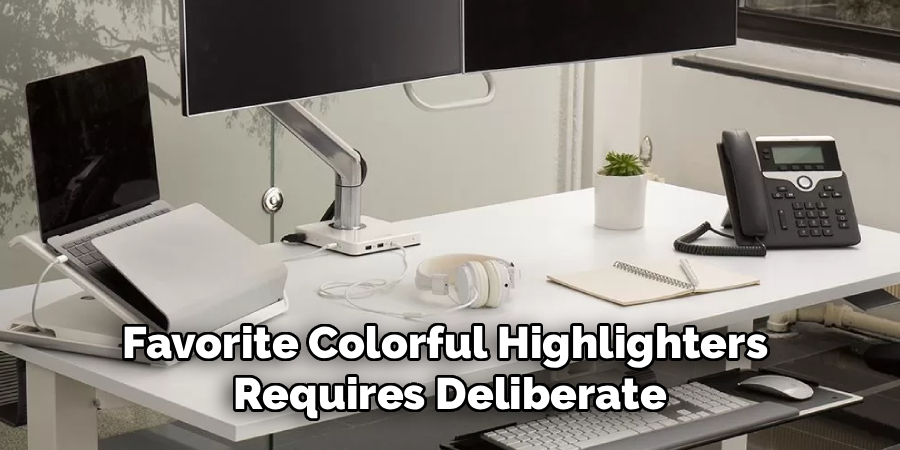
A key detail in how to set up an ergonomic workstation is reducing repeated strain from small movements. If your mouse is too far away, your shoulder may stay tense without you noticing. If your keyboard is too high, your wrists may bend. Keep everything close, level, and easy to reach.
Step 6: Improve Your Desk Layout
Your desk should support your work without becoming crowded. Keep the items you use most often within easy reach. This may include your keyboard, mouse, phone, notebook, water bottle, or document holder.
Avoid twisting your body to reach common items. If you use papers while typing, place them on a document holder near your monitor. This keeps your neck from turning back and forth too often.
A clean layout also helps your mind feel less cluttered. The goal is to make your workspace simple, efficient, and comfortable for daily use.
Step 7: Check Your Lighting
Lighting affects both comfort and focus. Poor lighting can cause eye strain, headaches, and awkward posture if you lean forward to see better. Try to use a mix of natural light and soft task lighting.
Place your screen so windows do not create glare. If sunlight reflects on your monitor, adjust the screen angle, move your desk, or use curtains. A desk lamp can help with reading and writing, but it should not shine directly into your eyes.
Good lighting should make your work easy to see without forcing you to squint or lean in.
Step 8: Position Your Laptop Safely
Laptops are convenient, but they can be hard on your body when used for long periods. If the screen is at eye level, the keyboard is usually too high. If the keyboard is comfortable, the screen is usually too low.
For longer work sessions, use a laptop stand with an external keyboard and mouse. Raise the screen to eye level and place the keyboard and mouse at elbow height. This setup turns your laptop into a more comfortable workstation.
If you only use a laptop briefly, take extra breaks and avoid hunching over the screen.
Frequently Asked Questions
What Is The Best Sitting Position For Desk Work?
The best sitting position is one that supports your body without making you stiff. Keep your feet flat on the floor or on a footrest. Your knees should be near a 90-degree angle, and your back should rest against the chair. Keep your shoulders relaxed, elbows close to your sides, and wrists straight. Your screen should be in front of you so your neck stays neutral.
How High Should My Monitor Be?
Your monitor should be about an arm’s length away, with the top of the screen at or slightly below eye level. This helps your head stay balanced and reduces neck strain. If you wear bifocals or progressive lenses, you may need the monitor a little lower so you can see clearly without tilting your head back. Adjust the height until your eyes feel relaxed.
Do I Need An Expensive Ergonomic Chair?
You do not always need an expensive chair, but you do need one that fits your body and supports healthy posture. A good chair should let you adjust the seat height, support your lower back, and sit with your feet flat. If your current chair is not perfect, small additions like a lumbar pillow, seat cushion, or footrest may improve comfort without a large purchase.
How Often Should I Take Breaks From Sitting?
A good rule is to move every 30 to 60 minutes. The break does not need to be long. Standing up, stretching, walking across the room, or changing position for a few minutes can help reduce stiffness. Regular movement matters because even a well-arranged workstation can become uncomfortable if you stay in one position for too long.
Is A Standing Desk Better Than A Sitting Desk?
A standing desk can be helpful, but it is not automatically better. The real benefit comes from changing positions during the day. Standing all day can cause foot, leg, or lower back discomfort. Sitting all day can also create strain. If you use a standing desk, alternate between sitting and standing, keep your screen at eye level, and use an anti-fatigue mat if needed.

Conclusion
An ergonomic workstation does not have to be complicated. Start with your chair, then adjust your desk height, monitor position, keyboard, mouse, lighting, and layout. Make sure your body feels supported and your tools are easy to reach. Most importantly, add movement breaks so you are not locked into one position all day.
Now that you know how to set up an ergonomic workstation, take a few minutes to review your current setup. One small adjustment today can lead to better comfort, better focus, and healthier work habits over time.
