

Apple’s Magic Mouse is designed for macOS, but it can also work with a Windows laptop or desktop when Bluetooth is set up correctly. If you are switching between devices, using a work PC, or trying to reuse an Apple mouse you already own, learning how to connect mac mouse to windows can save you money and desk space.
The process is usually simple, but Windows may not recognize every gesture or scrolling feature the same way a Mac does. That is why it helps to know the correct pairing steps, common settings, and basic fixes before you start. This guide walks you through the full setup in a beginner-friendly way, from checking compatibility to solving connection problems.
Why Connect A Mac Mouse To Windows
Connecting a Mac mouse to a Windows computer lets you keep using a device you already know. The Magic Mouse has a slim design, a rechargeable battery, and smooth tracking, which makes it useful for everyday browsing, office work, and light creative tasks.
It is also helpful if you use both Mac and Windows devices. Instead of buying a separate mouse for each computer, you can pair the same Apple mouse with your Windows machine when needed.
The main benefit is convenience. Once paired, the mouse can handle basic pointer movement, clicking, and scrolling. Some advanced gestures may need extra software, but the core mouse functions usually work well through Bluetooth.
Step-By-Step Guide To How To Connect Mac Mouse To Windows
Step 1: Confirm Your Mouse Model And Windows Version
Before pairing, check which Apple mouse you have. Most people use a Magic Mouse 1 or Magic Mouse 2, and both can connect to Windows through Bluetooth. The Magic Mouse 2 has a built-in rechargeable battery, while the older version uses replaceable batteries.
Next, make sure your Windows computer has Bluetooth. On most laptops, Bluetooth is built in. On desktops, you may need a USB Bluetooth adapter. You should also update Windows before pairing because newer updates often improve Bluetooth stability. A quick check now can prevent connection issues later.
Step 2: Windows Through Bluetooth
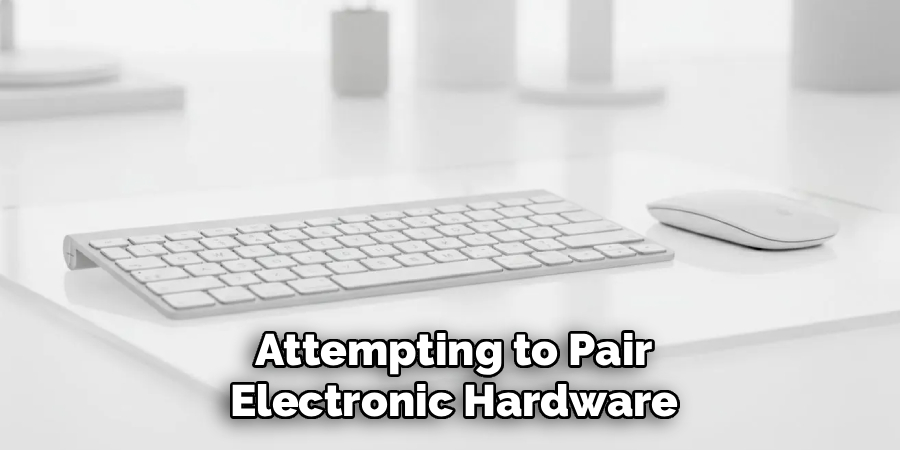
Open your Windows settings and go to the Bluetooth section. On Windows 11, select settings, then bluetooth and devices. On Windows 10, select settings, then devices, then bluetooth and other devices. Turn Bluetooth on if it is not already enabled.
Now switch on your Magic Mouse. If it is already paired with a Mac nearby, turn Bluetooth off on that Mac or remove the mouse from the Mac’s Bluetooth list. This helps Windows find the mouse without interference. Once the mouse is ready, choose add device on Windows and wait for it to appear.
Step 3: Put The Magic Mouse In Pairing Mode
A Magic Mouse does not have a traditional pairing button. To make it discoverable, turn the mouse off, wait a few seconds, and then turn it back on. The power switch is on the bottom of the mouse. When the switch shows green, the mouse is on.
If Windows does not see it right away, keep the mouse close to the computer. Bluetooth range and interference can affect discovery. Also, make sure the mouse is not still connected to another device. Apple accessories often reconnect automatically to the last computer they used, which can block pairing with Windows.
Step 4: Select The Mouse In Windows Bluetooth Settings
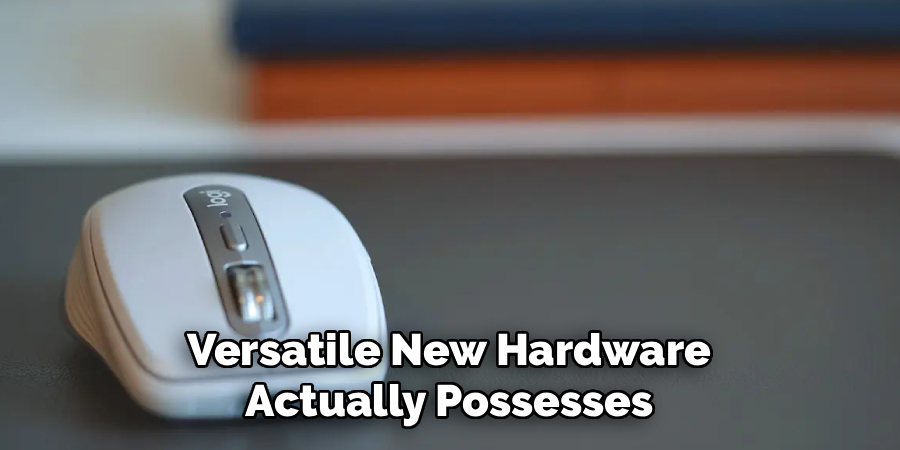
When the Magic Mouse appears in the Windows device list, click its name to begin pairing. It may show as Magic Mouse, Apple Wireless Mouse, or a similar device name. Windows should then connect to it automatically.
If Windows asks for a passcode, try entering 0000. Many modern setups will not ask for one, but older Bluetooth systems sometimes do. After pairing, move the mouse to confirm that the pointer responds. If the cursor moves and clicks work, the basic connection is complete. At this point, Windows recognizes the mouse as a standard Bluetooth pointing device.
Step 5: Test Clicking, Tracking, And Basic Scrolling
After pairing, test the main functions. Move the mouse across your desk, click the left side, click the right side, and try scrolling. Basic movement and clicking should work in most cases. Scrolling may work differently depending on your Windows version and driver support.
If right-click does not respond, open mouse settings in Windows and confirm that secondary click behavior is enabled. You can also adjust pointer speed if the mouse feels too fast or too slow. These small settings make the mouse feel more natural and help you avoid frustration during daily use.
Step 6: Install Drivers If Scrolling Does Not Work
Windows may connect to the Magic Mouse but still miss some features, especially smooth scrolling or gesture support. This happens because Apple designs the Magic Mouse for macOS first, and Windows does not always include the best driver by default.
You can improve support by installing compatible Apple mouse drivers or trusted third-party utilities. These tools may help enable scrolling, better tracking, and more natural behavior. Be careful when downloading drivers. Use reliable sources and avoid unknown files. If you only need basic clicking and movement, you may not need extra software at all.
Step 7: Adjust Mouse Settings For Better Control
Once the mouse is connected, open Windows mouse settings to fine-tune the experience. You can change pointer speed, scroll direction, number of lines per scroll, and primary button settings. If you are used to a Mac, Windows may feel slightly different at first.
Take a minute to test these settings in a browser, document, or spreadsheet. Small changes can make a big difference. If the pointer jumps, reduce the speed. If scrolling feels too slow, increase the scroll lines. The goal is to make the Magic Mouse feel comfortable on Windows, not exactly like it does on macOS.
Step 8: Fix Common Pairing And Connection Problems
If the mouse does not connect, start with simple fixes. Turn Bluetooth off and back on in Windows, restart the mouse, and restart the computer. Also, remove the mouse from any nearby Mac, iPad, or other paired device that may be taking control of it.
If it still fails, remove the mouse from the Windows Bluetooth list and pair it again. A low battery can also cause unstable pairing, so charge the mouse or replace the batteries if needed. For desktops, try moving the Bluetooth adapter to a front USB port. A stronger signal often solves random disconnects and lag.
Frequently Asked Questions
Can A Magic Mouse Work On Windows?
Yes, a Magic Mouse can work on Windows if the computer supports Bluetooth. Basic functions like moving the pointer and clicking usually work after pairing. Some features, such as smooth scrolling and gestures, may not work perfectly without extra drivers. For many users, it works well enough for everyday tasks, but it may not feel identical to using it on a Mac.
Why Is My Magic Mouse Not Showing Up In Bluetooth?
Your Magic Mouse may not show up if it is still connected to another Apple device. Turn off Bluetooth on that device or remove the mouse from its paired list. You should also restart the mouse and keep it close to the Windows computer. If the issue continues, restart Windows and check that Bluetooth is enabled and working with other devices.
Do I Need Apple Drivers For A Magic Mouse On Windows?
You do not always need Apple drivers for basic movement and clicking. Windows can often connect to the mouse as a standard Bluetooth device. However, drivers or third-party tools may be needed if scrolling, gestures, or advanced behavior does not work. If you want the closest experience to macOS, installing reliable driver support can make the mouse much more usable.
Can I Pair The Same Magic Mouse With Mac And Windows?
Yes, but switching between devices can be inconvenient. The Magic Mouse usually connects to the last device it used, so you may need to disconnect it from one computer before pairing it with another. If you switch often, remove the mouse from one Bluetooth list or turn off Bluetooth on the device you are not using. This helps prevent connection conflicts.
Why Does My Magic Mouse Keep Disconnecting From Windows?
Disconnections can happen because of low battery, weak Bluetooth signal, outdated drivers, or interference from other wireless devices. Start by charging the mouse and moving it closer to the computer. If you use a desktop with a Bluetooth adapter, try a different USB port. Updating Windows and removing old Bluetooth pairings can also improve stability and reduce random dropouts.
Conclusion
Using an Apple mouse with a Windows computer is possible, and the setup is usually straightforward once you know the right order. Check Bluetooth support, disconnect the mouse from other devices, pair it through Windows settings, and adjust mouse options for better control.
If scrolling or gestures do not work, consider installing trusted driver support. Now that you know how to connect mac mouse to windows, try pairing it and testing each function before your next work session. A few minutes of setup can give you a clean, comfortable mouse experience across both platforms.
