

Integrating a novel ergonomic device into your daily workflow can initially feel disorienting. The unique geometry of a vertical mouse fundamentally changes how the hand rests, which could explain why some users experience a brief adjustment period. Proper setup, however, remains the foundational step toward achieving the physical relief these devices are engineered to provide.
Establishing a secure digital connection appears to dictate the overall quality of the user experience. A poorly configured peripheral might introduce latency or intermittent dropouts, issues that undermine the mechanical benefits of the hardware. Taking the time to properly configure your device could prevent these frustrating technical disruptions down the line.
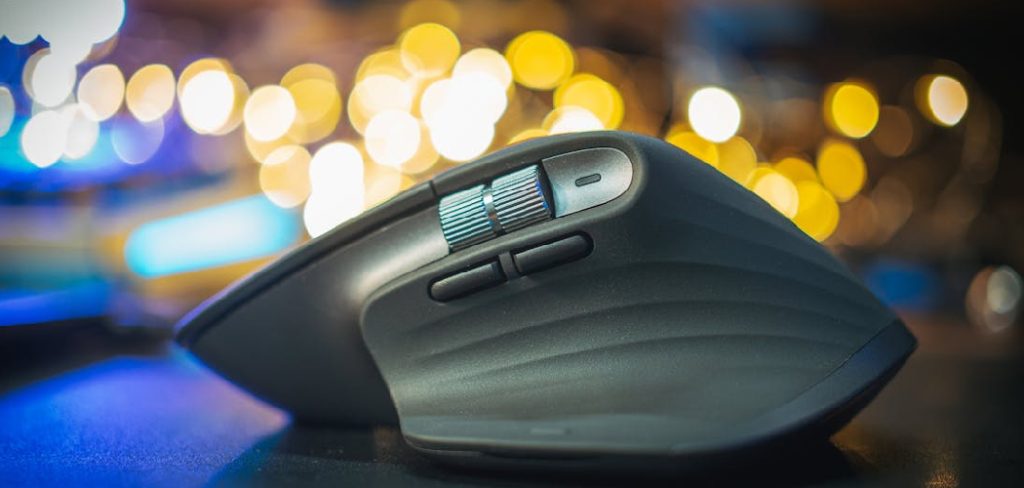
This guide on how to connect mx vertical mouse outlines the precise steps required to connect your new hardware to a desktop or laptop. By following these specific instructions, you can establish a stable wireless link. We will walk through the entire process, from unboxing the components to customizing the tracking behavior through the manufacturer’s companion application.
What You Need Before Connecting?
Gathering the necessary components before initiating the pairing sequence often saves considerable time. You will need the mouse itself. Alongside it, try to locate the small Unifying USB receiver. This piece is frequently tucked into the internal cardboard scaffolding of the packaging, making it easy to overlook. You will also need the included charging cable to ensure the internal battery holds sufficient voltage for the initial handshake.
Verify that your host computer is fully booted and that the operating system is responsive. Depending on your preferred connection method, you will require either an unoccupied USB-A port or functional Bluetooth hardware. Maintaining an active internet connection is also advisable, as this allows you to download the official configuration software later.
7 Steps on How to Connect Mx Vertical Mouse
Step 1: Unboxing and Preparing Your Device
Begin by extracting the mouse from its retail packaging. Verify the presence of the wireless receiver, the charging cable, and the printed documentation. Organizing these items immediately reduces the likelihood of accidentally discarding a functional component with the waste paper.

Examine the underside of the chassis to identify the power slider and the circular pairing button. You will interact with these physical toggles shortly. Check the optical sensor window for any plastic protective film and remove it if present. This ensures the optical laser can track surface variations accurately.
Step 2: Charging the Battery
Providing a full charge before wireless operation is highly recommended by hardware engineers. Insert the appropriate end of the cable into the front port of the mouse and connect the opposite end to your computer. A pulsing LED indicator will signal that the internal cells are receiving power. This initial charging cycle may help condition the battery chemistry for long-term reliability.
Allowing the hardware to reach maximum capacity prevents unexpected shutdowns while you are attempting to configure the software. You can actively use the device while it draws power through the cable. Once the charging indicator stops pulsing and remains solid, the battery is full.
Step 3: Choosing Your Connection Method
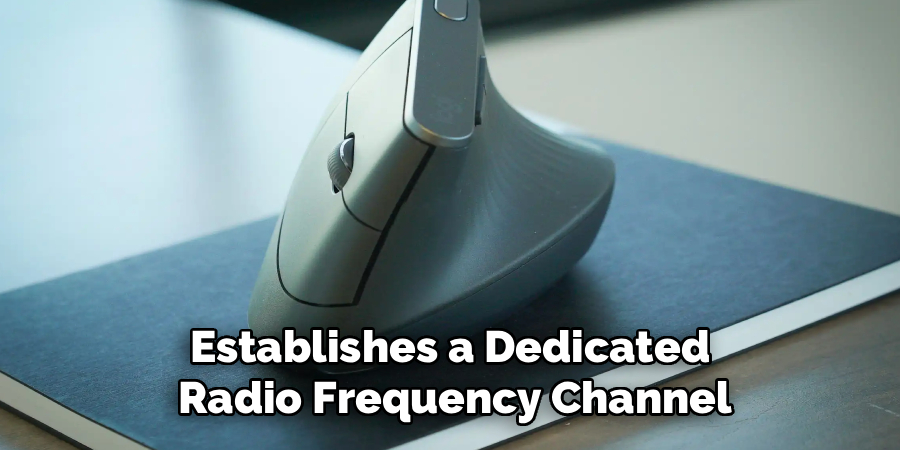
This specific peripheral offers two primary avenues for wireless communication. You can deploy the included USB receiver, which establishes a dedicated radio frequency channel. Alternatively, utilizing the computer’s native Bluetooth protocol entirely bypasses the need for a physical dongle. Both systems typically yield excellent tracking fidelity.
Your choice ultimately depends on your workstation’s hardware limitations. If your laptop lacks traditional USB-A ports, Bluetooth is the logical path forward. The dedicated receiver, on the other hand, might offer slightly better resistance to interference in offices crowded with overlapping wireless signals.
Step 4: Powering On the Mouse
Locate the mechanical slider on the bottom plate of the mouse. Push this switch to expose the green background layer, which mechanically completes the power circuit. A status light on the upper housing should briefly illuminate to confirm activation.
If the light fails to activate, the battery may not have accepted the previous charge. A powered device immediately begins scanning its immediate environment for a compatible host. You are now prepared to finalize the digital connection.
Step 5: Connecting via Bluetooth
For those utilizing the Bluetooth protocol, open your operating system’s device management menu. Press and hold the circular button on the underside of the mouse. The associated LED will begin to flash rapidly, indicating that the firmware is broadcasting a pairing request.
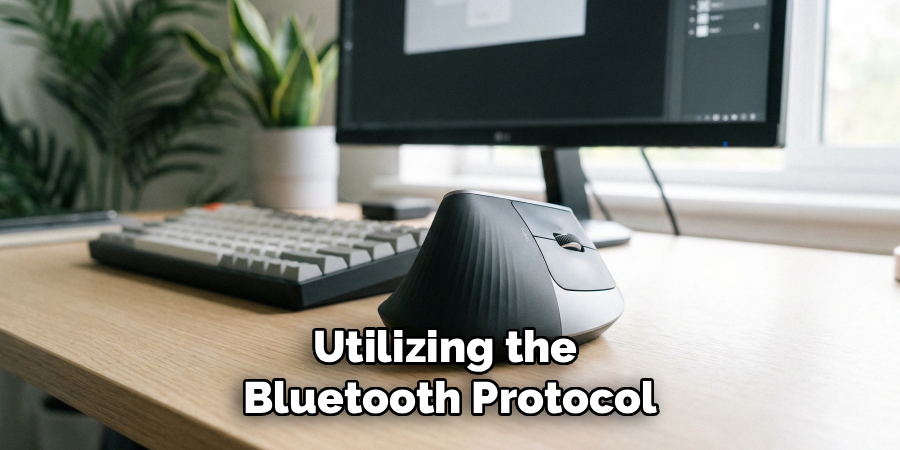
Scan the list of available devices on your computer monitor. Click on the corresponding name to initiate the cryptographic handshake between the two systems. The flashing light on the mouse will stabilize into a solid glow once the pairing resolves successfully.
Step 6: Connecting via USB Receiver
The radio frequency method requires you to insert the small receiver into an available port on your machine. Modern operating systems possess generic drivers that will automatically recognize this hardware. This plug-and-play architecture drastically reduces configuration time for the average user.
Press the button on the bottom of the mouse until the indicator light corresponds to the channel you wish to use. The connection typically establishes itself within milliseconds. Moving the physical mouse should now translate directly into cursor movement on your screen.
Step 7: Installing Configuration Software
Hardware optimization often requires proprietary software. Navigate to the manufacturer’s official website and locate the download page for their peripheral management application. Downloading and installing this free program unlocks granular control over the sensor parameters.
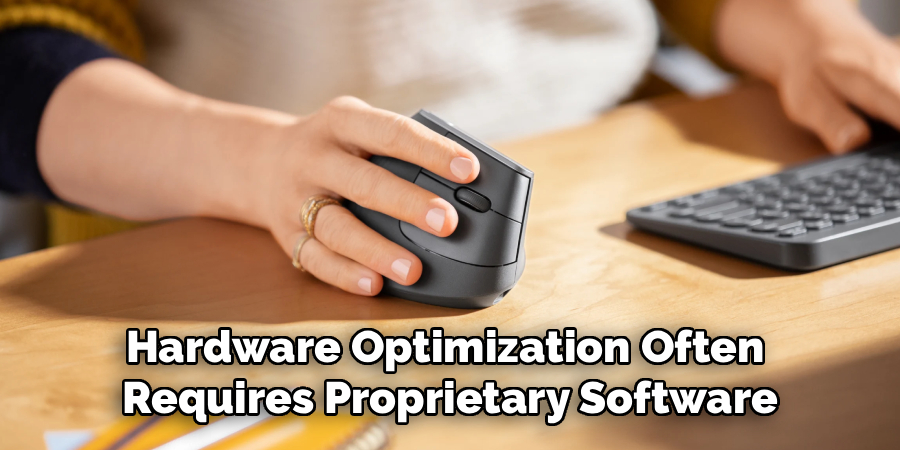
This software environment permits users to rebind the physical buttons, modify the sensor polling rate, and alter the scroll wheel dynamics. Modifying these variables could significantly improve your subjective experience with the hardware. Establishing specific profiles for different software applications might also streamline complex digital tasks.
Following these steps on how to connect mx vertical mouse to mac could unlock the full potential of this ergonomic mouse. With its unique design and customizable features, you can achieve greater comfort and efficiency while using your computer.
Troubleshooting Connection Problems
Occasionally, the initial pairing sequence fails to resolve correctly. If your cursor remains entirely unresponsive, cycling the physical power switch often forces the firmware to re-attempt the connection.
You should also verify that your computer is running the most recent system updates. Moving the USB dongle to a completely different port can help eliminate a failing motherboard controller as the source of the problem. If you are using Bluetooth, instructing your computer to ‘forget’ the device and restarting the pairing sequence from scratch usually clears corrupted connection caches.
Optimizing Mouse Performance
Physical maintenance directly impacts optical tracking accuracy. Gently wiping the sensor lens with a dry microfiber cloth prevents dust from scattering the laser light. Pairing the mouse with a surface specifically designed for optical tracking also helps minimize cursor jitter.
Within the software, matching the pointer speed to your natural physical reflexes can reduce muscle fatigue. The button on the bottom of the mouse also allows you to jump between different paired computers, which heavily speeds up multi-machine workflows. Finally, scheduling a brief charging session every few weeks ensures the wireless transmitter always operates at peak voltage.
Frequently Asked Questions
Q1: Can I Operate the Device While the Battery Charges?
Yes. Connecting the cable to your computer forces the mouse to transmit data through the physical wire rather than the wireless radio.
This allows you to continue working without interruption while the internal battery replenishes.
Q2: How Do I Jump Between Multiple Host Computers?
The button on the baseplate cycles through three independent memory slots. You must pair the mouse with each individual computer using a different slot.
Afterward, pressing this button allows the internal hardware to instantly switch its broadcasting target from one machine to another.
Q3: What Causes Intermittent Cursor Lag?
Latency usually stems from environmental wireless interference or insufficient battery voltage. Recharging the device often solves the issue entirely.
If the stuttering persists, physically moving the receiver closer to the mouse could improve the signal-to-noise ratio.
Q4: How Can I Fix Intermittent Cursor Lag?
One way to fix intermittent cursor lag is to troubleshoot potential sources of wireless interference and minimize them as much as possible. This could include moving any large electronic devices away from the mouse or receiver, using a wired connection instead of a wireless one, or changing the channel on your router.
Another solution is to ensure that your battery has enough voltage by replacing it if needed or charging it fully. If you are using rechargeable batteries, make sure they are not nearing the end of their lifespan.
Maximizing Your Ergonomic Workspace
Shifting to a vertical hand posture represents a meaningful change in how you interact with digital environments. With the hardware now successfully communicating with your operating system, you can direct your attention back to your actual work. Keep in mind that neural adaptation takes time, and your hand might require several days to fully acclimate to the new angles.
Pairing this pointing device with an equally supportive keyboard could theoretically compound these physical benefits. Maintaining a neutral spinal posture and taking routine breaks remain the most effective strategies for long-term desk comfort. Thanks for reading this guide on how to connect mx vertical mouse.
