

A computer that goes idle too soon can interrupt presentations, pause long uploads, lock your screen, or break your focus during tasks that do not require constant clicking. Learning how to keep mouse moving without touching can help you manage these situations more smoothly, especially when you need your device to stay awake for a valid reason.
This guide explains safe, practical, and beginner-friendly ways to keep your mouse activity steady without constant manual movement. You will learn how to adjust system settings, use built-in tools, choose reliable accessories, and avoid common mistakes. The goal is not to bypass rules or misuse workplace systems, but to help you prevent unwanted sleep, screen dimming, and task interruptions when your computer needs to remain active.
Why Keeping Your Mouse Active Matters
Keeping your mouse active can be useful during downloads, software installations, file transfers, online meetings, remote access sessions, and live presentations. When your computer sleeps too early, it can stop processes, disconnect apps, or make you log in again at the worst time.
It also helps reduce frustration. Instead of repeatedly moving the mouse by hand, you can set up a simple method that fits your needs. The best approach depends on your device, operating system, security rules, and the reason you need activity. A good setup keeps your workflow steady while respecting privacy, company policies, and responsible computer use.
Step-By-Step Guide To Keeping Your Mouse Active
Step 1: Check Your Computer Sleep Settings
Start with your computer’s built-in power settings. Many people look for extra tools before checking the simplest option first. On Windows, open settings, go to system, then power and battery. From there, adjust screen and sleep timing based on whether your device is plugged in or using battery power.
On Mac, open system settings and review lock screen, battery, and display settings. You can choose when the display turns off and whether the computer sleeps during certain tasks.
This method is best when you simply need more time before the system becomes idle.
Step 2: Adjust Display Timeout Carefully
Display timeout controls how quickly your screen turns off after no activity. If the timeout is too short, your screen may go black while you are reading, watching a dashboard, or waiting for a process to finish.
Increase the display timeout to a reasonable length instead of setting it to never without thinking. A longer timeout can help during focused work, but leaving your screen active all day may waste power and reduce privacy.
If you use a laptop, create different settings for battery and plugged-in use. This keeps your device practical without draining power too quickly.
Step 3: Use Presentation Or Focus Features
Many systems include modes that reduce interruptions while keeping the screen awake. Windows has presentation-related settings and focus options that can help during meetings or screen sharing. Some apps also prevent sleep while they are running in full screen.
Mac users can adjust display and battery options before a presentation or use app-specific settings when available. These features are useful because they work within the system instead of forcing constant input.
If your goal is how to keep mouse moving without touching during a presentation, this is often the cleanest method. It keeps your session stable without unnecessary tools.
Step 4: Try A Trusted Mouse Movement App
A mouse movement app can create small pointer movements at set intervals. These tools are often used to prevent sleep during long tasks, remote sessions, or monitoring dashboards. Choose a trusted app from a known source, and avoid programs that ask for unnecessary permissions.
Before installing anything, check your workplace or school policy. Some organizations block these tools because they can affect security or activity tracking systems.
If you use one, set it to run only when needed. Close it after your task is complete so your computer can return to normal power-saving behavior.
Step 5: Use A Physical Mouse Mover
A physical mouse mover, often called a mouse jiggler, is a small device that creates movement without software. Some models plug into usb power and move the mouse sensor area. Others are pads that gently rotate or vibrate to keep the pointer active.
This option can be useful if you cannot install software or if you want a simple external tool. It also avoids changing system files or granting app permissions.
For anyone researching how to keep mouse moving without touching, a physical device is one of the most direct options. Still, use it responsibly and only for legitimate needs.
Step 6: Place An Optical Mouse On A Moving Surface
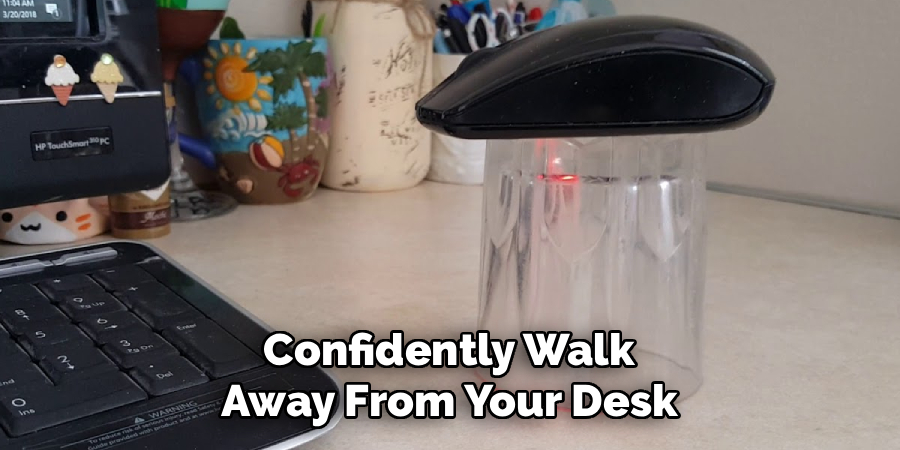
Some optical mice respond to subtle surface motion. A safe moving surface, such as a slow rotating platform made for this purpose, can trigger small cursor movement. This should be done carefully so the mouse does not fall, drag cables, or damage the desk.
Avoid unsafe tricks, unstable objects, or anything that could overheat, spill, or break. The setup should be controlled, clean, and easy to stop.
This method is less precise than using settings or a proper device, but it can work in simple cases when you need temporary movement during a short task.
Step 7: Keep Important Apps Running Properly
Sometimes the real problem is not the mouse at all. Certain apps need permission to keep running in the background. Cloud backups, large downloads, remote desktop tools, and video calls may stop if your power settings are too strict.
Review the app settings and make sure it can continue during long sessions. On laptops, check whether battery saver mode is limiting background activity. On Mac, review battery options and app permissions if something pauses unexpectedly.
Fixing app behavior is often better than forcing mouse movement. It targets the real issue and keeps your system cleaner.
Step 8: Test Your Setup Before Relying On It

After choosing a method, test it before an important meeting, upload, or remote session. Set your computer aside for the same amount of time that usually causes it to sleep. Watch whether the screen stays active, the app keeps running, and the pointer behaves normally.
If your setup fails, adjust one setting at a time. Changing too many things at once makes it harder to know what fixed the issue.
Also check heat, battery use, and privacy. A good solution should keep your computer active only when needed, not create new problems.
Frequently Asked Questions
Is It Safe To Use A Mouse Jiggler?
A mouse jiggler can be safe if you use a reliable device and follow basic precautions. Choose a product from a trusted brand, keep it on a stable surface, and avoid anything that overheats or interferes with your computer. If you use it at work or school, check the rules first. Some organizations do not allow tools that create artificial activity.
Can I Keep My Computer Awake Without Moving The Mouse?
Yes, you can often keep your computer awake by changing power, sleep, or display settings. This is usually the best first step because it uses built-in system controls. You may also use presentation mode, app settings, or background permissions depending on your task. These methods are cleaner than forcing pointer movement and are easier to manage long term.
Will Changing Sleep Settings Drain My Battery?
Yes, longer sleep and display timers can use more battery, especially on laptops. A bright screen and active wireless connections can drain power faster than expected. To reduce battery loss, use different settings for plugged-in and battery modes. You can also lower screen brightness or set a reasonable timeout instead of keeping the display on forever.
Why Does My Computer Still Lock Even If The Mouse Moves?
Your computer may lock because of security settings, not just inactivity. Many workplaces use policies that lock the screen after a fixed time, even if some activity is detected. Some systems also ignore small or artificial movement. If this happens, check your lock screen settings or contact your administrator. Do not try to bypass security rules on managed devices.
What Is The Best Method For Long Downloads Or Uploads?
For long downloads or uploads, adjusting power settings is usually the best method. Make sure the computer does not sleep while plugged in, and confirm the app has permission to keep running. A mouse mover may help in some cases, but it does not solve every issue. If the network, browser, or app pauses in the background, you need to fix those settings too.
Conclusion
Keeping your computer active does not have to be complicated. Start with power and display settings, then consider presentation features, app permissions, trusted software, or a physical mouse mover if needed. The best method is the one that solves your problem safely without creating privacy, battery, or policy issues.
Use these steps with care and test your setup before important tasks. When you understand how to keep mouse moving without touching, you can prevent unwanted interruptions and keep your workflow steady for meetings, uploads, presentations, and other valid computer sessions.
