

Mouse jigglers can make a computer look active even when no real work is happening. For employers, IT teams, and security leaders, this can create false productivity signals, weaken access controls, and hide risky user behavior. Learning how to detect mouse jiggler activity helps you separate normal work patterns from artificial movement without jumping to unfair conclusions.
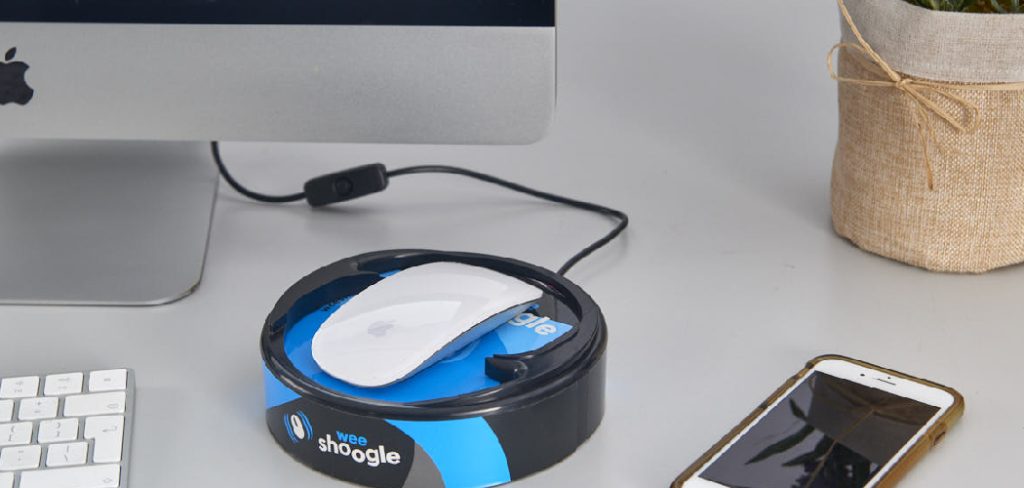
A mouse jiggler may be a small USB device, a physical moving platform, or software that simulates mouse activity. Some people use them to stop screens from locking, keep chat status active, or avoid idle tracking. This guide explains practical, professional ways to identify suspicious activity through device checks, endpoint logs, behavior patterns, and policy-based investigation.
Why Detecting Mouse Jiggler Activity Matters
Detecting mouse jiggler activity matters because it protects both productivity data and security controls. Screen locks, idle timers, and presence indicators exist for a reason. They reduce unauthorized access, support accurate reporting, and help teams understand real work patterns.
If artificial activity goes unnoticed, managers may trust misleading availability signals. IT teams may also miss signs that a device remains unlocked while unattended. Detection helps organizations respond with facts instead of assumptions. It also supports fair enforcement of acceptable use policies, especially in remote or hybrid teams where digital activity is often used as one signal among many.
Step-By-Step Guide To How To Detect Mouse Jiggler
Step 1: Review The Acceptable Use Policy First
Before investigating any suspected activity, review your company’s acceptable use, monitoring, and privacy policies. This step matters because detection should be handled fairly, legally, and consistently. You need to know what tools are allowed, what data can be reviewed, and who has authority to investigate.
A clear policy also protects employees from unclear expectations. If the organization has not explained rules around device activity, idle time, or unauthorized USB hardware, start by fixing that gap. Detection works best when people know what behavior is allowed and what may trigger a review.
Step 2: Look For Unusual Activity Patterns
A key part of how to detect mouse jiggler use is recognizing activity that looks too regular. Real users move the mouse, type, switch windows, open files, join calls, and pause at uneven intervals. A jiggler often creates repeated movement with little or no supporting activity.
Check for long sessions where the system shows active status, but there are no keyboard events, application changes, file edits, messages, or meaningful work actions. A single odd pattern does not prove misuse. However, repeated sessions with constant mouse movement and no real interaction deserve closer review.
Step 3: Check Connected USB Devices
Many hardware mouse jigglers connect through USB and appear as a human interface device. IT teams can review endpoint management tools, device manager logs, or hardware inventory records to identify unknown peripherals. Look for devices with generic names, unusual vendor IDs, or repeated connections during work hours.
This check is especially useful on managed company laptops. If a device appears only during idle periods or has no clear business purpose, document the finding. Avoid assuming guilt based on one device name alone, because some legitimate mice, keyboards, docks, and accessibility tools may show generic labels.
Step 4: Compare Mouse Movement With Keyboard Input
Mouse movement by itself tells only part of the story. Compare cursor activity with keyboard input, application use, and normal workflow events. A real user may move the mouse often, but they usually type, click, scroll, open tabs, save files, or interact with business systems.
If a device shows hours of pointer movement without typing or clicks, the behavior may be artificial. Some jigglers create tiny movements that prevent idle status but do not open menus or select items. That pattern can stand out when you compare it against normal work behavior for the same role.
Step 5: Review Endpoint And Security Logs
Endpoint detection tools, device management platforms, and operating system logs can help confirm what happened. Review login times, lock and unlock events, USB connection history, application focus changes, and session duration. These signals create a fuller picture than presence status alone.

For example, a user may appear active in a chat app for four hours, but endpoint logs may show no application switches, document edits, or browser activity. That mismatch is worth investigating. Keep the review narrow and relevant. The goal is to verify suspicious activity, not to over-monitor every normal pause or break.
Step 6: Examine Remote Work And Presence Data Carefully
Another way to apply how to detect mouse jiggler methods is to compare presence data with actual work outputs. Messaging platforms may show a user as available, but that status can be influenced by mouse movement, meeting settings, phone apps, or system behavior.
Look for repeated cases where availability does not match task updates, tickets, commits, calls, or project activity. Be careful with context. Some roles require reading, reviewing, waiting for systems, or handling offline tasks. Detection should not punish quiet work. It should identify clear patterns where activity signals appear automated and unsupported by job-related actions.
Step 7: Inspect Physical Workstations When Appropriate
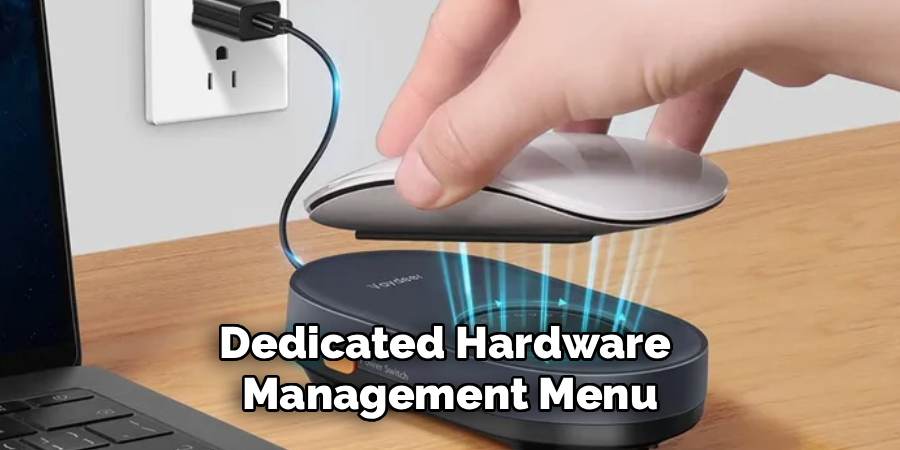
For office-based equipment, a physical inspection may reveal external jigglers. Some devices are small USB dongles. Others are moving platforms that sit under a mouse and rotate or vibrate to create motion. Inspections should follow company policy and should be performed by authorized staff only.
If the device belongs to the company, IT may have the right to inspect connected hardware. If it is a personal workspace or remote environment, the rules may be different. Always document what you find, when you found it, and how it connects to the suspected activity.
Step 8: Document Findings Before Taking Action

After gathering evidence, organize it into a clear timeline. Include device records, activity logs, presence data, policy references, and any relevant screenshots or system reports. Good documentation helps prevent overreaction and supports fair decision-making.
Do not rely on one signal, such as active status in a messaging app. Stronger conclusions come from several matching indicators, such as unknown USB hardware, repeated idle-like sessions, no keyboard input, and no work output during active periods. Once the evidence is clear, follow the organization’s HR, legal, and security response process.
Frequently Asked Questions
Can A Mouse Jiggler Be Detected By IT Teams?
Yes, many mouse jigglers can be detected, especially on managed company devices. IT teams may identify suspicious USB hardware, unusual human interface device records, or activity patterns that do not match normal work. Software-based jigglers may leave process, installation, or security tool records. Detection is strongest when teams combine device logs, endpoint data, and work activity instead of relying on one signal.
Is Using A Mouse Jiggler A Security Risk?
It can be a security risk because it may prevent a computer from locking when the user is away. If the device stays unlocked, another person could access company files, messages, or systems. It can also weaken idle timeout policies designed to protect sensitive data. The risk depends on the environment, the data involved, and whether the device is company-managed or personally owned.
Can Normal User Behavior Look Like Jiggler Activity?
Yes, normal behavior can sometimes look suspicious. A person may read long documents, watch training videos, attend meetings, or wait for a system process to finish with limited keyboard activity. That is why investigators should look for repeated patterns and supporting evidence. Fair detection compares mouse movement with role expectations, application use, output, and context before reaching a conclusion.
Should Employers Tell Workers About Monitoring?
Employers should be transparent about monitoring practices whenever possible and required by law. Clear policies reduce confusion and help employees understand what data may be reviewed. Transparency also builds trust because workers know the rules before an issue occurs. Monitoring should be proportionate, relevant to business needs, and handled through approved HR, legal, and IT processes.
What Should You Do If You Find A Mouse Jiggler?
If you find a mouse jiggler on a company device, document the discovery and follow internal procedures. Do not make accusations without reviewing logs, policies, and context. IT may remove unauthorized hardware, while HR or management may handle the employee discussion. The best response is measured, evidence-based, and consistent with how similar policy issues are handled across the organization.

Conclusion
Mouse jiggler detection works best when you combine technical evidence with fair judgment. Start with policy, then review activity patterns, USB records, endpoint logs, keyboard input, presence data, and physical devices when appropriate. No single clue proves misuse, but several consistent signals can show that activity is being simulated.
For organizations, the goal is not just to catch bad behavior. It is to protect security, improve trust, and keep productivity data accurate. If you need to know how to detect mouse jiggler activity, use a documented, policy-based process that respects privacy while protecting company systems.
