

Your MacBook Pro keyboard collects dust, skin oils, crumbs, lint, and germs with daily use. If debris builds up under or around the keys, typing can feel sticky, uneven, or less responsive. Worse, using the wrong cleaner or too much liquid can damage the keyboard, display, or internal parts. If you want to learn how to clean keyboard on macbook pro, the safest approach is simple: power down, use gentle tools, avoid excess moisture, and clean with patience.
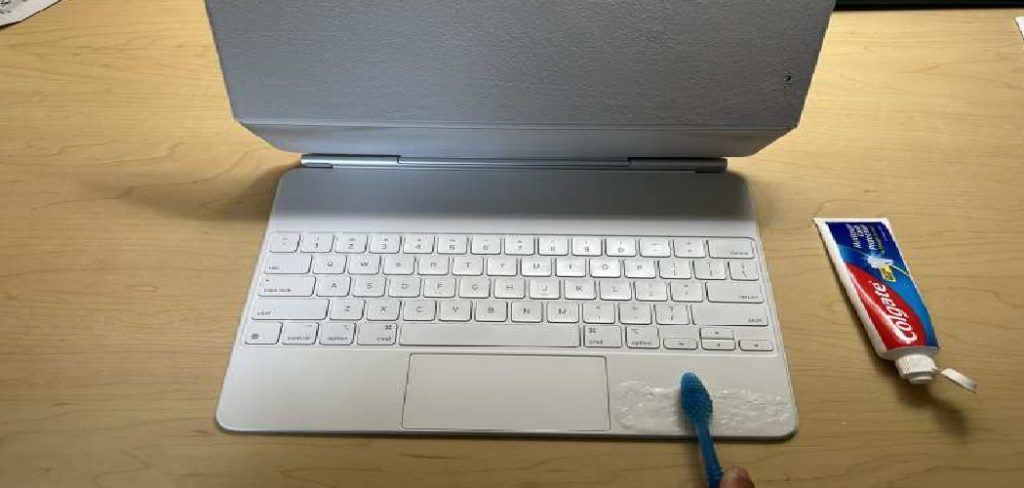
This guide walks you through a careful, beginner-friendly process. You do not need advanced repair skills or expensive equipment. With the right steps, you can refresh your keyboard, protect your device, and keep your MacBook Pro looking and working better.
Why Cleaning Your MacBook Pro Keyboard Matters
A clean keyboard is not just about appearance. It helps your MacBook Pro feel better to use and may reduce problems caused by stuck crumbs, dust, or oily buildup. Regular cleaning also helps prevent grime from spreading to the screen when the laptop is closed.
Safe cleaning matters because MacBook Pro keyboards are delicate. Liquid, harsh chemicals, and rough tools can cause more harm than good. By using a careful method, you protect the keys, the finish, and the internal components. A few minutes of proper cleaning can support better hygiene, smoother typing, and longer device life.
Step-By-Step Guide To How to Clean Keyboard on MacBook Pro
Step 1: Power Down And Unplug Everything
Before touching the keyboard, shut down your MacBook Pro completely. Do not just close the lid or put it to sleep. A full shutdown lowers the chance of accidental key presses and helps protect the device while you clean.
Unplug the charger, external drives, headphones, adapters, and any other connected accessories. If your MacBook Pro is warm from heavy use, let it cool for a few minutes first. Cleaning a cool, powered-off laptop is safer and more comfortable.
This first step is important because how to clean keyboard on macbook pro starts with reducing risk before using any cloth, air, or cleaning solution.
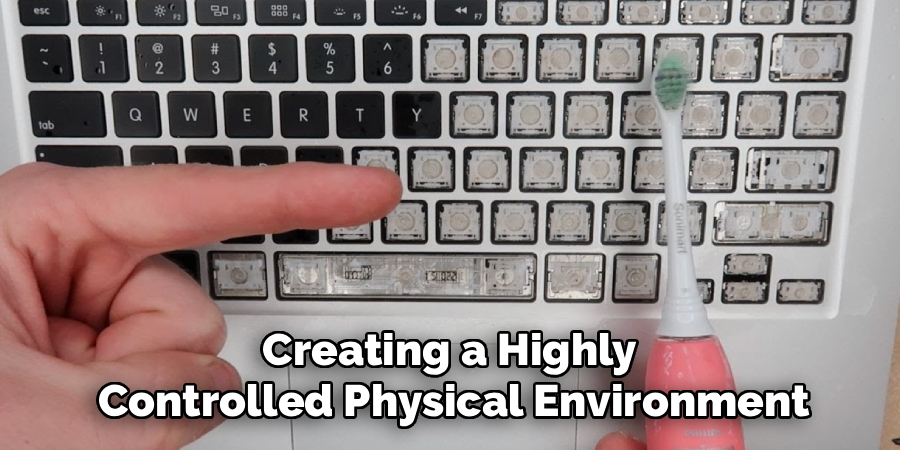
Step 2: Prepare A Safe Cleaning Area
Choose a clean, flat surface with good lighting. A desk or table works well. Avoid cleaning near food, drinks, sinks, or open windows where moisture and dust can cause problems.
Place a soft towel or microfiber cloth under the MacBook Pro to protect the bottom case from scratches. Keep your cleaning items nearby so you do not need to move the laptop too often.
You should use a microfiber cloth, compressed air, cotton swabs, and a small amount of 70% isopropyl alcohol if needed. Never use bleach, window cleaner, aerosol sprays, or soaking wet cloths on the keyboard.
Step 3: Remove Loose Debris First
Start with the easiest debris before using any moisture. Open the MacBook Pro and hold it carefully at a slight angle. Gently tap the side or bottom case with your fingers to loosen crumbs and dust.
Do not shake the laptop hard. MacBook Pro screens and hinges are strong enough for normal use, but rough handling is never worth the risk. Keep your movements controlled and slow.
You may notice small particles falling out from between the keys. Wipe them away from the surface before moving to the next step. Removing loose debris first makes the rest of the cleaning process safer and more effective.
Step 4: Use Compressed Air Correctly
Compressed air can help remove dust from under and between the keys, but technique matters. Hold the can upright and use short bursts instead of a long spray. Tilting the can too much may release cold liquid propellant, which can harm the keyboard.
Hold your MacBook Pro at about a 75-degree angle. Spray from left to right across the keyboard, then rotate the laptop and repeat from another angle. Keep the nozzle a short distance away from the keys.
Do not press the nozzle directly against the keyboard. Gentle airflow is enough. The goal is to move dust out, not force debris deeper.

Step 5: Wipe The Key Surfaces
After using air, clean the tops of the keys with a dry microfiber cloth. Move slowly across the keyboard using light pressure. This helps remove fingerprints, dust, and surface oils without scratching the keycaps.
If the keys still look greasy, slightly dampen one corner of the cloth with 70% isopropyl alcohol. The cloth should feel damp, not wet. Wipe the keys gently, then use a dry part of the cloth to remove any remaining moisture.
This is where many people make mistakes when learning how to clean keyboard on macbook pro. Too much liquid can seep under the keys, so always use the smallest amount possible.
Step 6: Clean Around The Keys With Care
The narrow spaces around the keys can hold grime that a cloth cannot reach. Use a dry cotton swab to clean around the edges of the keys. Roll the swab gently instead of pushing hard.
For stubborn dirt, you can lightly dampen the swab with isopropyl alcohol. Make sure it is not dripping. Carefully trace around the key edges and avoid forcing the swab underneath the keys.
Do not use toothpicks, metal tools, knives, or hard brushes. These can scratch the keycaps or damage the keyboard mechanism. Gentle cleaning is slower, but it is much safer for your MacBook Pro.
Step 7: Clean The Trackpad And Palm Rest
While the keyboard area is open, clean the nearby trackpad and palm rest too. These areas collect the same oils and dust from your hands. Use a microfiber cloth first, then add a tiny amount of isopropyl alcohol if needed.
Wipe in smooth, even motions. Avoid letting moisture gather near the edge of the trackpad or keyboard. If you see streaks, use a dry section of the cloth to buff the surface.
Do not spray cleaner directly onto the laptop. Always apply cleaner to the cloth first. This gives you more control and helps protect openings, seams, and sensitive parts.

Step 8: Let Everything Dry And Test The Keyboard
After cleaning, leave the MacBook Pro open for several minutes so any remaining moisture can evaporate. Even if the surface looks dry, waiting a little longer is a smart safety step.
Once the keyboard is fully dry, reconnect the charger if needed and turn the MacBook Pro back on. Open a notes app or text field and test every key. Check for sticky keys, repeated letters, or keys that feel different from the rest.
If a key still feels stuck, repeat the dry compressed air step. If the problem continues, consider professional service instead of trying to remove keys yourself.
Frequently Asked Questions
Can I Use Water To Clean A MacBook Pro Keyboard?
You should avoid using plain water directly on a MacBook Pro keyboard. A barely damp microfiber cloth may be safe for light surface cleaning, but water can seep under the keys and cause damage. If you need to remove oils or grime, 70% isopropyl alcohol is usually a safer choice because it evaporates faster. Always apply liquid to the cloth, never directly to the keyboard.
Is It Safe To Remove MacBook Pro Keys For Cleaning?
For most users, removing MacBook Pro keys is not recommended. The key mechanisms can be delicate, and forcing a keycap off may break small clips or affect how the key feels afterward. If debris is trapped under a key, try compressed air first. If the key is still stuck or not responding, it is safer to contact Apple support or a qualified repair technician.
How Often Should I Clean My MacBook Pro Keyboard?
A light cleaning once a week is a good habit if you use your MacBook Pro daily. This can be as simple as wiping the keys with a dry microfiber cloth. A deeper cleaning with compressed air and careful alcohol use can be done every month or whenever the keyboard feels dirty. If you eat near your laptop or travel often, you may need to clean it more frequently.
Can Compressed Air Damage The Keyboard?
Compressed air is usually safe when used correctly, but careless use can cause problems. Keep the can upright, use short bursts, and avoid spraying too close to the keys. If the can is tilted or shaken, it may release liquid propellant, which can be harmful. The goal is gentle airflow that removes dust, not strong pressure that drives debris deeper into the keyboard.
What Should I Do If I Spill Liquid On The Keyboard?
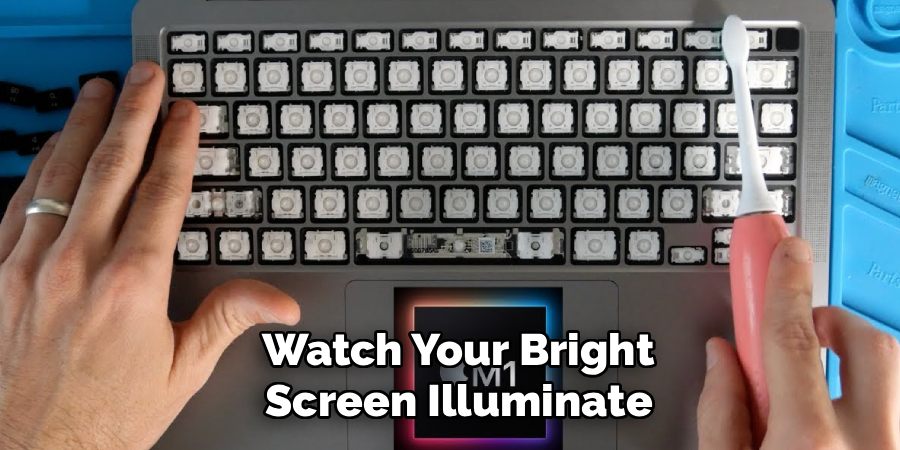
Shut down the MacBook Pro immediately and unplug all accessories. Do not press keys, shake the laptop, or use heat from a hair dryer. If possible, keep the laptop open and place it in a safe position while you arrange service. Liquid spills can reach internal parts quickly, even if the keyboard looks fine. Professional inspection is the safest option after any significant spill.
Conclusion
Cleaning your MacBook Pro keyboard is easy when you use a gentle, careful process. Start by shutting down the laptop, removing loose debris, using compressed air properly, and wiping the keys with a microfiber cloth. For grime, use only a small amount of 70% isopropyl alcohol on the cloth or swab. Avoid harsh cleaners, excess moisture, and hard tools.
The safest way to handle how to clean keyboard on macbook pro is to focus on prevention and patience. Clean lightly and often, keep food and drinks away, and stop if something feels risky. With the right care, your keyboard can stay cleaner, smoother, and safer to use.
