

Setting up the perfect home office requires careful planning, and no component impacts your daily experience quite like your display. You stare at your screen for hours on end, relying on it to parse spreadsheets, write reports, edit media, and communicate with your team.
A subpar display leads to eye strain, headaches, and a massive drop in productivity. Conversely, the right monitor transforms your workspace into a command center of efficiency and comfort. Choosing the right monitor for your home office means understanding your specific workflow, evaluating technical specifications like resolution and panel type, and prioritizing ergonomic features that support long-term physical health.
This comprehensive guide on how to choose a monitor for home office walks you through everything you need to know to make an informed decision and upgrade your daily work life.
What Will You Need?
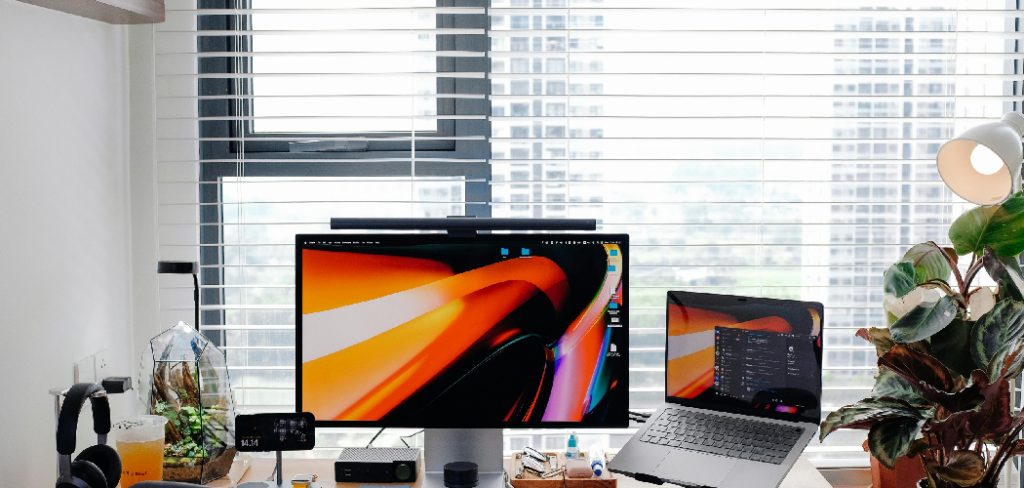
Before you start shopping for a new display, you need to assess your current setup to ensure compatibility and maximize functionality. Preparing your workspace in advance prevents frustrating returns and extra purchases down the line.
Here is a checklist of prerequisites for your new monitor setup:
- Adequate Desk Space: Measure your desk to ensure it can physically accommodate the monitor size you want, especially if you are considering a 32-inch display or an ultrawide model.
- Compatible Computer Ports: Check the output ports on your laptop or desktop. Do you have HDMI, DisplayPort, or USB-C? Knowing this determines what kind of inputs your new monitor must have.
- Graphics Card Capabilities: Verify that your computer’s graphics card can support the resolution of your intended monitor. Pushing a 4K resolution requires more graphical horsepower than a standard 1080p display.
- Mounting Equipment (Optional): If you plan to use a monitor arm for better ergonomics and desk space savings, ensure the monitor you choose is VESA-mount compatible.
- Appropriate Cables: While monitors usually come with cables, you might need longer ones or specific adapters (like a USB-C to DisplayPort cable), depending on your computer’s port configuration.
10 Easy Steps on How to Choose a Monitor for Home Office
Choosing the perfect display involves navigating a sea of technical specifications. Follow these ten detailed steps to find the ideal match for your professional needs.
Step 1: Analyze Your Specific Workflow
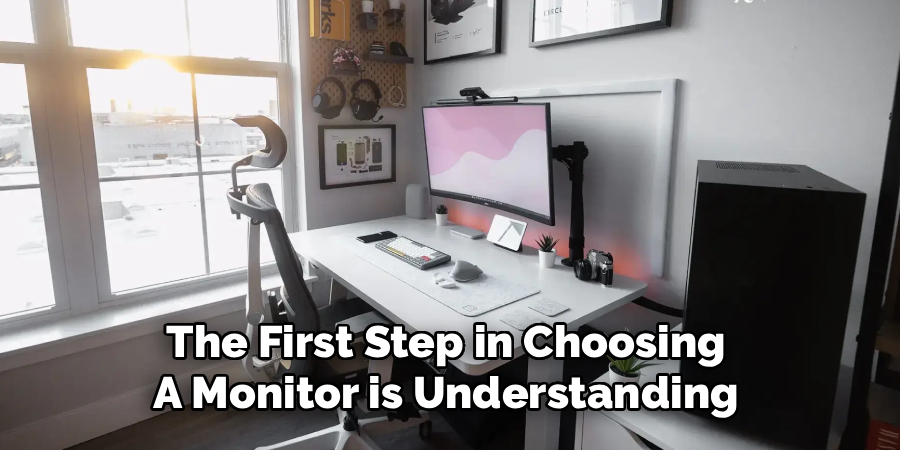
The first step in choosing a monitor is understanding exactly what you do daily. If your work revolves around reading text, answering emails, and manipulating spreadsheets, your requirements will differ drastically from a graphic designer or video editor. Data analysts might prioritize ultrawide screens for massive Excel sheets, while photographers need flawless color accuracy. By defining your core tasks, you can allocate your budget to the features that actually matter to you, rather than paying for unnecessary premium specifications.
Step 2: Select the Ideal Screen Size
Screen size dictates how much digital real estate you have at your disposal. For most home offices, a 24-inch or 27-inch monitor strikes the perfect balance between usability and desk space. A 24-inch display is excellent for basic tasks and smaller desks. Upgrading to a 27-inch model provides substantially more room for side-by-side window snapping, which is the sweet spot for general productivity. If you have the budget and space, a 32-inch monitor or a 34-inch ultrawide can entirely replace a dual-monitor setup, offering an uninterrupted, immersive workflow.
Step 3: Determine the Optimal Resolution
Resolution refers to the number of pixels on the screen; higher resolutions mean sharper, clearer images. For a 24-inch monitor, 1080p (Full HD) is perfectly adequate. However, if you step up to a 27-inch monitor, 1440p (QHD) is highly recommended. It offers much sharper text and more screen real estate than 1080p without the massive performance demands of 4K. If you are doing detail-oriented visual work, or if you are buying a monitor 32 inches or larger, a 4K (UHD) resolution becomes necessary to maintain crisp image quality and prevent pixelation.
Step 4: Choose the Right Panel Type
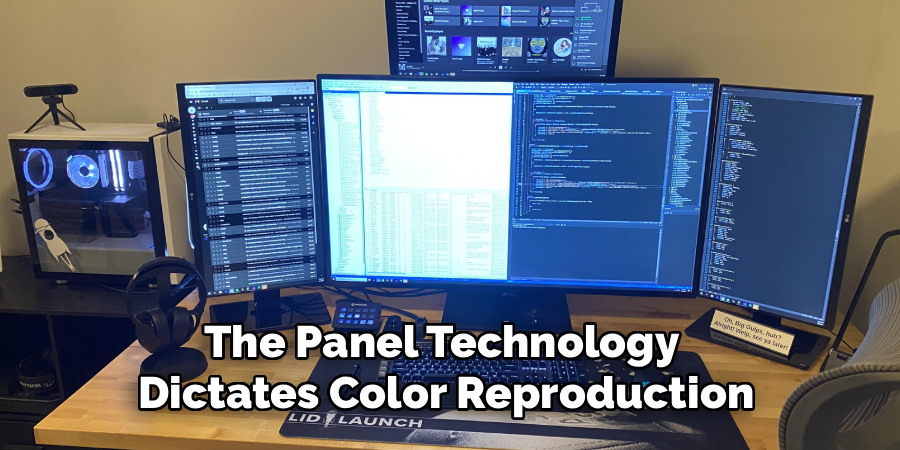
The panel technology dictates color reproduction, viewing angles, and contrast. In the current market, IPS (In-Plane Switching) panels are the gold standard for office work. They provide excellent color accuracy and wide viewing angles, meaning the image will not wash out if you look at it from the side. VA (Vertical Alignment) panels offer superior contrast ratios, making them great for dark rooms, but they often suffer from slower response times. TN (Twisted Nematic) panels are cheap and fast, but their poor color reproduction and narrow viewing angles make them ill-suited for a modern home office.
Step 5: Prioritize Ergonomic Adjustability
Your physical comfort is paramount when working from home. Never buy a monitor with a fixed stand that only allows for slight tilting. You need a monitor stand that offers height adjustment, tilt, swivel, and ideally pivot (the ability to rotate the screen vertically). Being able to adjust the height so the top of the screen is at or slightly below eye level is critical for preventing neck and shoulder pain. If the monitor you love lacks a good stand, ensure it has VESA mounting holes so you can attach it to a third-party ergonomic monitor arm.
Step 6: Evaluate Connectivity and Ports
A good monitor can act as a central hub for your entire desk setup. At a minimum, you want HDMI and DisplayPort inputs. However, the ultimate convenience for laptop users is USB-C connectivity. A monitor with a robust USB-C port can receive the video signal, transfer data, and charge your laptop simultaneously using a single cable. This drastically reduces cable clutter on your desk. Additionally, look for monitors with built-in USB hubs, which allow you to plug your mouse, keyboard, and external hard drives directly into the display.
Step 7: Assess Eye-Care Features
Since you will be staring at this screen for a third of your day, eye protection is crucial. Look specifically for monitors advertised as “flicker-free.” Screen flicker, even if barely perceptible, causes serious eye strain over long periods. Additionally, check for hardware-level low blue light filters. Blue light disrupts sleep patterns and causes visual fatigue. While software solutions like Windows Night Light help, a monitor with built-in blue light reduction provides a much more comfortable viewing experience without horribly distorting your on-screen colors.
Step 8: Consider Built-In Extras
Many monitors come with built-in speakers, webcams, and microphones. While these rarely match the quality of dedicated external devices, they are incredibly convenient for a minimalist setup or casual business meetings. If your desk space is tight, a monitor with decent built-in speakers eliminates the need for desktop speakers. Similarly, a pop-up webcam integrated into the top bezel ensures you are always ready for a Zoom call without needing to balance a separate camera on top of your display.
Step 9: Verify Color Accuracy Requirements
Even if you are not a professional designer, good color accuracy makes for a much more pleasant viewing experience. Look for monitors that cover at least 99% of the sRGB color space. This ensures that web pages, documents, and videos look natural and vibrant. If your work does involve photo editing, video production, or print design, you will need to look for monitors that cover wider color gamuts, such as Adobe RGB or DCI-P3, and ideally come factory-calibrated for precise color reproduction right out of the box.

Step 10: Check the Warranty and Return Policy
Monitors are complex pieces of technology, and occasionally they arrive with dead pixels, backlight bleeding, or other manufacturing defects. Before making your final purchase, thoroughly review the manufacturer’s warranty. Look for brands that offer at least a three-year warranty. Furthermore, pay close attention to the dead pixel policy—some manufacturers require a minimum number of dead pixels before they will authorize a replacement. Always buy from a reputable retailer with a generous, hassle-free return policy so you can test the monitor in your own office environment.
5 Things You Should Avoid
When shopping for a home office monitor, it is easy to get distracted by flashy marketing terms and make a purchase you later regret. Here are five common pitfalls to avoid.
First, avoid buying a TN (Twisted Nematic) panel. While they are cheap and offer fast response times for competitive gamers, their washed-out colors and poor viewing angles make them terrible for reading text and reviewing documents. Always opt for an IPS panel for office work.
Second, do not overspend on high refresh rates unless you also plan to game on the same monitor. While a 144Hz or 240Hz screen looks incredibly smooth, a standard 60Hz or 75Hz display is perfectly adequate for spreadsheets, emails, and web browsing. Save that money for better resolution or ergonomics.
Third, avoid monitors with fixed, non-adjustable stands. A stand that only tilts will almost certainly ruin your posture over time. If a monitor cannot be adjusted for height, you will be forced to prop it up on books or buy a separate monitor arm, adding hidden costs.
Fourth, steer clear of 1080p resolution on screens larger than 24 inches. If you buy a 27-inch or 32-inch monitor with only 1080p resolution, the pixel density will be so low that text will look fuzzy and pixelated, causing severe eye strain.
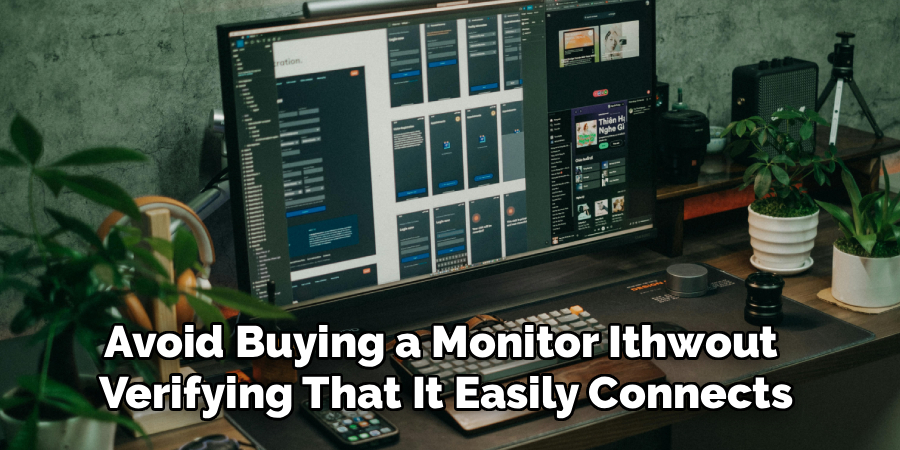
Finally, do not forget to check the ports. Avoid buying a monitor without verifying that it easily connects to your specific laptop or desktop. Buying a monitor that only has HDMI when your laptop only outputs via USB-C means you will be stuck buying dongles and adapters, adding unnecessary clutter to your desk.
Conclusion
Creating a productive and healthy home office environment starts with selecting the right display.
By carefully evaluating your daily tasks, choosing the appropriate size and resolution, and prioritizing essential features like IPS panels and ergonomic adjustability, you can build a workspace that empowers you to do your best work. Remember to avoid outdated panel technologies and fixed stands that compromise your posture. A high-quality monitor is not just a peripheral; it is a vital tool that protects your eyesight, enhances your multitasking capabilities, and ultimately makes your work day far more enjoyable.
Hopefully, this guide on how to choose a monitor for home office has given you the information and confidence you need to make an informed decision when purchasing your next monitor.
