

Redragon makes many popular gaming and productivity keyboards, and several models support wireless use through bluetooth. If you are new to wireless keyboards, the setup can feel confusing at first because each model may use slightly different key combinations, connection modes, and device switching shortcuts. This guide explains how to connect redragon keyboard bluetooth in a simple, beginner-friendly way so you can pair it with a computer, laptop, tablet, or phone without guessing.
Bluetooth pairing matters because it lets you reduce cable clutter, move your keyboard more freely, and switch between devices more easily. A proper setup also prevents common problems like failed pairing, repeated disconnects, delayed typing, or the keyboard not appearing in your bluetooth list. By following the steps below, you can connect your Redragon keyboard safely, check the right mode, and fix basic connection issues before they become frustrating.
Why Connecting A Redragon Keyboard With Bluetooth Matters
Using a Redragon keyboard over bluetooth gives you a cleaner and more flexible setup. You can place the keyboard where it feels most comfortable, keep your desk free from extra cables, and use the same keyboard with multiple devices if your model supports multi-device pairing.
A correct bluetooth setup also improves reliability. When the keyboard is fully charged, set to the right wireless mode, and paired through your device settings, it is less likely to disconnect or lag. This is especially helpful for work, study, casual gaming, and travel.
Knowing the right process saves time, protects your device settings from confusion, and helps you get the best experience from your keyboard.
Step-By-Step Guide To How to Connect Redragon Keyboard Bluetooth
Step 1: Confirm Your Keyboard Supports Bluetooth
Before you start, check whether your Redragon keyboard has bluetooth support. Not every Redragon keyboard is wireless, and some wireless models only work with a 2.4 ghz usb receiver. Look at the product box, user manual, model page, or labels near the switch on the keyboard.
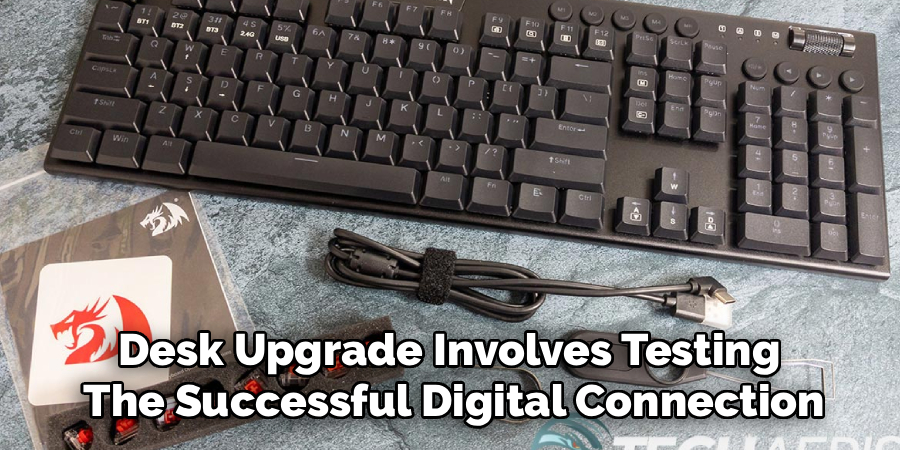
Many bluetooth models have a physical mode switch or a key shortcut for bluetooth channels. You may see markings such as bt, b1, b2, b3, or bluetooth icons. If your keyboard only has wired and 2.4 ghz modes, it will not pair through standard bluetooth settings.
Step 2: Charge The Keyboard Fully
A low battery can cause pairing failures, random disconnects, or delayed input. Connect the keyboard to a usb charger or your computer with the included cable and let it charge before pairing. Some models show a red light while charging and a different light when full, but this can vary by keyboard.
If your keyboard uses removable batteries, install fresh batteries and make sure they face the correct direction. Do not skip this step, even if the keyboard turns on. Bluetooth pairing needs a stable power level, and a weak battery can make the keyboard appear broken when it is not.
Step 3: Switch To Bluetooth Mode
Most Redragon wireless keyboards have more than one connection option. You may need to move a switch to bt mode or press a function key combination to choose bluetooth instead of wired or 2.4 ghz mode. This step is important because your device will not find the keyboard if it is set to the wrong connection type.
If you are learning how to connect redragon keyboard bluetooth, this is the point where many setup issues happen. Check the icons on the keyboard carefully. If your model has several bluetooth channels, choose one channel before starting pairing.
Step 4: Put The Keyboard Into Pairing Mode
After selecting bluetooth mode, put the keyboard into pairing mode. On many Redragon models, this means holding the fn key with a bluetooth channel key for a few seconds. The indicator light may flash quickly when pairing mode is active.
The exact shortcut depends on the model, so use the manual if the common shortcut does not work. Pairing mode usually stays active for a short time, so open bluetooth settings on your device soon after starting it. If the light stops flashing, repeat the shortcut and try again.
Step 5: Open Bluetooth Settings On Your Device
Now open bluetooth settings on the device you want to connect. On Windows, go to settings, then bluetooth and devices, and choose add device. On macOS, open system settings, then bluetooth. On iPhone, iPad, or Android, open the bluetooth menu from settings.
Make sure bluetooth is turned on. Your device will scan for nearby accessories and should show the Redragon keyboard name or model number. If you do not see it, keep the keyboard close to your device and confirm that pairing mode is still active.
Step 6: Select The Keyboard And Complete Pairing
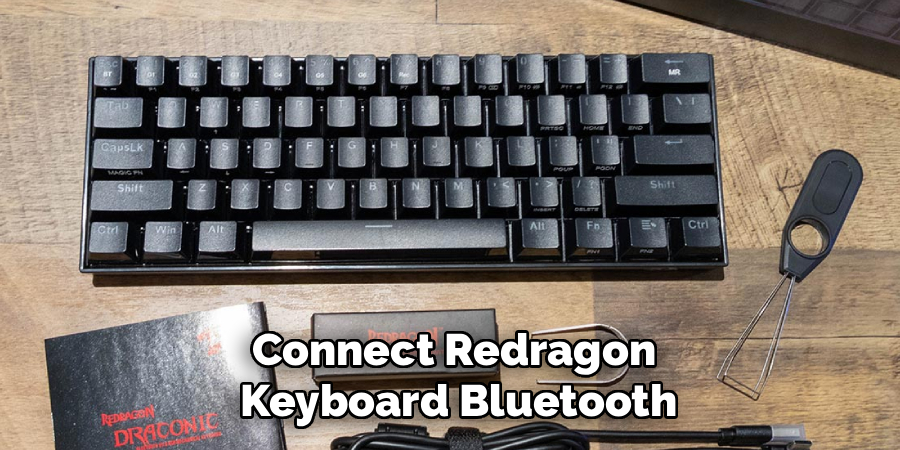
When the keyboard appears in the bluetooth device list, select it. Your device may connect right away, or it may ask you to type a pairing code on the keyboard and press enter. If a code appears, type it using the Redragon keyboard, not your laptop keyboard or on-screen keyboard.
This step is where how to connect redragon keyboard bluetooth becomes complete for most users. Once the device says connected, open a text box and type a few words to test input. If the keys respond normally, the keyboard is paired and ready to use.
Step 7: Test Typing, Shortcuts, And Device Switching
After pairing, test the keyboard in a notes app, browser search bar, or document. Check letters, numbers, space, backspace, enter, and any important shortcuts you use often. If your keyboard has special function layers, test brightness controls, media keys, or operating system shortcuts.
Some Redragon keyboards can connect to more than one bluetooth device. If your model supports this, you can pair a second or third device using another bluetooth channel. Switch channels using the correct function key combination. Wait a few seconds after switching because the keyboard may need time to reconnect.
Step 8: Fix Common Connection Problems
If the keyboard does not connect, remove it from your bluetooth device list and pair it again from the beginning. Restarting both the keyboard and your computer or phone can also help. Keep the keyboard close to the device during setup because distance and interference can weaken the signal.
If typing feels delayed, charge the keyboard, close unused bluetooth devices, and move usb hubs or wireless receivers away from the keyboard. For Windows users, updating bluetooth drivers may solve connection problems. For mobile devices, forgetting the keyboard and pairing it again often clears old connection errors.
Frequently Asked Questions
Why Is My Redragon Keyboard Not Showing Up In Bluetooth?
Your keyboard may not be in bluetooth mode or pairing mode. Check that the keyboard supports bluetooth, then switch it away from wired or 2.4 ghz mode. Start pairing mode again and look for a flashing indicator light. If it still does not appear, charge the keyboard, restart your device, and keep both devices close together while scanning.
Can I Connect A Redragon Keyboard To Multiple Devices?
Some Redragon bluetooth keyboards support multiple device channels, but not all models do. If your keyboard has bt1, bt2, and bt3 keys or similar markings, it likely supports multi-device pairing. Pair each device on a separate channel, then switch between them with the correct shortcut. Check your manual for the exact key combination because it can vary by model.
Do I Need A Usb Receiver For Bluetooth Pairing?
No, standard bluetooth pairing does not require a usb receiver. Your computer, tablet, or phone only needs built-in bluetooth or a bluetooth adapter. A usb receiver is usually for 2.4 ghz wireless mode, which is different from bluetooth. If your device has no bluetooth support, then you will need a bluetooth adapter to use bluetooth mode.
Why Does My Keyboard Disconnect After Pairing?
Disconnections often happen because of low battery, weak bluetooth signal, driver issues, or sleep mode. Fully charge the keyboard first, then reconnect it near your device. If you use Windows, check for bluetooth driver updates. Some keyboards also enter power-saving mode after inactivity, so pressing a key may wake the keyboard after a short delay.
How Do I Reset A Redragon Bluetooth Keyboard?
The reset method depends on the model. Some keyboards reset by holding fn with esc or another key combination for several seconds. Others require clearing bluetooth pairings from each channel. If you are unsure, check the manual for your exact model number. You can also remove the keyboard from your device’s bluetooth list and pair it again to refresh the connection.
Conclusion
Connecting a Redragon keyboard through bluetooth is simple once you understand the correct order. First, confirm that your model supports bluetooth. Then charge it, choose bluetooth mode, start pairing mode, open your device settings, and select the keyboard from the available devices list. Testing the connection afterward helps you catch small issues early.
If something does not work the first time, do not assume the keyboard is faulty. Most problems come from low battery, the wrong mode, expired pairing mode, or an old saved connection. Use this guide whenever you need to remember how to connect redragon keyboard bluetooth, and you will have a cleaner, more flexible keyboard setup in just a few minutes.
