

You unwrap your new monitor, hook it up, and—nothing. Not a blip of sound. This is a common scenario. Some Koorui users, perhaps expecting an effortless plug-and-play audio experience, are left wondering what went wrong. I’ve been there myself; it can be surprisingly easy to overlook a step.
Let’s walk through what genuinely matters in getting your Koorui’s audio up and running—no shortcuts, no leaps of faith. Instead, we’ll navigate the quirks of your hardware, sort out what your system is actually doing behind the scenes, and pinpoint what stands between you and that missing audio. In this guide on how to get sound on koorui monitor, we’ll cover all the necessary steps to troubleshoot and fix any audio issues you may encounter.
First Things First: Does Your Koorui Even Have Speakers?
It’s tempting to assume every monitor has built-in audio. In reality, many manufacturers—including Koorui—occasionally leave them out for the sake of design or cost. You might want to flip through the product specs on the official site, or reach for the manual—assuming you didn’t toss it already. If neither is available, take a good look: are there any speaker grilles on the underside or rear? No? Then you’re likely working with a display that expects you to supply your own sound.
At that point, your only hope is the audio pass-through jack, assuming the monitor offers one. That means you’ll be reaching for headphones or desktop speakers.
How Do Monitors Deal With Audio Anyway?
It isn’t magic. The signal travels over whatever cable you’ve chosen to connect to your PC. With HDMI and DisplayPort (the two you really want here), both video and audio are combined into a single stream. If you’re still using a VGA or DVI cable, well, those simply can’t carry sound. Expecting them to do so leads only to frustration.
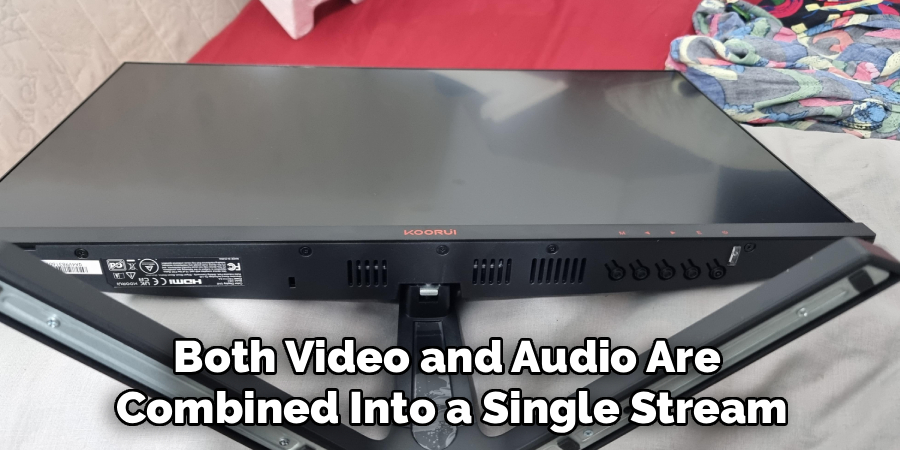
Even if your cable is appropriate, the display itself has to do something useful with the audio—like route it to internal speakers (if they exist), or pass it out via a 3.5mm jack. No speakers and no audio out? You’re out of luck.
If your display only has VGA or DVI ports, you can still get audio by connecting a separate audio cable from your PC’s headphone port to the display’s audio in port. This will allow the audio to be transmitted through the display and out through its speakers.
7 Clear Steps on How to Get Sound on Koorui Monitor
Step 1: Double-Check Your Cables and Connections
Don’t assume a cable is working just because it’s plugged in. HDMI and DisplayPort should both carry audio, but only if they’re seated fully on each end. Gently reseat them—in fact, swap in a cable you trust if you can. Cables get damaged all the time, sometimes invisibly. A cord pinched behind your desk could be the entire problem.
Step 2: Adjust Your Monitor’s Own Settings (the OSD)
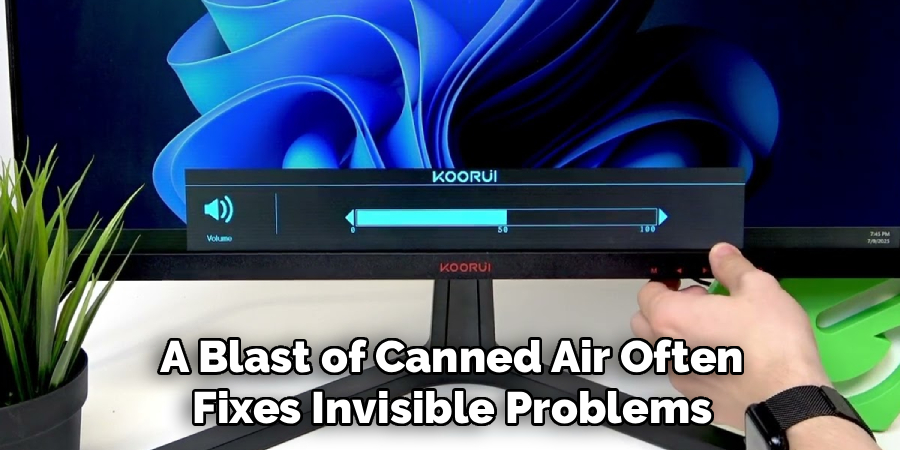
Digging through menus is tedious, yet necessary. Most Koorui monitors have an on-screen menu accessible by small buttons tucked under the bezel or along the back edge. Once in the menu, go hunting for audio or sound options. Sometimes the answer is as silly as a volume slider at zero, or a mute switch no one remembers toggling. If these exist, adjust them. More than one person has spent hours troubleshooting only to find their monitor’s audio was muted from the start.
Step 3: Make Sure the Right Playback Device Is Set
Your computer might still be clinging to a previously connected headset, or expecting to output sound from its own tinny built-in speakers. In Windows, head to the sound settings from the taskbar (right-click the speaker icon), and scroll through available devices. You’re looking for any mention of your Koorui, maybe labeled through your graphics driver (“NVIDIA High Definition Audio” or similar). Set it as the default. If you’re streaming music in the background, you should hear something immediately, but don’t be discouraged if you need to reboot or restart your media.
Step 4: Update Audio (and Graphics) Drivers
Here’s a less obvious culprit: outdated drivers. Oddly enough, it’s often your graphics driver that controls audio over HDMI or DisplayPort. In Device Manager, find your audio section, and right-click the relevant device. Let Windows search for updates, or, if you’re so inclined, install the latest from NVIDIA, Intel, or AMD. After installing, a quick restart often settles the issue.
Step 5: Try the Audio-Out Jack (If All Else Fails)
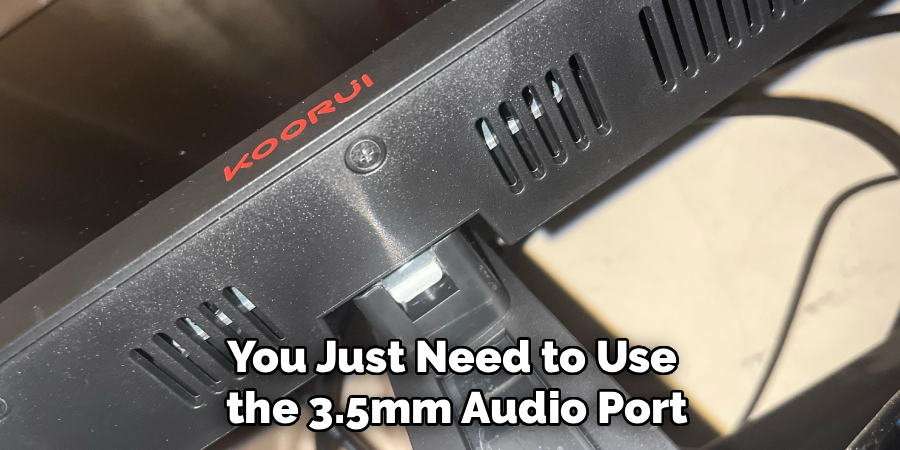
If your Koorui has no internal speakers, all’s not lost—you just need to use the 3.5mm audio port, usually marked in green or with a headphones icon on the rear. Plug in headphones or powered speakers. This jack essentially takes the audio from the video cable and hands it off, so as long as the incoming signal includes sound, this should work. Don’t forget to switch on your external speakers and ensure they’re set to a reasonable volume.
Step 6: Check Software Volume Mixers
There’s another pitfall: even if the main volume is up, individual applications might be muted. Windows’ Volume Mixer (accessible by right-clicking the speaker icon) lets you check every program separately. Look closely—mute symbols or low sliders do happen, especially after recent updates or system changes.
Step 7: Restart Windows Audio Services
Sometimes, nothing you try seems to work, and you’re sure you did everything right. The underlying Windows audio service can freeze or hang. You can restart it by typing “services.msc” into the Run dialog (Win+R), scrolling to “Windows Audio,” and triggering a restart. It doesn’t always work miracles, but it’s a non-destructive trick worth a shot before resorting to drastic measures.
Following these steps on how to get sound on koorui monitor if it’s not working can help troubleshoot and resolve most common issues.
If Things Still Aren’t Working: Deeper Troubleshooting
At this stage, you might start suspecting a hardware fault. Before you assume the worst, plug a different device—say, a laptop or game console—into your monitor. If you get sound from them, your PC is the trouble spot. If not, your monitor (or, occasionally, even your wall power) could be to blame.
Take a look at the ports themselves. Yes, gunk happens. Dust accumulation inside the HDMI or audio jacks can break the connection. A blast of canned air often fixes invisible problems.
Game and Media Quirks
For gamers, issues can appear out of nowhere. Many games switch audio devices or ignore system settings. Enter the game’s settings menu and make sure it is targeting your monitor for output.
Streaming video? Some browser extensions or media players have independent volume controls that could override your system’s. Disable any recent add-ons, and always double-check the player’s own volume slider.
Familiar Pitfalls (and How to Avoid Them)
- Believing every Koorui model comes with speakers.
- Expecting DVI or VGA cables to carry audio. They won’t, period.
- Ignoring your monitor’s own volume/mute settings.
- Accidentally leaving a Bluetooth headset connected and stealing all audio.
- Forgetting to update drivers after new hardware gets installed.
Frequently Asked Questions
Q1: My Koorui Monitor Won’t Play Sound Over HDMI. Why?
This usually means your computer hasn’t set the monitor as the primary audio output. Check Windows sound settings—which device is marked default? While at it, make sure the monitor’s own menu says it’s ready to play audio.
Q2: Can I Plug External Speakers Into My Koorui Monitor?
In most cases, yes—there’s a 3.5mm jack on the rear specifically for this. You’ll need wired speakers or headphones. The monitor passes along the signal from your PC as long as you’re connected with HDMI or DisplayPort.
Q3: Does Switching to DisplayPort Help With Audio Problems?
Sometimes, yes. DisplayPort is every bit as capable as HDMI when it comes to audio. If HDMI isn’t working, try DisplayPort—and remember to verify your PC’s playback device after switching.
Q4: How Can I Keep My Monitor Speakers From Interfering With External Speakers?
You can easily switch between playback devices on your PC, so you can disable or mute the monitor speakers when using external ones. Alternatively, some monitors have a physical button to quickly switch between audio sources. If all else fails, you can unplug the 3.5mm audio cable from your monitor to completely disable its speakers.
Q5: What Other Audio Options Do Monitors Offer?
Some higher-end monitors may come with built-in speakers that offer better sound quality than basic models. Others may even include features like subwoofers or audio optimization technologies. However, for the best audio experience, it is recommended to use dedicated speakers or a separate sound system.
Enjoying Audio From Your Koorui
Usually, fixing audio on one of these monitors is more about process than luck. Slow down, check every connection, and resist the urge to blame hardware immediately. The solution tends to be some small, overlooked setting or a cable that’s physically fine but electronically dead.
Maybe save or print this out for the next time you’re puzzled over a silent monitor. Once things are working, though, you can enjoy whatever you like with one less technical worry. Thanks for reading this guide on how to get sound on koorui monitor.
