

A wireless keyboard can feel confusing when it stops typing, refuses to connect, or keeps switching between devices. The issue may look serious, but many Anker keyboard problems come from low power, old Bluetooth records, or a pairing mode that did not start correctly.
This guide explains how to reset anker keyboard in a simple, beginner-friendly way. You will learn how to check the model, confirm the power source, remove old connections, use pairing mode, reconnect the keyboard, and test whether everything works again.
Resetting matters because it gives both the keyboard and your device a clean start. Instead of guessing or replacing the keyboard too soon, you can follow a careful process that fixes many common connection and typing problems. Even if you are not comfortable with tech settings, these steps are easy to follow and do not require special tools.
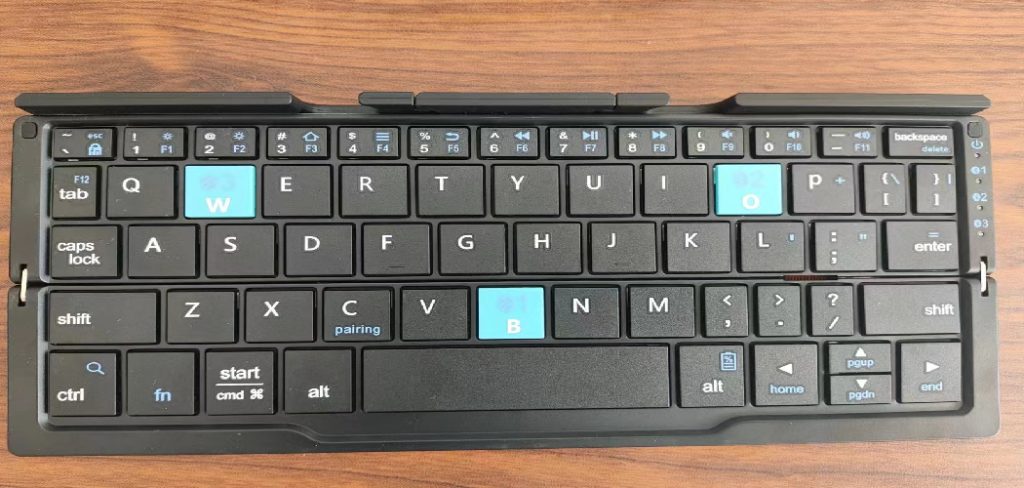
Why Resetting Your Anker Keyboard Matters
Resetting your Anker keyboard can solve problems such as failed pairing, delayed typing, repeated characters, missing keystrokes, and sudden disconnects. It also helps when the keyboard is still linked to an old phone, tablet, laptop, or desktop nearby.
A proper reset removes connection confusion and helps your device detect the keyboard as if it were being set up fresh. This can save time, reduce frustration, and help you avoid buying a replacement before you need one.
It is also useful after changing devices, updating your operating system, replacing batteries, or moving between Windows, macOS, iOS, and Android. A clean setup often restores smooth and reliable typing.
Step-By-Step Guide To How to Reset Anker Keyboard
Step 1: Identify Your Keyboard Model
Start by finding the exact Anker keyboard model you own. Check the back of the keyboard, the battery compartment, the original box, or the product label. Some Anker keyboards use Bluetooth only, while others may connect through a small USB receiver.
This detail matters because not every model resets the same way. Some have a connect button, some use a key combination, and some rely on removing old device pairings. If you searched for how to reset anker keyboard because the usual steps failed, your model number can help you avoid using the wrong method.
Also check whether your keyboard is designed for one system or multiple systems. Layout settings can affect key behavior.
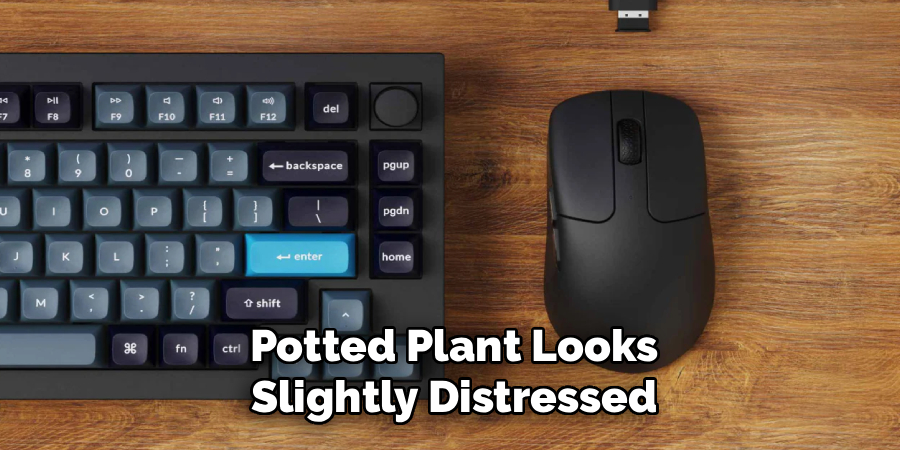
Step 2: Check The Battery Or Power Source
Before changing Bluetooth settings, make sure the keyboard has enough power. A weak battery can cause pairing failure, lag, missed letters, or random disconnects. These symptoms often look like a reset problem when the keyboard simply needs stable power.
If your keyboard uses replaceable batteries, install a fresh set and confirm the positive and negative ends face the right direction. If it has a rechargeable battery, connect it to a working charger and let it charge for at least 30 minutes.
Use a reliable charging cable and avoid weak USB ports. Once the power is stable, turn the keyboard off and back on before trying to connect again.
Step 3: Disconnect It From Other Devices
Anker wireless keyboards can sometimes stay linked to a previous device. If your keyboard is still connected to an old laptop, tablet, or phone, your current device may not find it during pairing.
Open Bluetooth settings on nearby devices and remove the Anker keyboard from each one. On Windows, this is usually under Bluetooth and devices. On macOS, you can remove it from Bluetooth settings. On phones and tablets, choose the option to forget the device.
After removing old connections, turn Bluetooth off and back on for the device you want to use. This refreshes the device list and helps prevent pairing conflicts.
Step 4: Review Pairing Mode
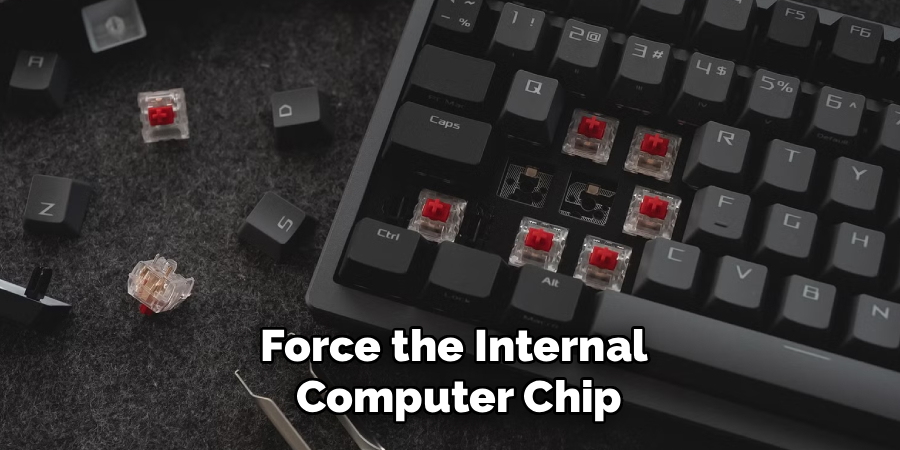
Next, place the keyboard into pairing mode. Many Anker keyboards use a connect button or a Bluetooth key shortcut. When pairing mode starts, the indicator light often blinks to show the keyboard is ready to be discovered.
Keep the keyboard close to your device during this step. A short distance, such as one to three feet, can improve detection. Move away from crowded USB hubs, metal surfaces, and too many active Bluetooth devices if possible.
If the light does not blink, turn the keyboard off, wait a few seconds, and try again. Pairing mode usually lasts for a limited time, so open your Bluetooth settings before starting it.
Step 5: Use A Built-In Reset Combination
Some Anker keyboards include a built-in reset shortcut, while others do not have a dedicated reset function. Look for keys with Bluetooth, connect, system, or channel symbols. Your model may require holding a key or key combination for several seconds.
The safest way to approach how to reset anker keyboard is to match the reset method to your exact model instead of pressing random keys. Random shortcuts may switch the keyboard layout or operating system mode rather than reset the connection.
If your keyboard has no clear reset shortcut, turn it off, remove the batteries if possible, wait about 30 seconds, then power it on again and enter pairing mode.
Step 6: Reconnect Through Bluetooth Or Receiver
Now reconnect the keyboard to your device. If it uses Bluetooth, open your device’s Bluetooth settings and wait for the Anker keyboard to appear in the available device list. Select it and follow the on-screen instructions. Some systems may ask you to type a code on the keyboard and press enter.
If your model uses a USB receiver plug the receiver directly into the computer instead of using a hub. Then turn on the keyboard and give the system a moment to detect it.
Be patient during this step. After old connections are removed, your device may need a short time to recognize the keyboard again.
Step 7: Test The Key Response
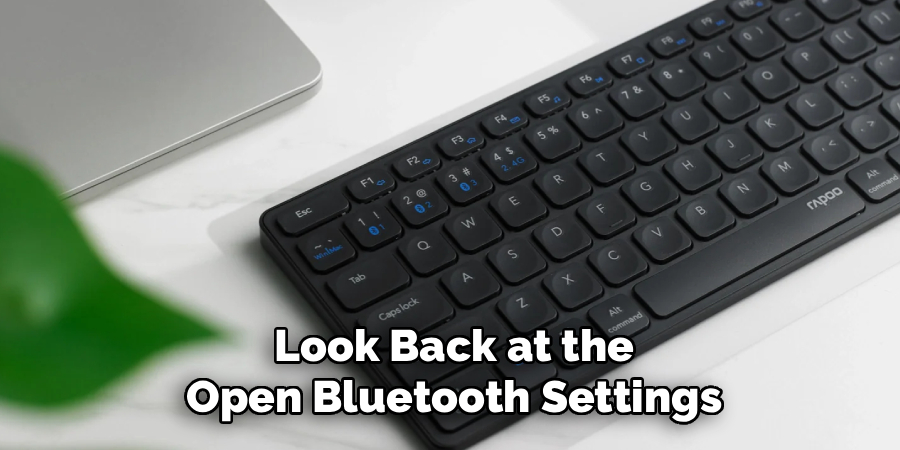
After reconnecting, test the keyboard in a simple app. Open a notes app, blank document, browser search field, or text editor. Type several sentences and check whether letters, numbers, spacebar, enter, backspace, and punctuation respond correctly.
Also test modifier keys such as shift, control, alt, option, command, and function. If some keys behave oddly, the keyboard may be in the wrong operating system mode. For example, iOS mode can feel different on Windows, and Windows mode can behave differently on macOS.
Testing right away helps you confirm whether the reset worked. It also shows whether the problem is connection-based or layout-based.
Step 8: Troubleshoot Persistent Issues
If the keyboard still does not work, narrow down the cause. Try connecting it to another device. If it works there, your original computer, tablet, or phone likely has a settings issue. If it fails on every device, the keyboard may have a power, hardware, or internal fault.
Restart your main device and check for system updates. Then remove duplicate keyboard entries from Bluetooth settings and repeat the pairing process. Also inspect the keyboard for stuck keys, dirt, liquid damage, or a loose battery connection.
If the issue continues after these checks, contact Anker support or consider replacement if the keyboard is old, damaged, or no longer reliable.
Frequently Asked Questions
Can I Reset An Anker Keyboard Without A Reset Button?
Yes, many Anker keyboards do not include a separate reset button. You can still refresh the connection by removing the keyboard from Bluetooth settings, turning the keyboard off, waiting briefly, and pairing it again. If the keyboard uses removable batteries, taking them out for about 30 seconds can also help clear temporary connection issues before setup.
Why Is My Anker Keyboard Not Showing In Bluetooth?
Your keyboard may not be in pairing mode, may have low battery power, or may still be connected to another device. Charge it or replace the batteries first. Then remove it from nearby devices that used it before. Keep the keyboard close to your phone, tablet, or computer, start pairing mode again, and check the Bluetooth list.
Do I Need To Reset My Keyboard After Replacing Batteries?
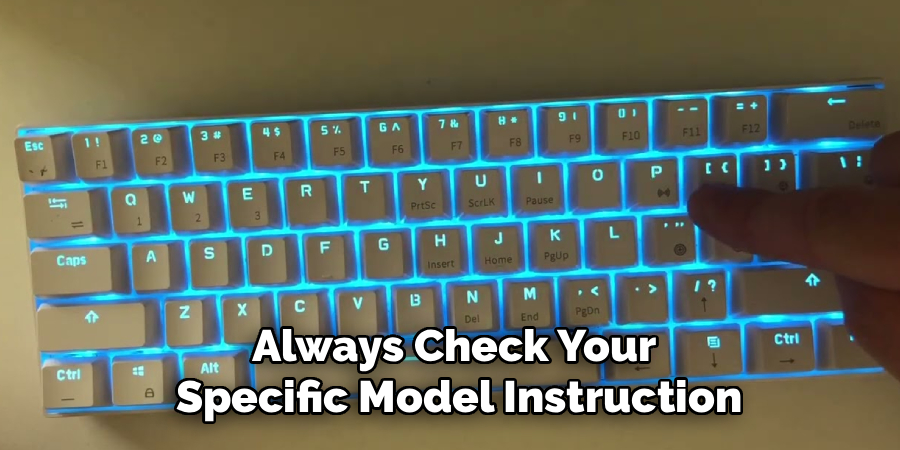
Not always. If the keyboard reconnects and types normally after new batteries are installed, no reset is needed. However, if it does not appear in Bluetooth settings, disconnects often, or responds slowly, remove the old pairing record and connect it again. A battery change can sometimes interrupt the previous connection state, especially if the old batteries were very low.
Why Are Some Keys Typing The Wrong Characters?
Wrong characters usually point to a layout or operating system mode issue rather than a broken keyboard. Check your device’s keyboard language and input settings first. Then confirm whether your Anker keyboard has a shortcut for switching between Windows, macOS, iOS, or Android modes. Choosing the correct mode often fixes mismatched symbols and modifier keys.
When Should I Replace My Anker Keyboard?
Consider replacing it if it will not power on, fails with fresh batteries or a full charge, or does not work on multiple devices after a clean reconnect. Visible damage, liquid exposure, worn keys, and frequent missed keystrokes are also warning signs. If the keyboard is still under warranty, contact Anker support before buying a new one.
Conclusion
Resetting an Anker keyboard is usually a simple process based on power, pairing, and connection cleanup. By checking the model, confirming the battery or charge level, removing old device links, entering pairing mode, reconnecting carefully, and testing the keys, you can fix many common issues without advanced tools.
Now that you know how to reset anker keyboard, start with the basic power and Bluetooth steps before assuming the device is broken. A careful reset can often bring your keyboard back to smooth, dependable typing.

About
Alexis Kerr is a distinguished figure in the world of professional workspace optimization, with a decade of expertise creating innovative and ergonomic office environments. Her professional focus lies in merging organizational psychology with modern spatial design, fostering office setups that are both high-performing and employee-centric. As the lead author for Deskvity, Alexis Kerr delves into the art and science of corporate aesthetics and functionality, inspiring office managers and remote professionals alike.
Education Cornell University
(Ithaca, New York) Bachelor of Science in Design and Environmental Analysis Focus on human factors, workplace strategy, and sustainable interior environments. Gained extensive experience in how physical space influences productivity and mental clarity.
Savannah College of Art and Design (SCAD)
(Savannah, Georgia) Master of Fine Arts in Interior Design Specialized in commercial workspace solutions with a focus on blending digital integration with physical comfort. Participated in high-level industry projects to refine the balance between corporate branding and architectural utility.
Publications and Impact
In Deskvity, Alexis Kerr shares her insights on modern workspace trends, acoustic management, and strategies for efficient layout planning. Her writing bridges the gap between high-level architectural theory and practical day-to-day office needs, making it a must-read for both facility directors and individual professionals looking to elevate their work environment.