

Keychron keyboards are reliable, well-built, and easy to use — but like any piece of tech, they can develop quirks over time. Keys may stop responding, Bluetooth pairing may fail, or unexpected remaps might change how your keyboard behaves without any obvious cause.
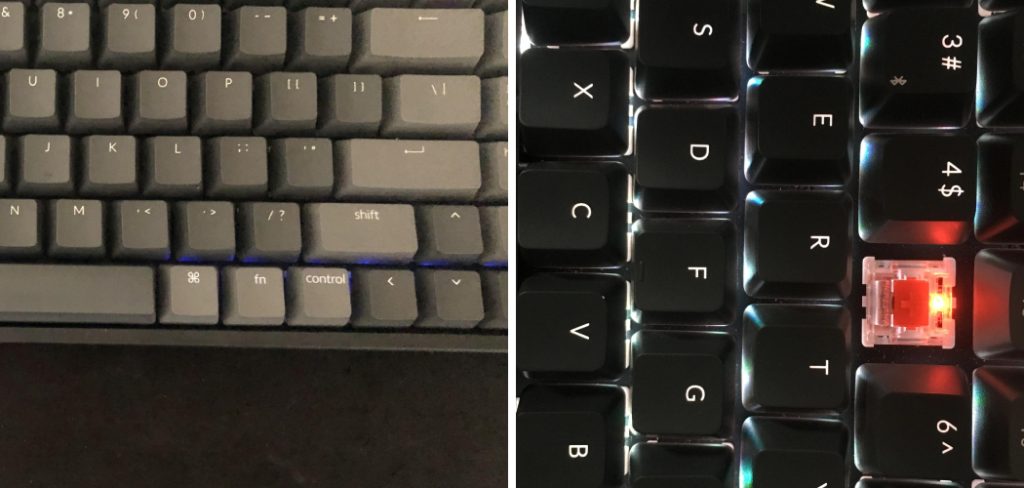
The good news is that most of these issues are easy to fix once you know how to reset keychron keyboard models correctly. A reset can clear connection conflicts, restore default key behavior, and give your keyboard a clean slate.
This guide walks you through every step in beginner-friendly language. You will learn the difference between a soft reset, a Bluetooth reset, and a factory reset, and you will know exactly which approach fits your situation by the time you finish reading.
Why Resetting A Keychron Keyboard Matters
A reset solves problems that reconnecting or restarting cannot. Over time, saved Bluetooth profiles, customized layers, remapped keys, or corrupted firmware data can cause unpredictable behavior that feels impossible to diagnose.
Resetting clears that stored data and returns the keyboard to a known, stable state. This is especially useful before switching to a new device, after a firmware update goes wrong, or when key inputs suddenly stop matching what appears on screen.
It also helps when troubleshooting. Instead of guessing which setting caused the problem, a reset removes all variables at once. If the keyboard works normally after a reset, you know the issue was software or configuration-related — not a hardware defect. That clarity alone saves a lot of time.
Step-By-Step Guide To How To Reset Keychron Keyboard
Step 1: Identify Your Keychron Model
Start by finding out which Keychron model you own. Check the bottom of the keyboard, the product box, or your order confirmation. Common models include the K series, Q series, V series, and B series, each of which may handle reset commands slightly differently.
This matters because wireless models like the K2, K6, or K8 have Bluetooth reset options that wired models like the Q series do not need. QMK-compatible models, such as the Q series and V series, also support deeper firmware-level resets through dedicated software. Knowing your model prevents you from following the wrong steps.

Step 2: Understand The Three Types Of Reset
Before pressing any keys, it helps to understand what each reset type actually does. A soft reset reconnects the keyboard to a device without erasing anything. A Bluetooth reset clears saved pairing profiles so the keyboard can connect to a new device fresh. A factory reset wipes stored settings, layers, and macros, returning everything to the out-of-box defaults.
Most connection problems only need a Bluetooth reset. Strange key behavior usually needs a factory reset. If your keyboard is sluggish or unresponsive but still connects, a soft reset or power cycle may be enough. Choosing the right reset saves you from losing custom settings unnecessarily.
Step 3: Try A Power Cycle First
Before committing to a full reset, turn the keyboard off and back on. For wireless Keychron models, use the power switch on the back or side panel. Turn it off, wait about 10 seconds, then turn it back on. For wired models, unplug the USB cable, wait a moment, and plug it back in.
This soft approach resolves a surprising number of issues including missed keystrokes, unresponsive function keys, and brief connection drops. It does not erase any saved settings, so there is nothing to lose. If the problem continues after a fresh power cycle, move to the next step.
Step 4: Perform A Bluetooth Reset
If your Keychron keyboard is not pairing, keeps dropping its connection, or refuses to appear on a new device, a Bluetooth reset is the right move. On most wireless Keychron models, you can clear the current Bluetooth profile by pressing Fn + Z + J at the same time for about four seconds. The keyboard’s indicator light should flash or change, confirming the reset.
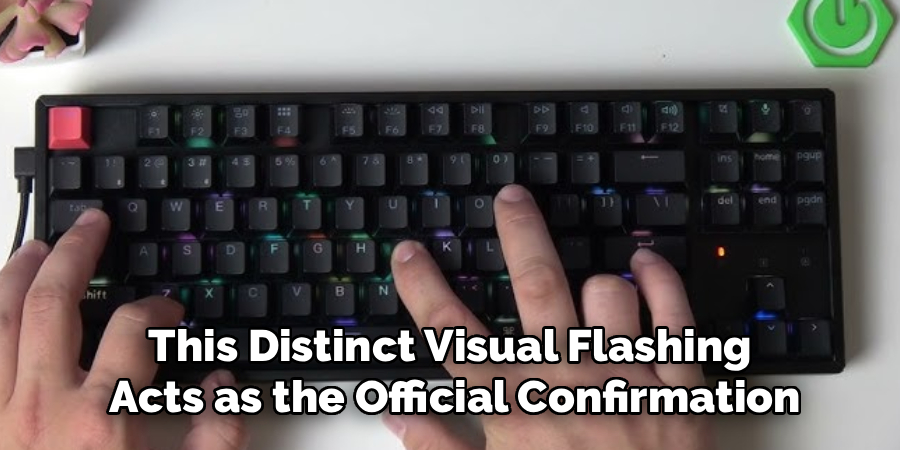
After clearing the profile, put the keyboard back into pairing mode using Fn + 1, Fn + 2, or Fn + 3 depending on which channel you want to use. Open Bluetooth settings on your device, find the keyboard in the list, and complete the pairing process. A fresh connection usually resolves most wireless issues instantly.
Step 5: Use The Factory Reset Combination
For deeper issues like locked layers, remapped keys, or unexpected macro behavior, a factory reset is necessary. The specific key combination depends on your model, but many Keychron keyboards support this by turning the keyboard off, then holding a specific key or combination while powering it back on.
For some models, this involves holding Escape while reconnecting power. For QMK-based models, the reset may be handled through the QMK Toolbox or VIA software rather than a hardware shortcut. Check your model’s documentation on Keychron’s official support page before proceeding. Using the wrong combination could change a setting without performing the reset you intended.
Step 6: Reconnect And Test After Resetting
This is where understanding how to reset keychron keyboard models properly pays off. After any reset, reconnect the keyboard before testing anything. For wired models, plug in the USB cable and confirm the keyboard is recognized by your operating system. For wireless models, re-pair via Bluetooth or reinsert the 2.4GHz dongle if your model uses one.
Once connected, open a plain text editor and type through all the keys slowly. Check letters, numbers, modifiers like Shift, Control, and Alt, and any function-layer shortcuts you use regularly. If everything responds correctly, the reset worked. If specific keys are still off, the issue may be hardware-related.
Step 7: Troubleshoot If Problems Remain
If the keyboard still behaves unexpectedly after a full reset, it is time to look beyond settings. First, try a different USB cable or port to rule out a connection issue. Then test the keyboard on a second device to determine whether the problem follows the keyboard or stays with your original computer.
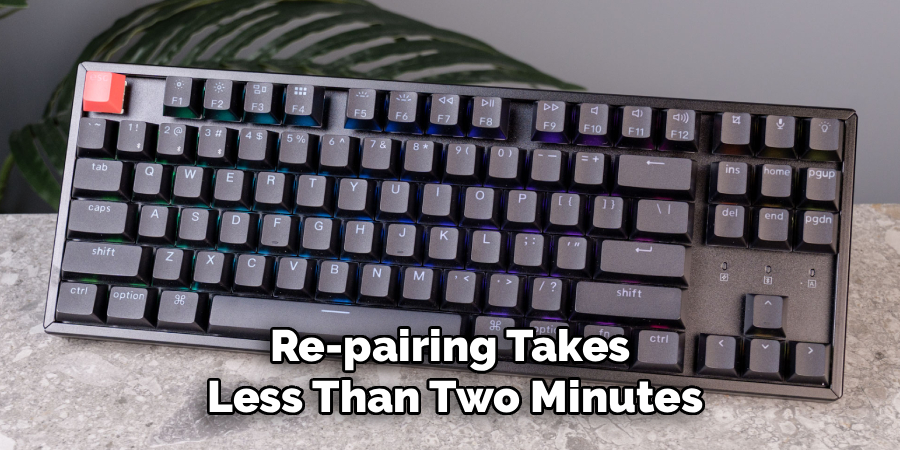
Knowing how to reset keychron keyboard devices is only part of the process — the post-reset test is equally important. If the same issue appears on a different device, the hardware may need attention. Contact Keychron’s support team or check warranty options. If the problem disappears on the second device, investigate your original computer’s USB settings, Bluetooth drivers, or power management configuration.
Frequently Asked Questions
Will A Factory Reset Delete My Custom Key Remaps?
Yes, a factory reset typically erases custom key remaps, macros, and saved lighting preferences. On QMK or VIA-compatible models like the Q or V series, you can export your layout before resetting so you can reload it afterward. If your keyboard does not support software customization, write down your remaps manually before resetting. For most users, rebuilding the layout after a reset takes only a few minutes.
Why Is My Keychron Keyboard Not Pairing After A Bluetooth Reset?
If pairing fails after a Bluetooth reset, start by removing the keyboard from your device’s saved Bluetooth list entirely. Then put the keyboard into active pairing mode again and search for it from fresh. Make sure no other device is actively connected to the same Bluetooth channel. If the issue persists, try a different channel — Fn + 2 instead of Fn + 1, for example — as the original channel may still hold a partial connection record.
How Do I Know Which Reset Type My Keychron Model Supports?
Check Keychron’s official support documentation for your exact model. Wireless models like the K2, K6, K8, and K10 support Bluetooth resets. QMK-based models like the Q1, Q3, and V series support firmware-level resets through QMK Toolbox or VIA. Wired-only models generally just need a USB reconnect or a power cycle. When in doubt, start with the least invasive option — power cycling — before moving to a full reset.
Can I Reset A Keychron Keyboard Without Losing Bluetooth Channel Assignments?
A Bluetooth reset clears the pairing record for the channel you reset, but it does not necessarily affect other channels. If you reset channel 1 using the Fn + Z + J method, channels 2 and 3 may retain their paired devices. To preserve as many saved pairings as possible, only reset the specific channel causing problems rather than performing a full factory reset, which typically wipes all saved connection data at once.
Does Resetting Fix Keychron Keyboards With Stuck Or Unresponsive Keys?
A reset can fix unresponsive keys caused by software conflicts, layer locks, or accidental remaps. If a key was remapped through VIA or QMK to a different function, a factory reset will restore it. However, if a key is physically stuck, damaged, or has a faulty switch, no software reset will solve it. Test the key on a different device after resetting to confirm whether the issue is software or hardware before deciding on next steps.
Conclusion
Resetting a Keychron keyboard is a straightforward process once you understand which reset type fits your situation. Start with a simple power cycle, move to a Bluetooth reset for connection issues, and use a factory reset only when key behavior or layer problems persist.
Always reconnect and test every key before assuming the problem is fully resolved. The steps in this guide give you a reliable framework to work through most common issues without guesswork. Now that you know how to reset keychron keyboard models from start to finish, take a moment to apply the right reset for your situation and get back to typing comfortably.
