

Most internet connection problems have a surprisingly simple fix. You just need to turn your equipment off and back on again.
While smart apps exist to help you manage your network, sometimes the best method involves walking right up to the device. Knowing how to manually power cycle your Spectrum router is a fundamental skill that keeps your home network running smoothly.
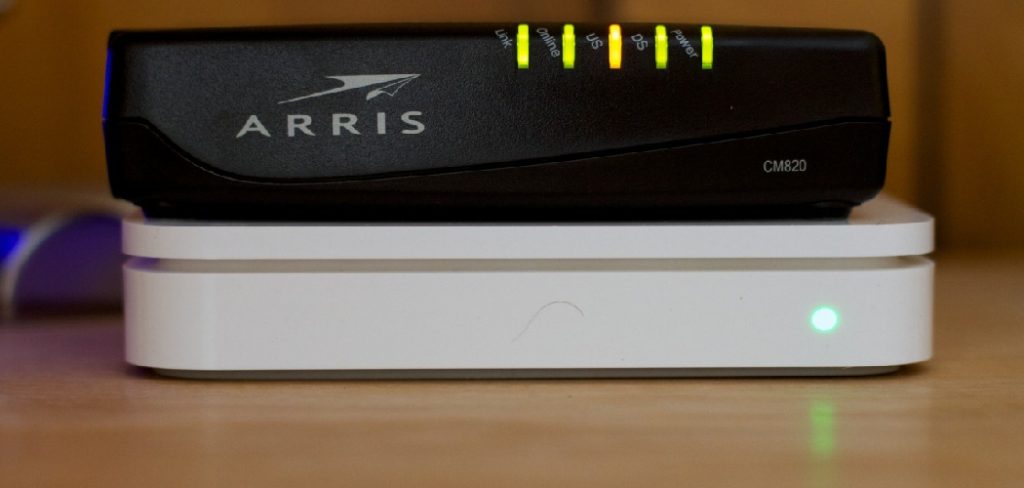
This guide on how to turn off Spectrum router will walk you through the manual process of shutting down and restarting your Spectrum equipment without relying on any mobile applications.
What are the Benefits?
Turning off your router does much more than just cut the power. It performs a vital maintenance routine for your home network. When you power cycle your equipment, you clear the device’s short-term memory, wiping away minor software bugs and temporary glitches that slow down your connection.
This process also forces your router to request a fresh IP address from your internet service provider, which often resolves conflicts between connected devices in your home. Additionally, a manual reboot allows your router to install any pending firmware updates from Spectrum. These updates contain critical security patches and performance improvements that keep your network safe from external threats while delivering the speeds you pay for.
What Will You Need?
You do not need any special tools or technical expertise to complete this process. Before you begin, gather the following items:
- Physical access to your Spectrum router and modem.
- Access to the electrical wall outlet or power strip where the devices plug in.
- A clock, watch, or smartphone to time a 60-second wait period.
- A flashlight if your equipment sits in a dark corner or closet.
10 Easy Steps on How to Turn Off Spectrum Router
Follow these detailed instructions to safely and effectively manually shut down your equipment.
Step 1: Locate Your Spectrum Equipment
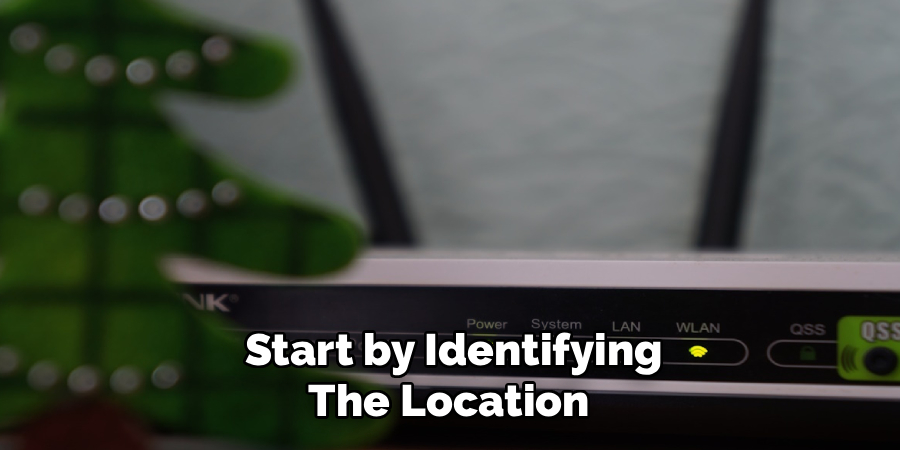
Start by identifying the location of your Spectrum equipment within your home or office. Spectrum may provide an all-in-one gateway device (modem and router combined) or separate modem and router units. Typically, these are placed near the point where your internet cable enters the house, such as in a living room, office, or utility area. If your router is difficult to find, look for a box with antennas or multiple blinking lights, usually labeled with the Spectrum logo. If you are unsure, refer to the installation guide provided by Spectrum or contact their customer service for assistance.
Step 2: Save Your Current Online Work
Before you proceed, ensure everyone using the internet in your household is informed. Abruptly shutting off the router will cause any ongoing online activities—such as video calls, large downloads, or multiplayer gaming sessions—to disconnect. Ask users to save important documents and finish time-sensitive work to avoid loss of progress or sudden interruptions. Don’t forget to save your own work as well.
Step 3: Identify the Power Source
Carefully examine your router and its surroundings. Most routers are plugged into either a wall outlet or a power strip with a thin, round power cord distinct from the broader Ethernet cables. Some setups may be tangled with other device cords, so it’s important to trace the correct power cord that connects to your router specifically. This prevents you from accidentally unplugging another device. Remember that routers require electricity to function, so a stable and reliable power supply is crucial for maintaining internet connectivity.
Step 4: Locate the Router Power Button
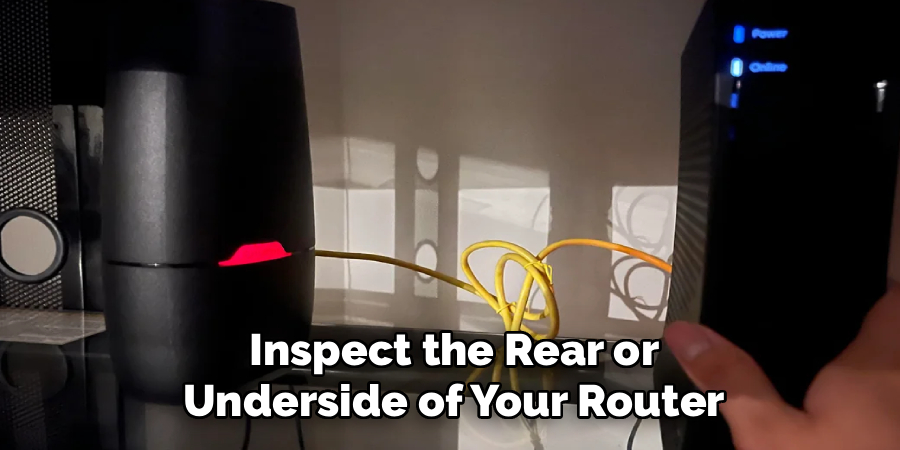
Inspect the rear or underside of your router for a small button, typically labeled “Power” or “ON/OFF.” Not all router models have this button—many require you to power off the device by unplugging it. If your router does have a power button, pressing it is a safe and easy way to power off the unit without touching the cords. Always consult your device’s manual for button locations and instructions if you’re unsure.
Step 5: Unplug the Router Power Cord
If there is no power button, firmly grasp the plug (not the cord) and disconnect the router’s power from the wall outlet or power strip. Pulling on the cord itself can damage the wiring and reduce the lifespan of your device. For extra care, you may want to label the power cord to avoid confusion with other electronics in the future. If your router has an external power supply, make sure to unplug that as well.
Step 6: Unplug the Modem Power Cord
If you have both a modem and a router as separate devices, repeat the unplugging process for the modem. The modem is the device connected to the coaxial cable from your internet provider, and cutting power to both devices ensures a complete network reset. This step is crucial for fully clearing any temporary data or glitches that may have built up during operation.
Step 7: Wait for at least 60 Seconds
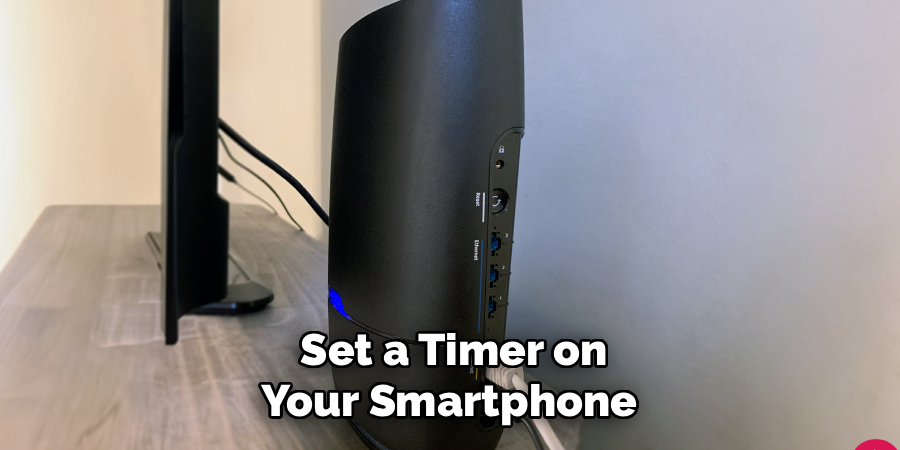
Set a timer on your smartphone or watch for at least 60 seconds. This one-minute waiting period allows the modem and router to fully power down and clear volatile memory. The capacitors inside the hardware lose their charge, ensuring a clean start when reconnected. Skipping this pause can lead to an incomplete reset, so patience is key for effective troubleshooting.
Step 8: Reconnect the Modem First
Plug your modem’s power cord back into the outlet and wait while it boots up. This process usually takes one to three minutes. Modern modems have indicator lights that show the status—wait until the “Online” or “Internet” light is solid green or blue. Proper startup of the modem is essential before turning the router back on, as the router depends on a live signal from the modem to broadcast Wi-Fi.
Step 9: Reconnect the Router
Once your modem indicates an active connection, reconnect the router power cord to the outlet or press the power button. If you previously turned off a power button, make sure to turn it back to the ON position. The router’s lights should blink as it boots. This process may take up to three minutes, and the lights will usually become steady once the device is fully online.
Step 10: Verify Your Connection
After both devices have powered up, use a phone, tablet, or computer to check for Wi-Fi or wired internet connectivity. Look for your network name, connect to it, and try visiting a website or streaming a short video. If all your devices are able to reconnect and there are no warning lights on your hardware, you have successfully powered off and restarted your Spectrum router. If issues persist, repeat the process or consult Spectrum support for further troubleshooting.
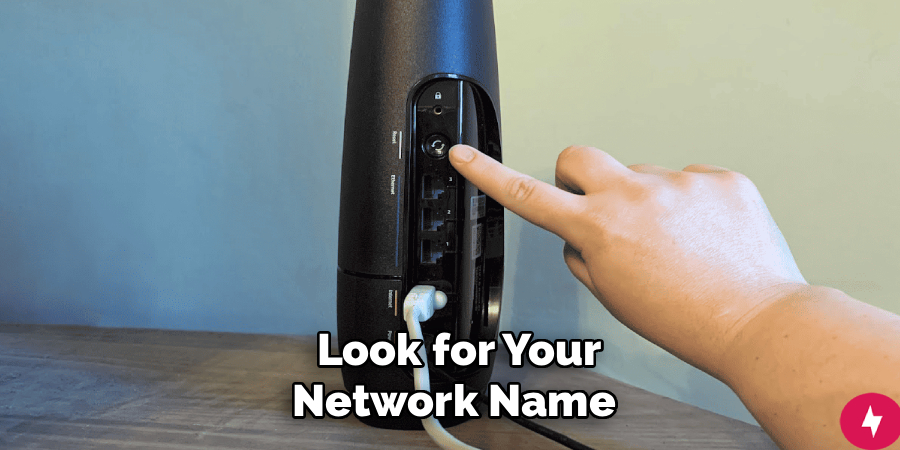
Follow these detailed instructions to safely and effectively manually shut down your equipment.
5 Things You Should Avoid
- Avoid pressing the small “Reset” button on the back of the router with a paperclip, as this deletes your custom Wi-Fi name and password.
- Avoid turning the router off and immediately back on without waiting the full 60 seconds, which prevents the memory from clearing properly.
- Avoid unplugging the coaxial cable (the thick, round wire with a metal tip) unless specifically instructed by a Spectrum technician.
- Avoid placing your router inside a closed cabinet or tight space after rebooting, as the device needs proper airflow to prevent overheating.
- Avoid unplugging the equipment if you see the lights flashing in a specific update pattern, as interrupting a firmware download can corrupt the device.
Frequently Asked Questions
- Will Turning Off My Router Reset My Wi-fi Password?
Turning off the power simply reboots the device without erasing your settings.
Your custom network name will remain the same as before.
Your current Wi-Fi password will also stay completely intact.
All of your devices will reconnect automatically once the signal returns.
You only lose your password if you use the factory reset pinhole button. - How Often Should I Reboot My Spectrum Equipment?
Network experts recommend rebooting your router once every couple of months.
You should also restart it anytime your internet speeds feel unusually slow.
Rebooting is the first step whenever your devices struggle to connect.
It helps keep the hardware running efficiently over long periods.
Regular manual restarts prevent minor software issues from building up. - What Should I Do if the Router Lights Do Not Come Back on?
First, check that the power outlet actually works by plugging in a lamp.
Make sure the power cord is pushed securely into the back of the router.
Examine the length of the power cable for any visible damage or kinks.
Try moving the router plug to a completely different room to test it.
If the device remains completely dark, call Spectrum for a replacement.
Conclusion
Manually turning off your Spectrum router provides a quick, reliable way to restore your internet performance. You do not need to navigate through complex menus or download any apps to maintain your network hardware.
By following these simple physical steps, you ensure your equipment receives necessary updates and clears out temporary bugs. Remember to wait the full 60 seconds before plugging everything back in, and your home network will stay fast and responsive for all your daily needs.
Hopefully, this guide on how to turn off Spectrum router has helped you understand the importance of regularly resetting your Spectrum router and how to do it correctly.

About
Alexis Kerr is a distinguished figure in the world of professional workspace optimization, with a decade of expertise creating innovative and ergonomic office environments. Her professional focus lies in merging organizational psychology with modern spatial design, fostering office setups that are both high-performing and employee-centric. As the lead author for Deskvity, Alexis Kerr delves into the art and science of corporate aesthetics and functionality, inspiring office managers and remote professionals alike.
Education Cornell University
(Ithaca, New York) Bachelor of Science in Design and Environmental Analysis Focus on human factors, workplace strategy, and sustainable interior environments. Gained extensive experience in how physical space influences productivity and mental clarity.
Savannah College of Art and Design (SCAD)
(Savannah, Georgia) Master of Fine Arts in Interior Design Specialized in commercial workspace solutions with a focus on blending digital integration with physical comfort. Participated in high-level industry projects to refine the balance between corporate branding and architectural utility.
Publications and Impact
In Deskvity, Alexis Kerr shares her insights on modern workspace trends, acoustic management, and strategies for efficient layout planning. Her writing bridges the gap between high-level architectural theory and practical day-to-day office needs, making it a must-read for both facility directors and individual professionals looking to elevate their work environment.